Patching VMware Cloud Foundation 9.1.1, Part 2: NSX, vCenter, and ESX
Part 1 covered the management plane. This part moves on to the core components.
Planning the component upgrade
I planned NSX Manager, vCenter, and ESX in the same component upgrade plan as SDDC Manager in Part 1, so there was nothing to plan again for the management domain.
The vcf-w01 workload domain got a plan of its own, and I created it the same way I did for the management domain in Part 1. The prechecks came back with 0 errors and 0 warnings. From there it was the same workflow: I ran NSX Manager, vCenter, and ESX for vcf-w01 just like I did for vcf-m01, and I assigned the same ESX image to the vcf-w01 cluster.
NSX Manager
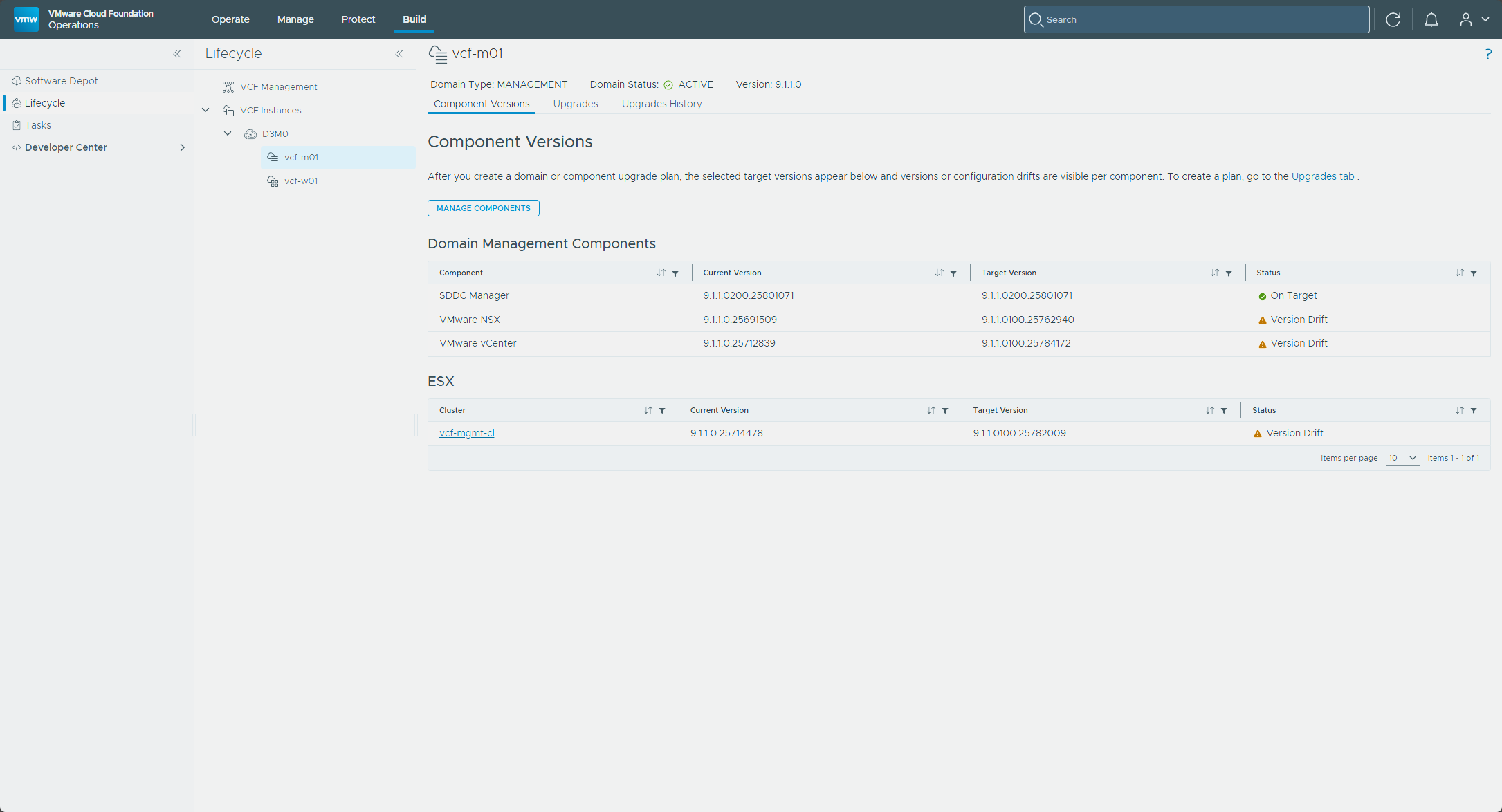
Before touching anything, I opened the vcf-m01 domain under Build → Lifecycle and checked the Component Versions tab. NSX, vCenter, and the ESX cluster all showed Version Drift against their 9.1.1.0100 targets, and SDDC Manager was On Target after Part 1.
On the Upgrades tab, the plan puts NSX Manager first in the sequence. I re-ran the prechecks before the upgrade, and the report came back with 0 errors and 0 warnings.
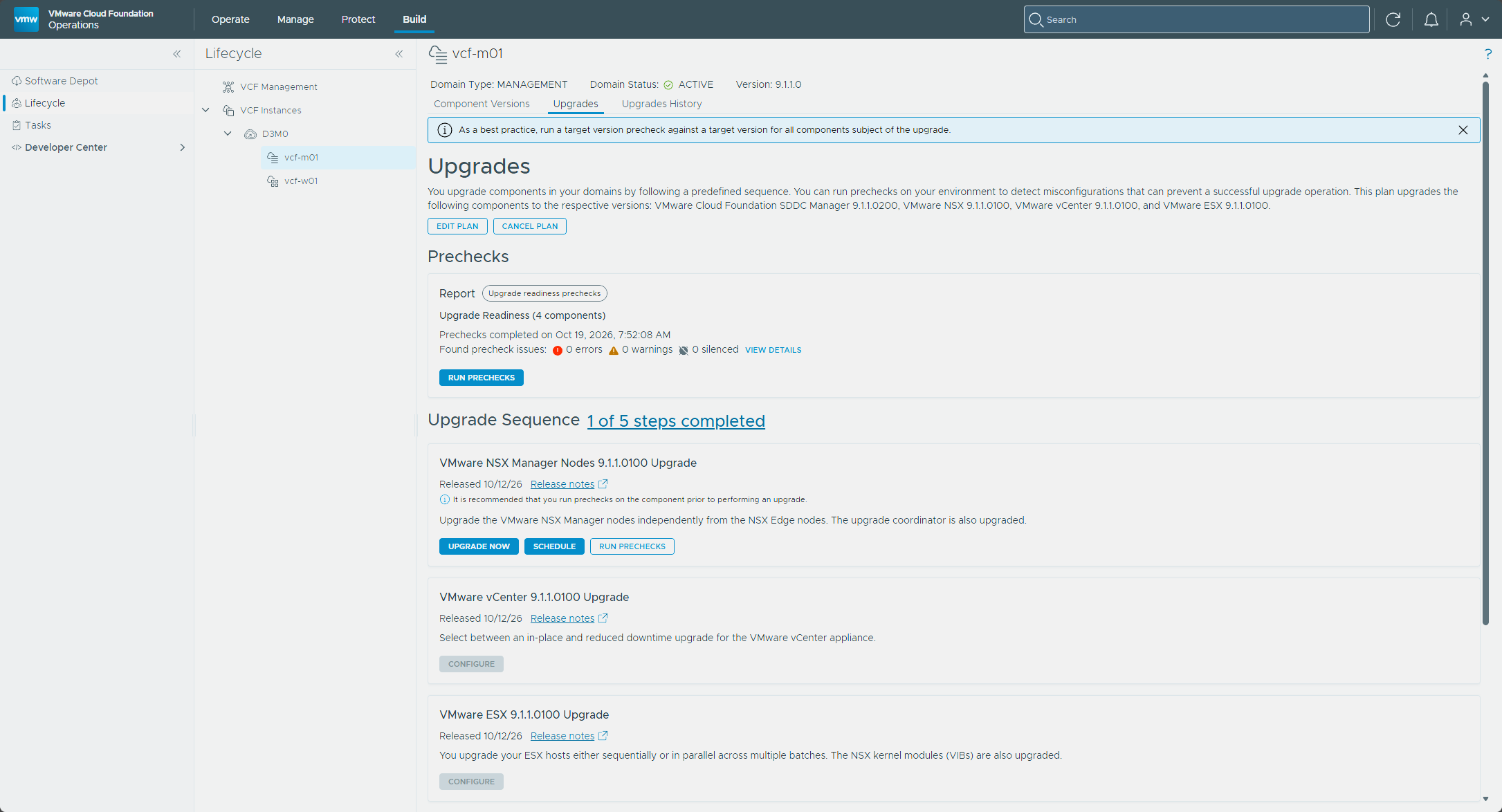
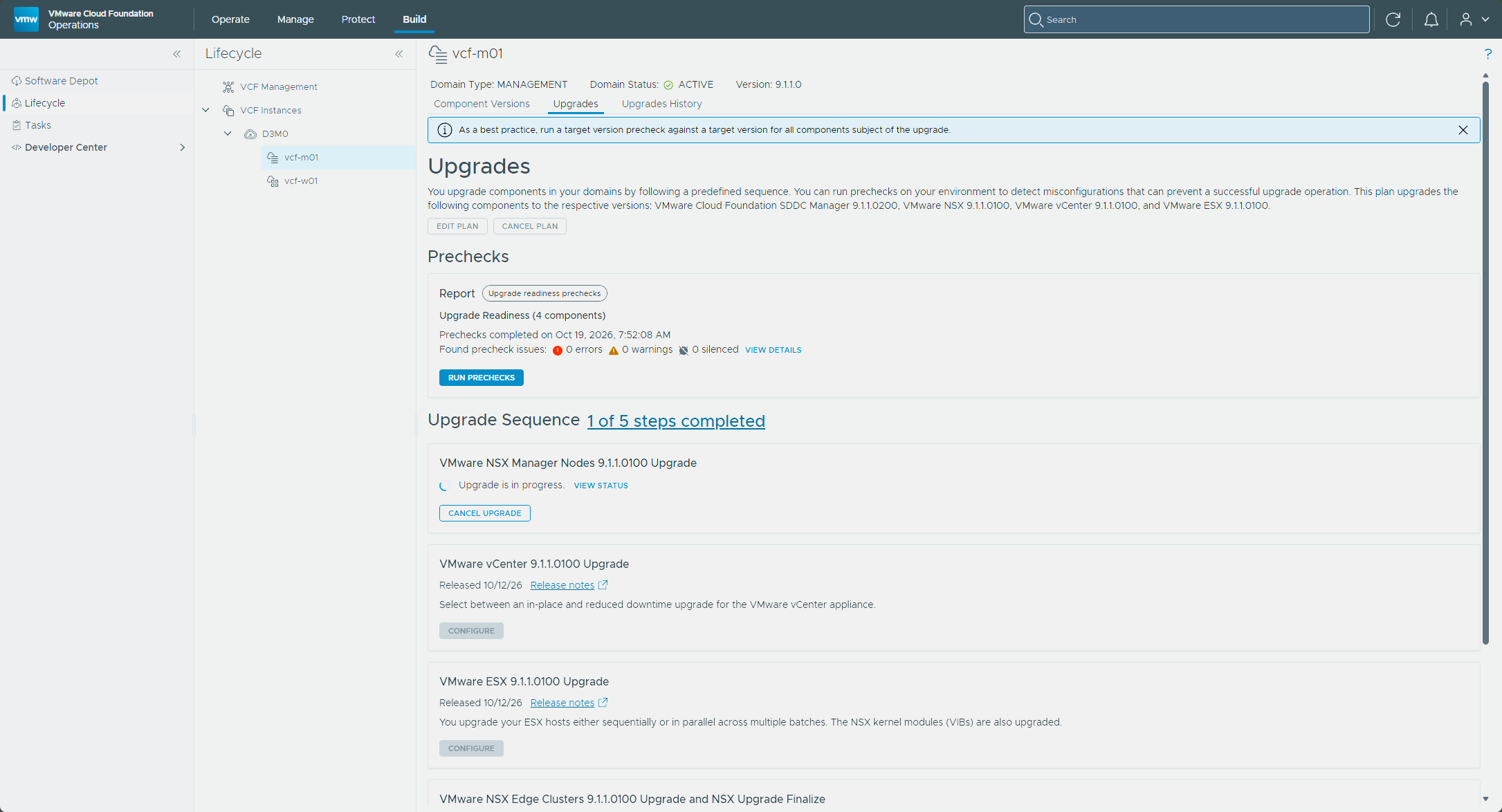
The NSX Manager Nodes tile offers Upgrade Now, Schedule, and Run Prechecks, and notes that the upgrade coordinator is upgraded along with the nodes. I clicked Upgrade Now, and the tile switched to “Upgrade is in progress.”
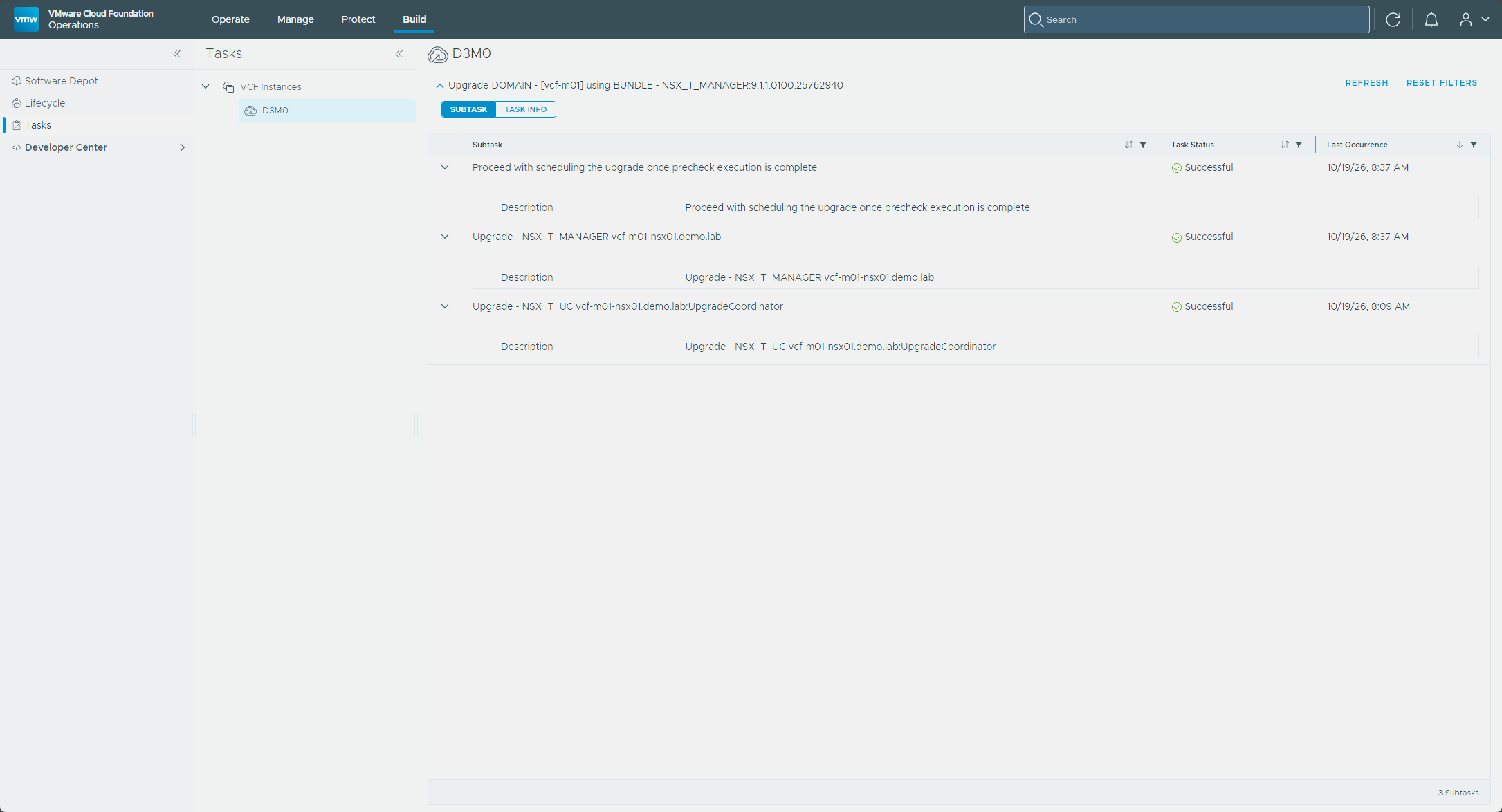
When it finished, the Tasks page for the domain showed the upgrade coordinator and the NSX Manager upgrade subtasks both Successful.
Back on the Upgrades tab the sequence read “2 of 5 steps completed,” and the vCenter tile’s Configure button was available.
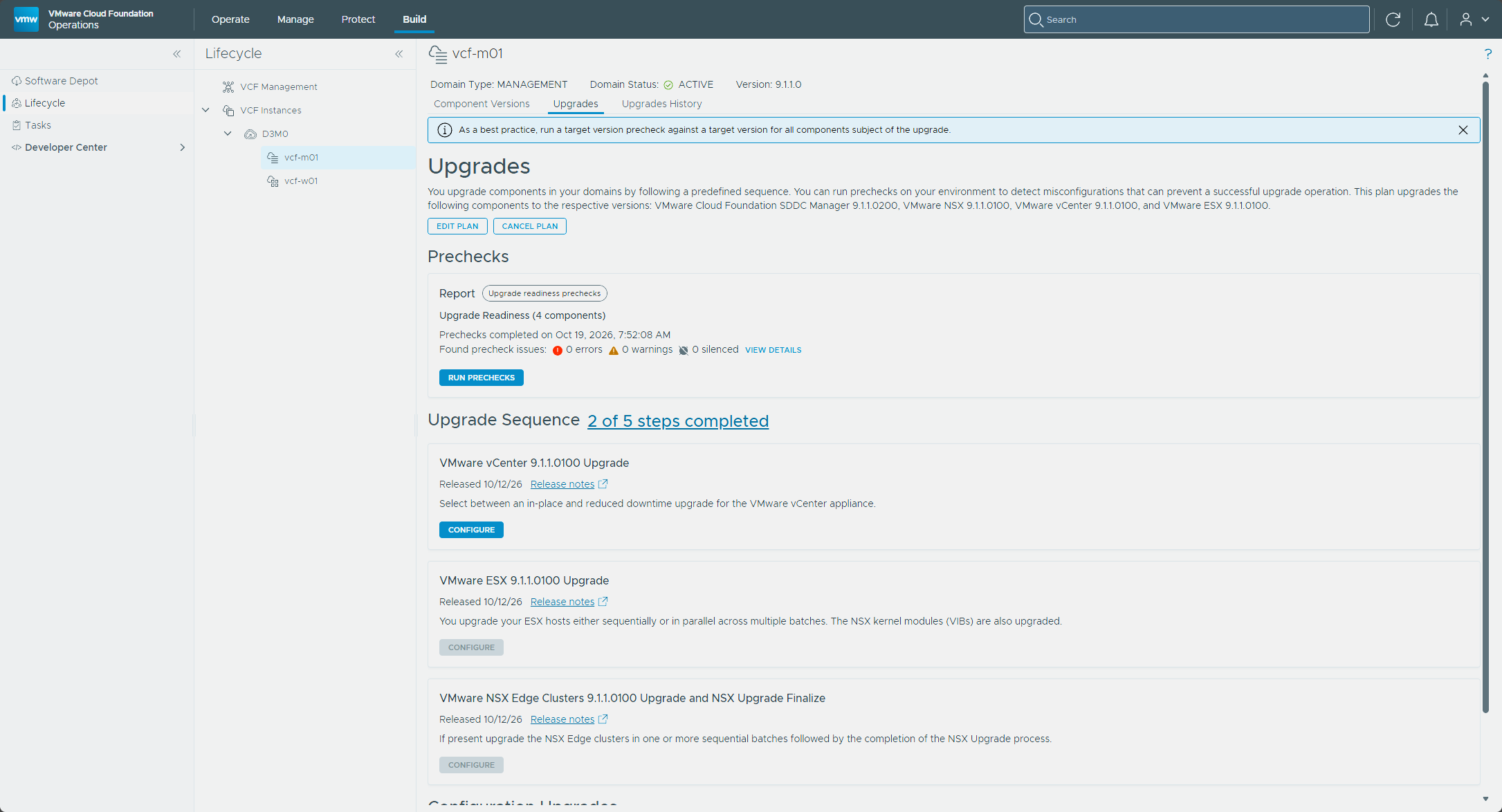
vCenter
The vCenter tile asks you to choose between an in place upgrade and a reduced downtime upgrade. I clicked Configure and chose the in place upgrade. The wizard then asked me to confirm that I had backed up the vCenter server before it would let me continue. I have vCenter backups configured on a schedule, so I confirmed it, and the review page listed the mechanism and that confirmation.
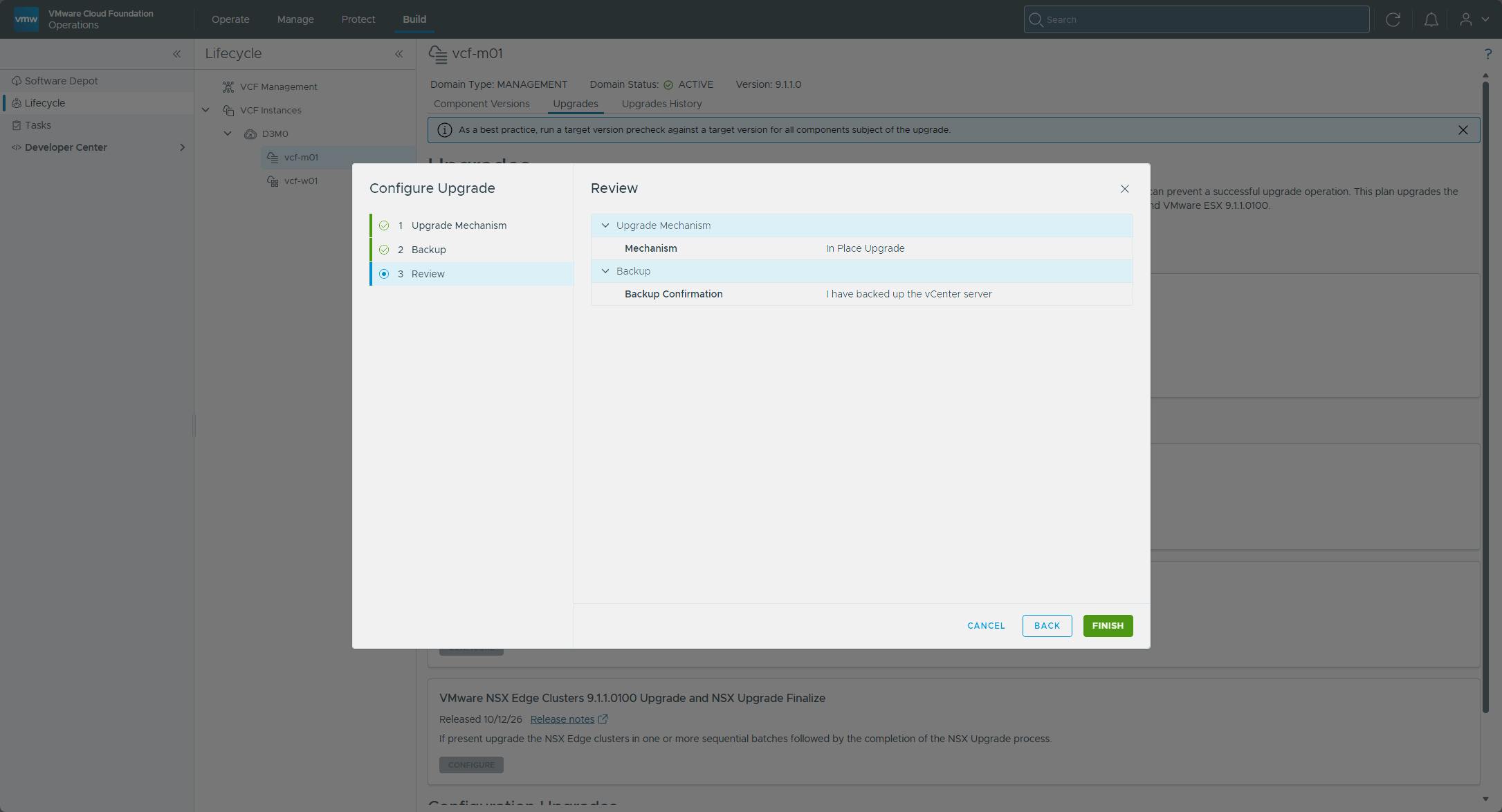
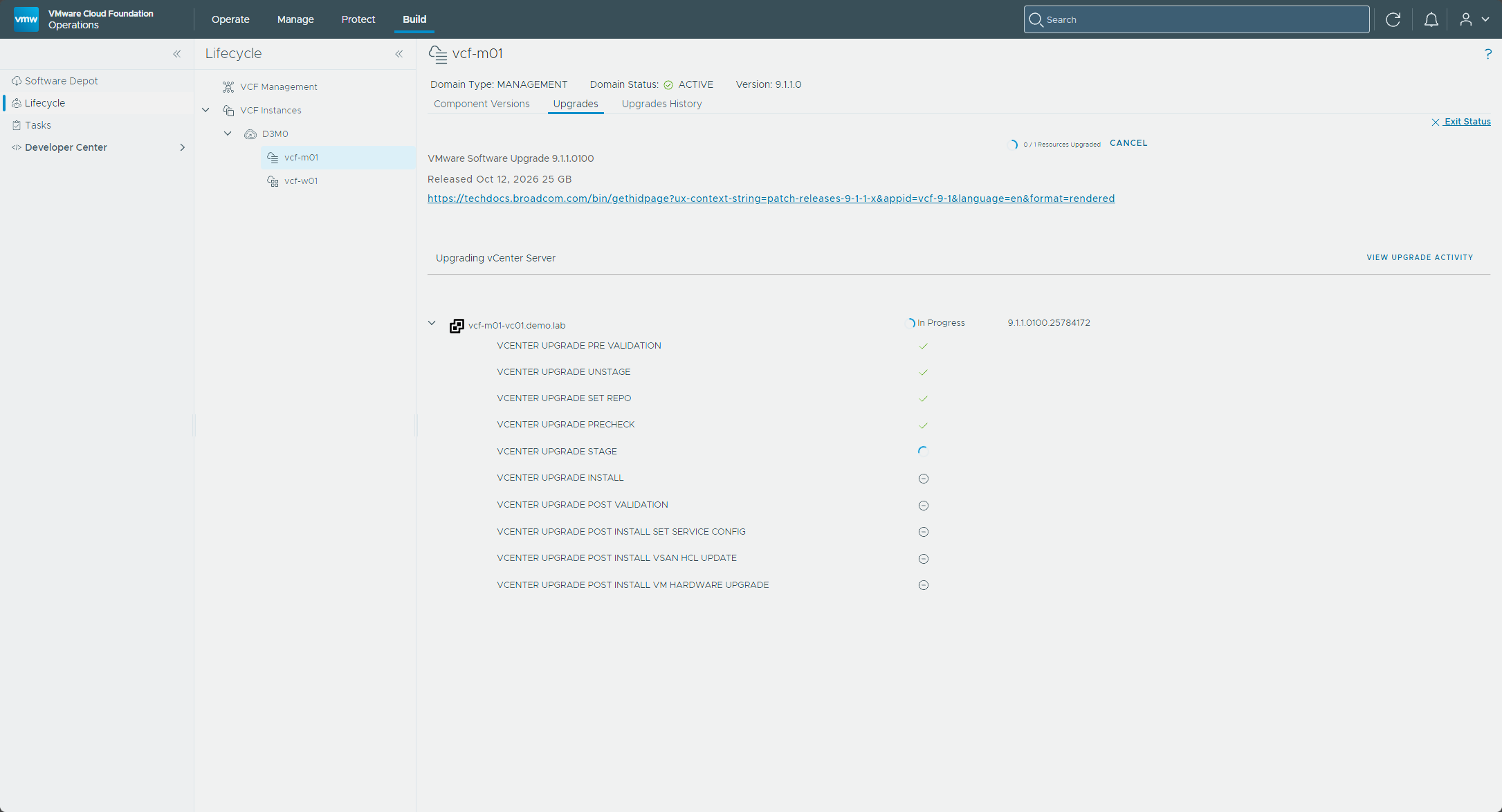
I clicked Finish, and then Upgrade Now, and the progress view walked through the vCenter upgrade steps for vcf-m01-vc01.demo.lab, from pre validation through staging and install to the post install tasks.
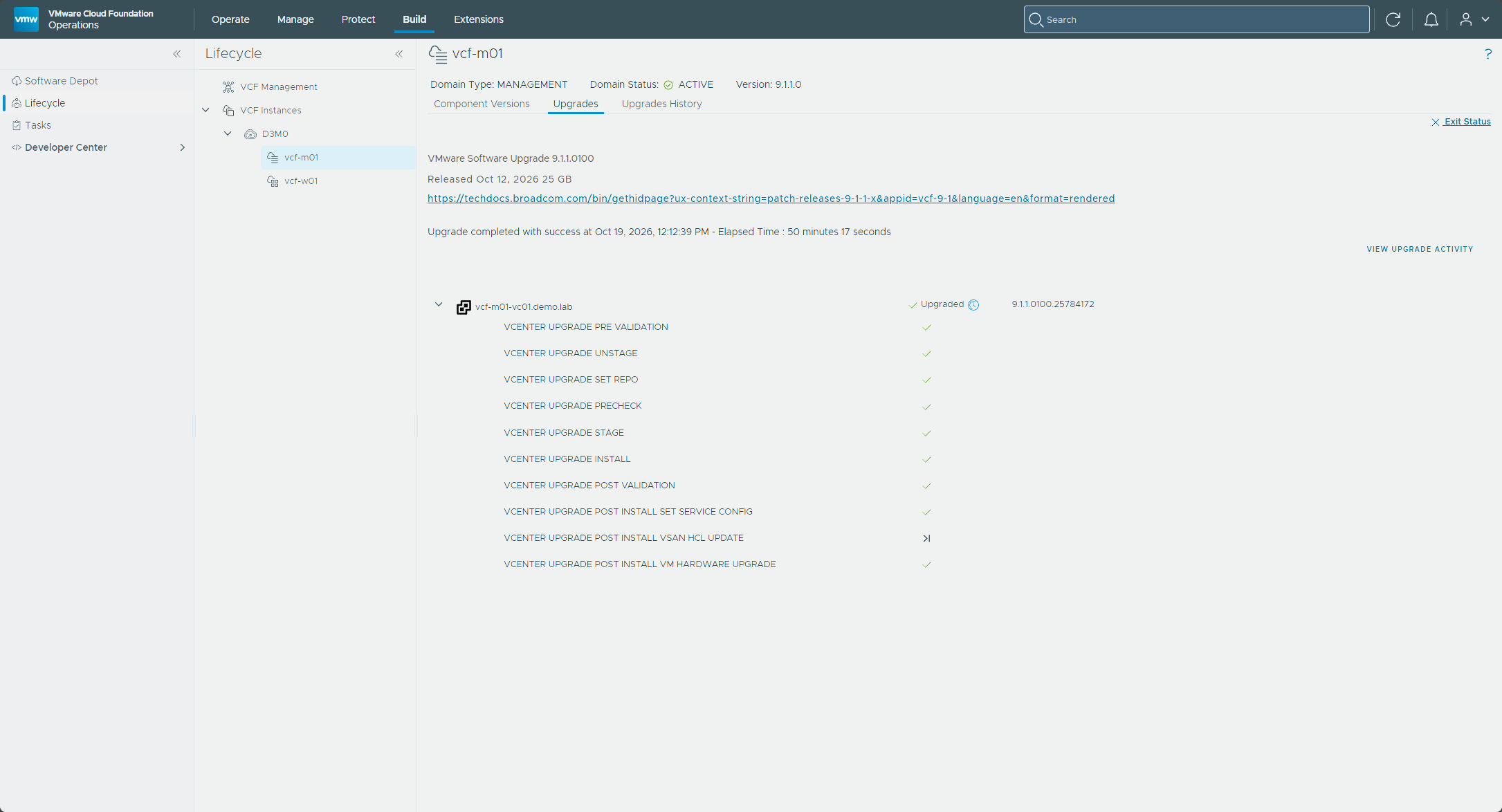
When it finished, vcf-m01-vc01 showed Upgraded on 9.1.1.0100.25784172.
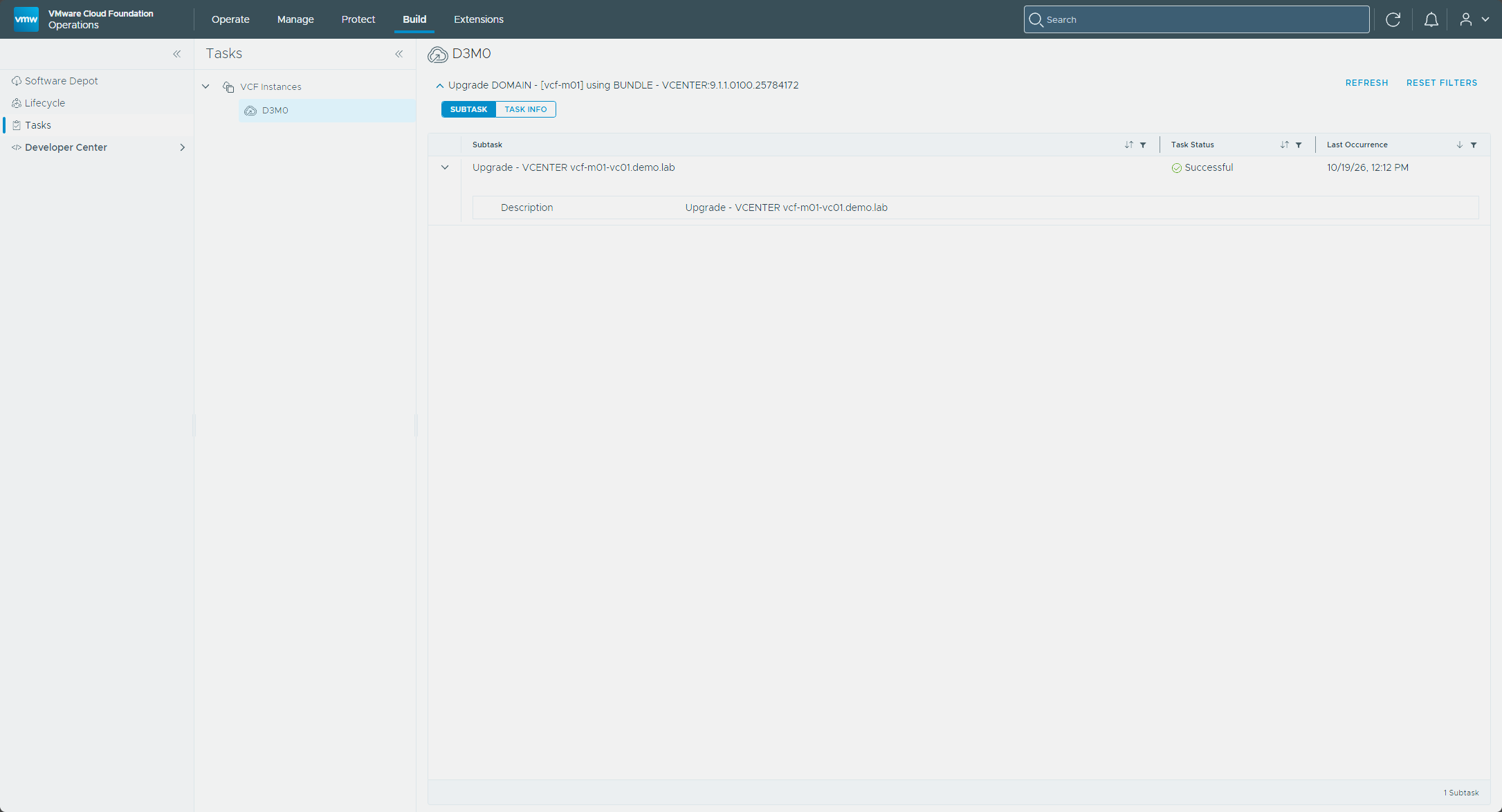
The Tasks page showed the vCenter upgrade as Successful.
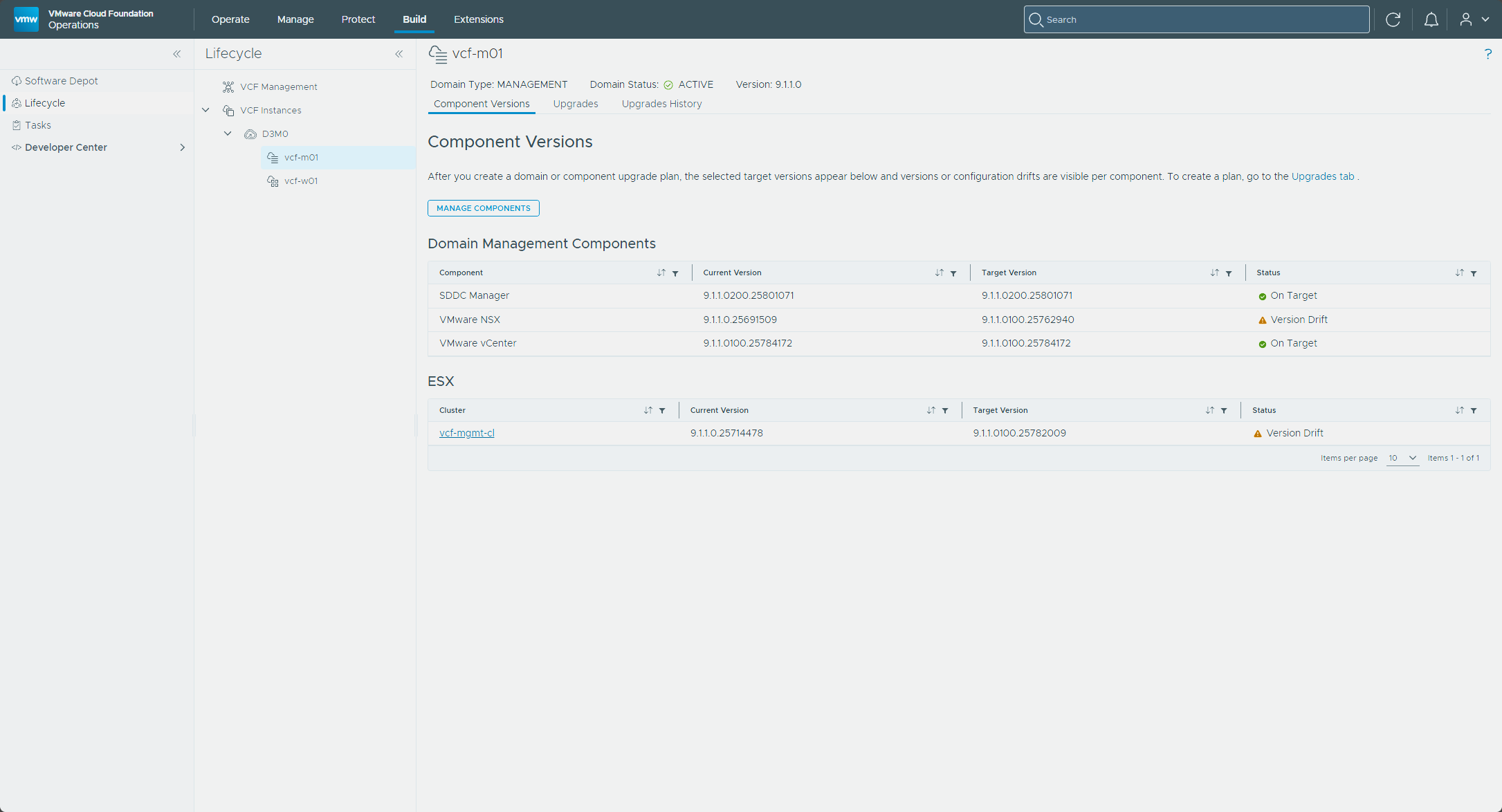
On the Component Versions tab, vCenter now read On Target at 9.1.1.0100.25784172.
ESX
ESX hosts can only be patched once the VCF Operations instance and the license servers connected to it are patched (Lifecycle Management of VCF Components). The ESX 9.1.1.0100 release notes list it as live-patchable with no host reboot required.
Create and import the image
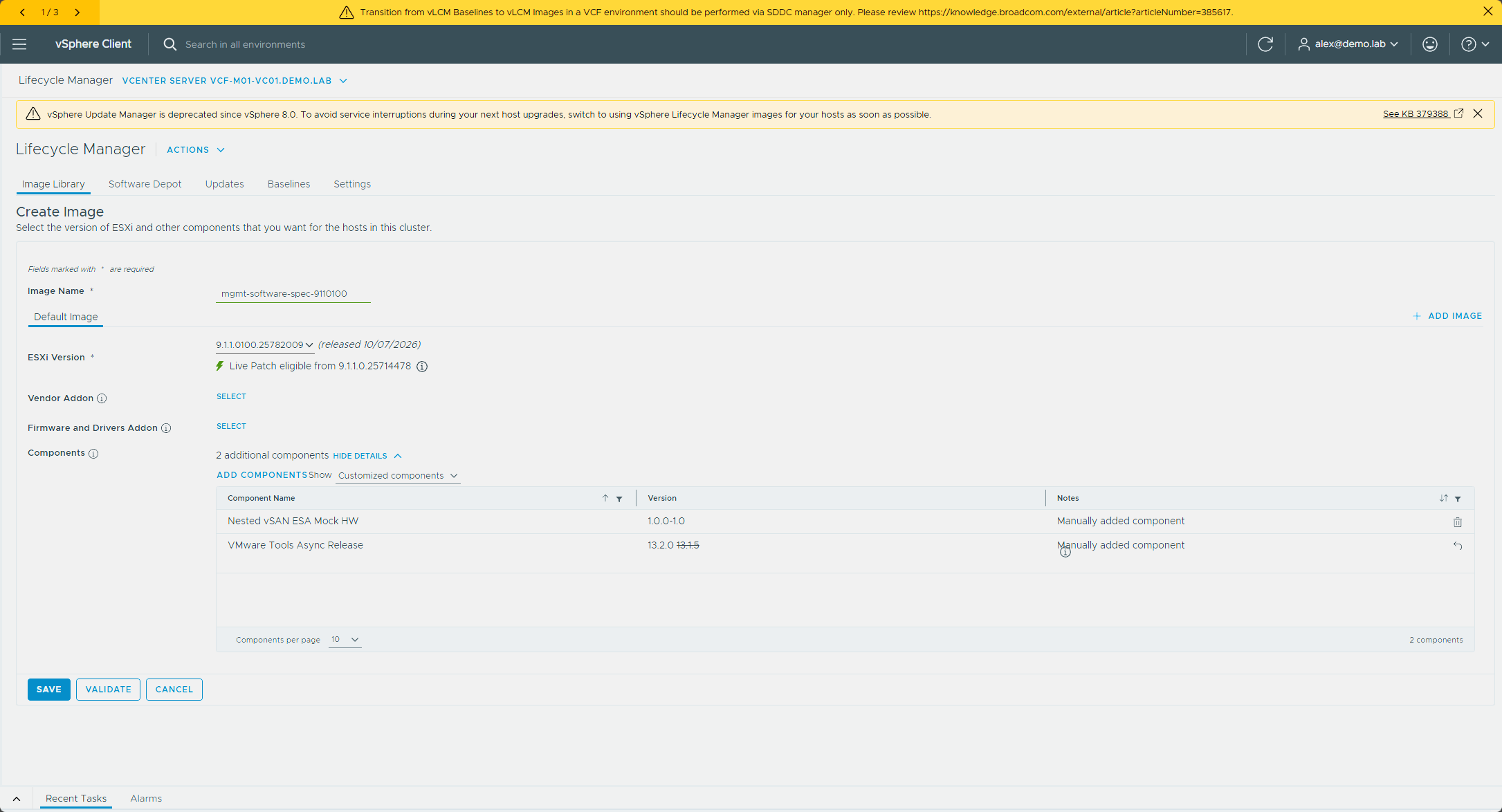
I started in the vSphere Client with Lifecycle Manager → Image Library → Create Image. I named the image mgmt-software-spec-9110100 and picked ESXi version 9.1.1.0100.25782009, which the form flagged as Live Patch eligible from the build the hosts were on. I added the Nested vSAN ESA Mock HW component again and changed the VMware Tools Async Release component from 13.1.5 to 13.2.0 on purpose. I validated the image before saving it.
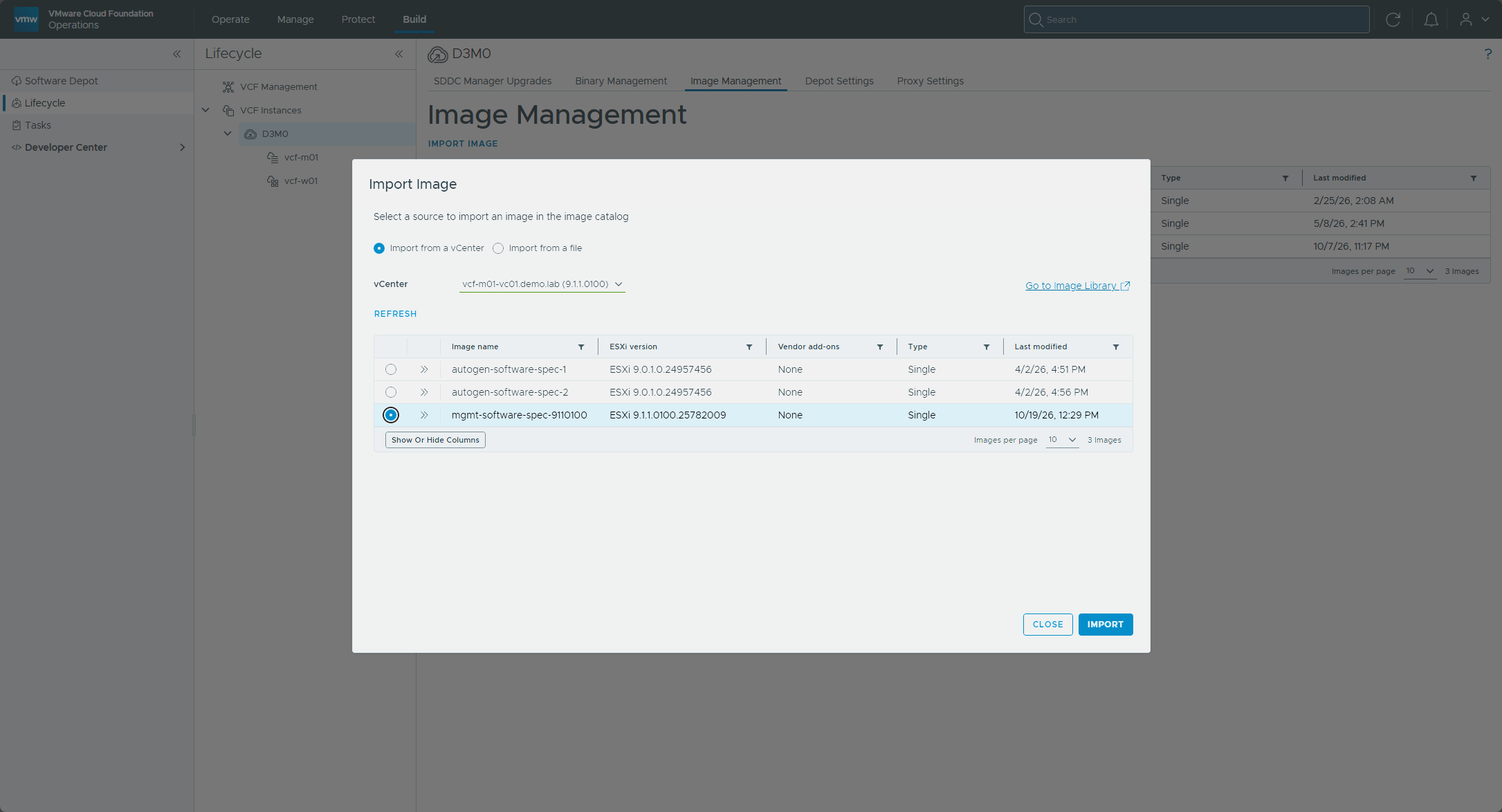
In VCF Operations, I opened Build → Lifecycle, selected the VCF instance, and opened Image Management. I clicked Import Image, chose Import from a vCenter, picked vcf-m01-vc01.demo.lab and the new image, and clicked Import.
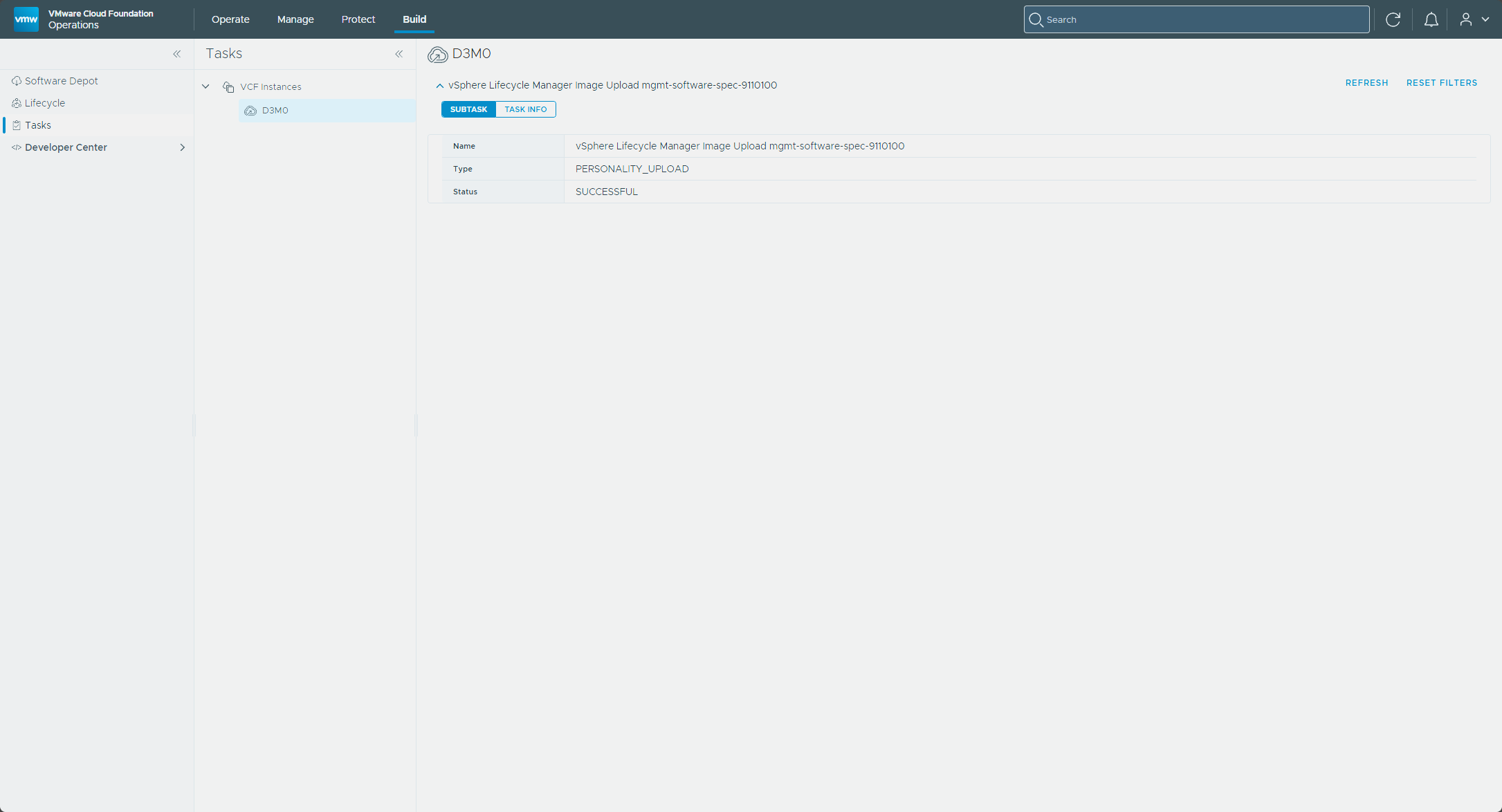
The Tasks page showed the “vSphere Lifecycle Manager Image Upload” task as successful.
Configure and run the upgrade
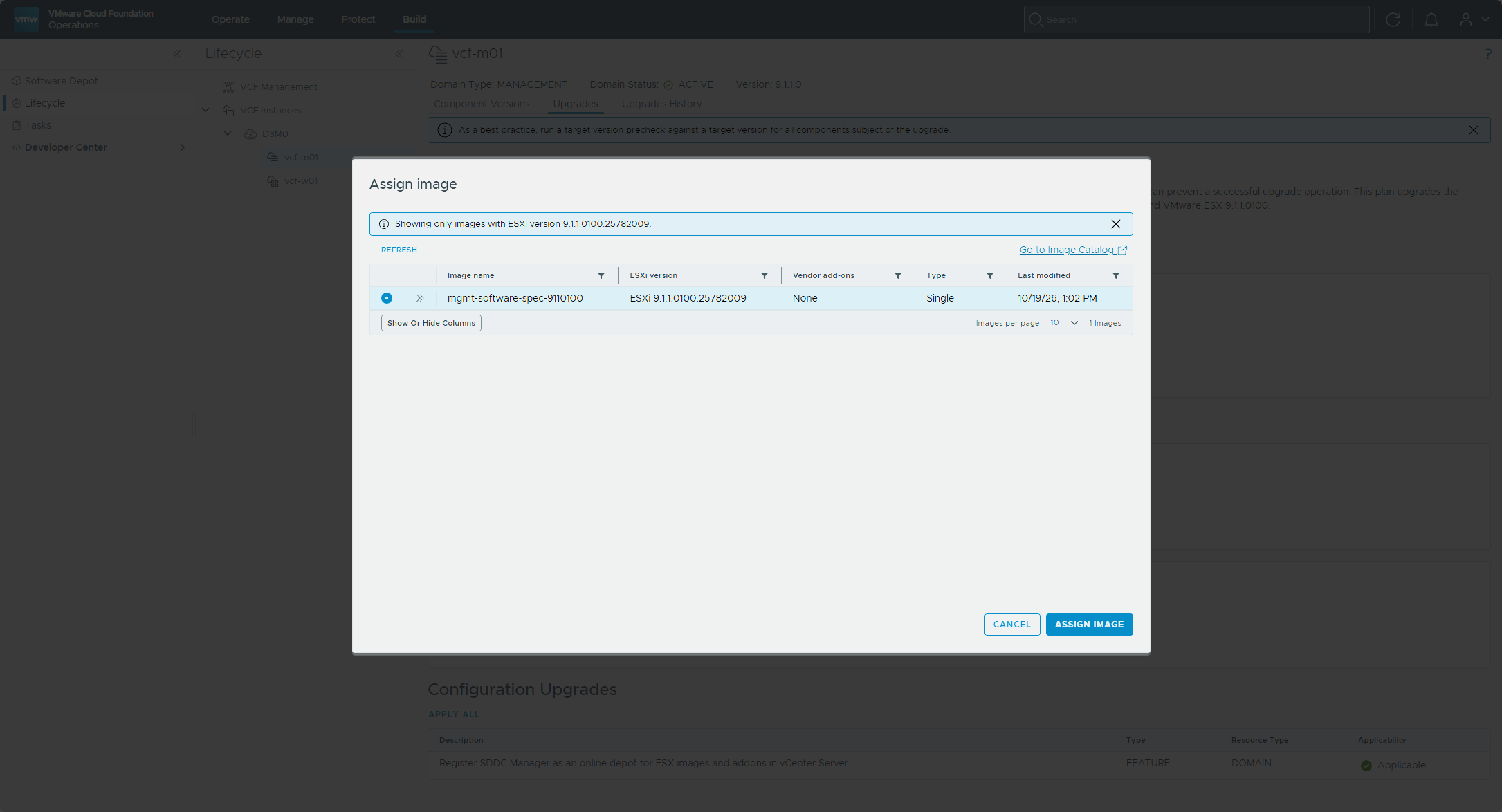
I clicked Configure on the ESX tile, selected the vcf-mgmt-cl cluster, and clicked Assign Image on the Assign Images to Clusters step. The dialog listed the imported image, and I selected it. It only shows images that match the plan’s target build.
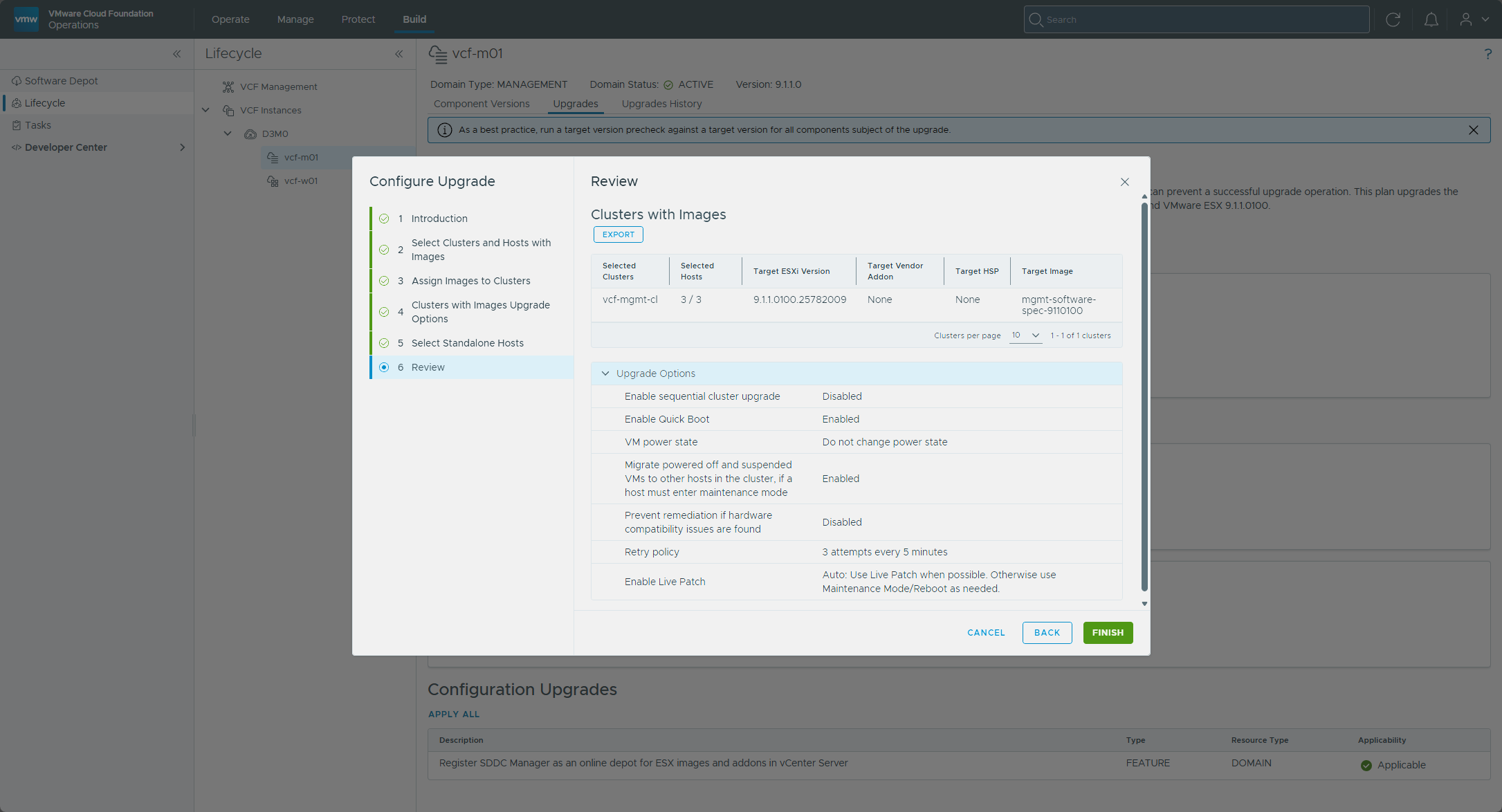
On the review page, Enable Live Patch was set to Auto, so the hosts use Live Patch when they can and fall back to maintenance mode and a reboot when they can’t.
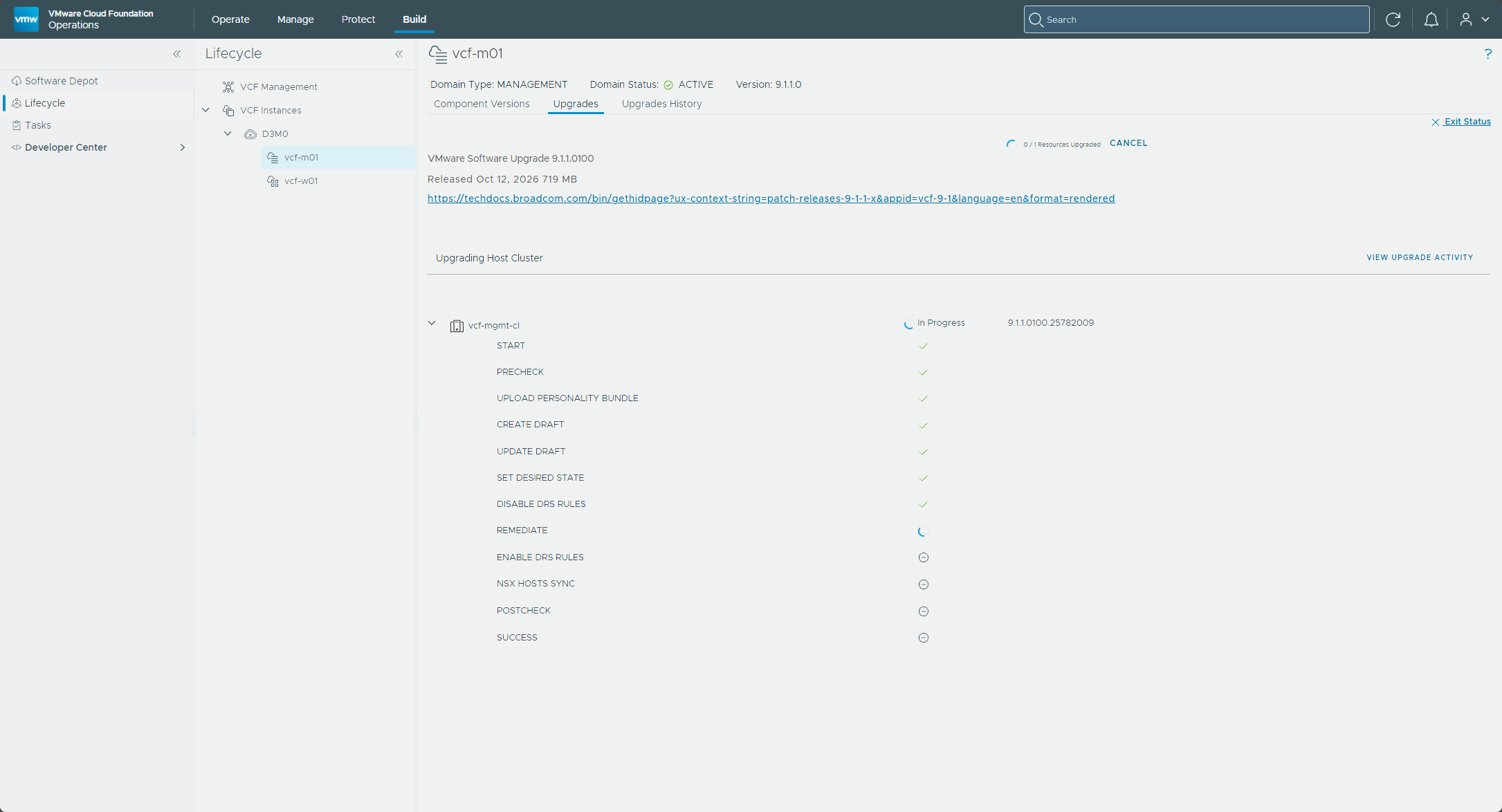
With the batch configured, Upgrade Now started the progress view for vcf-mgmt-cl, which worked through the cluster steps, from the precheck and the personality bundle upload to creating the draft, setting the desired state, and remediating.
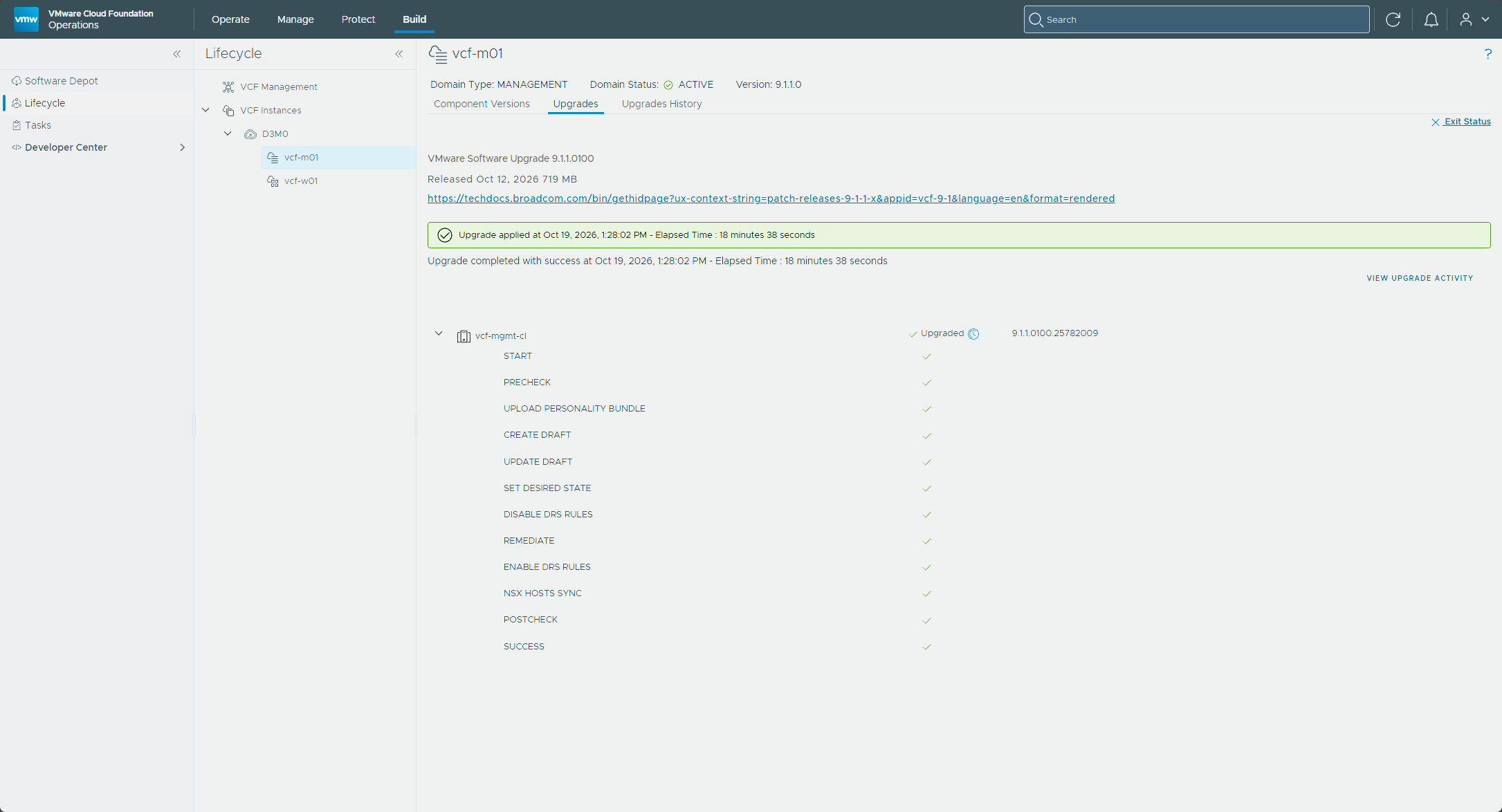
When it finished, vcf-mgmt-cl showed Upgraded on 9.1.1.0100.25782009 with every step checked.
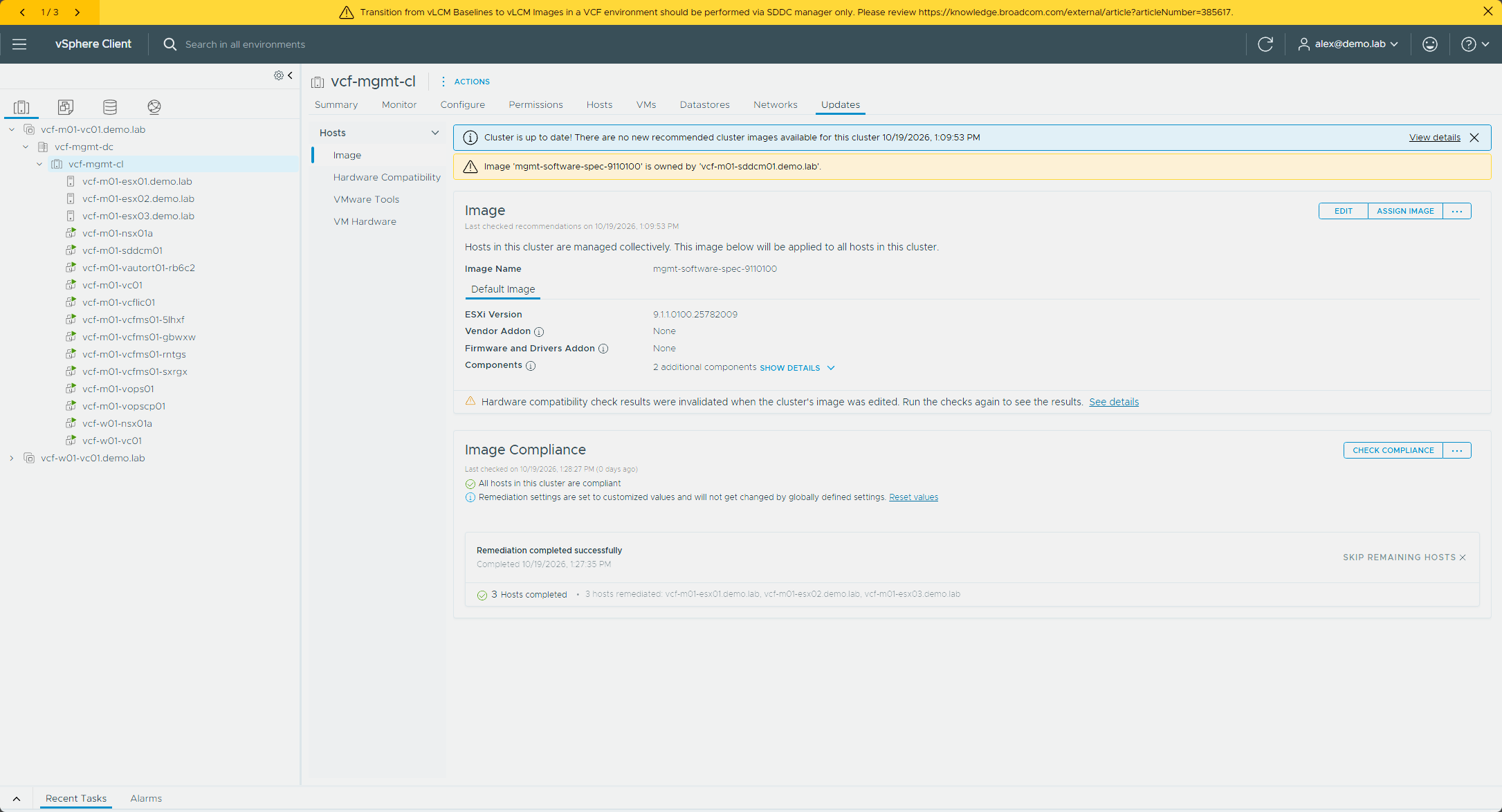
In the vSphere Client, the cluster’s Updates tab reported that remediation completed successfully for all three hosts, and every host in the cluster was compliant with the image.
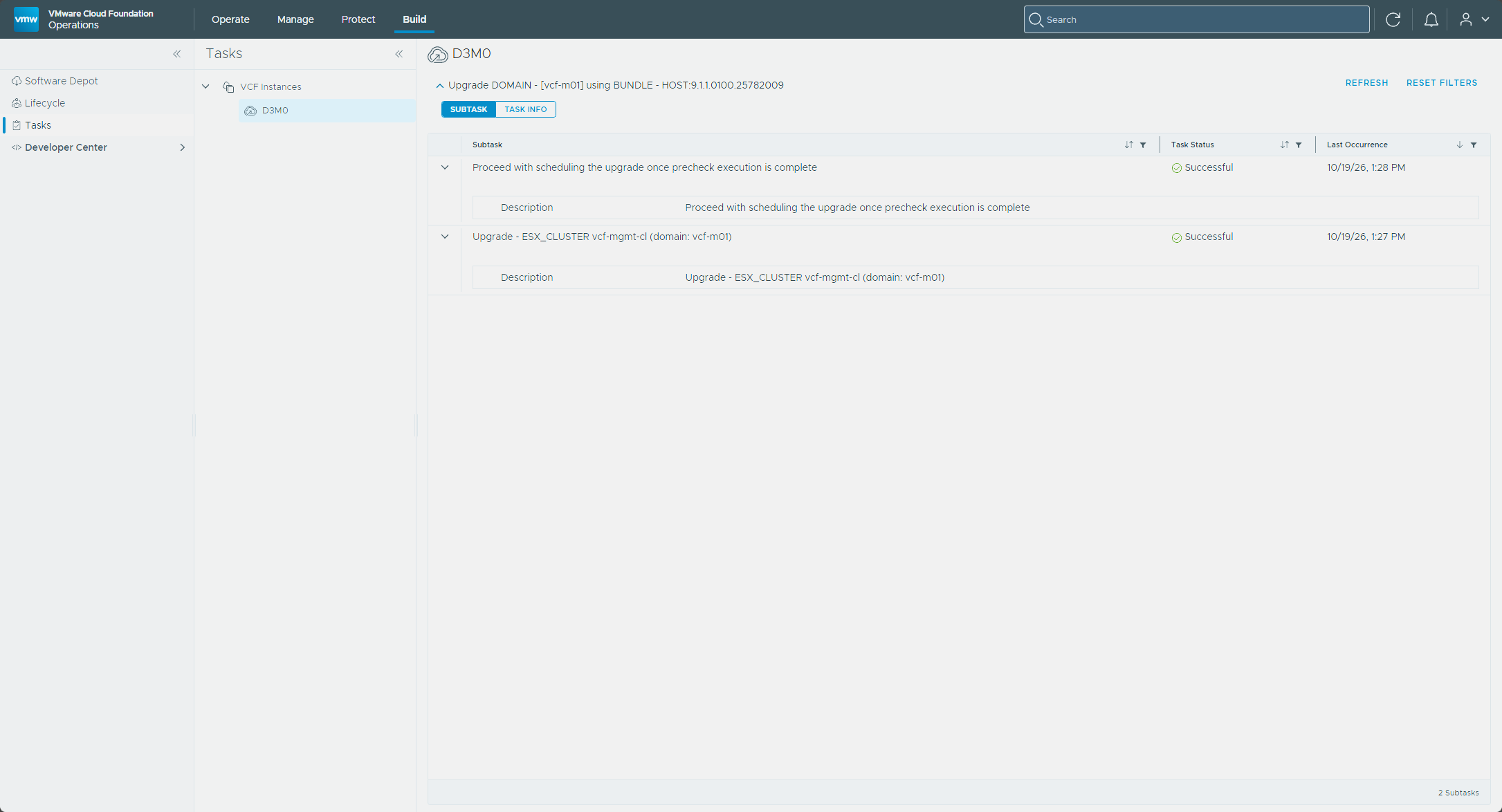
The Tasks page in VCF Operations showed the ESX cluster upgrade as Successful.
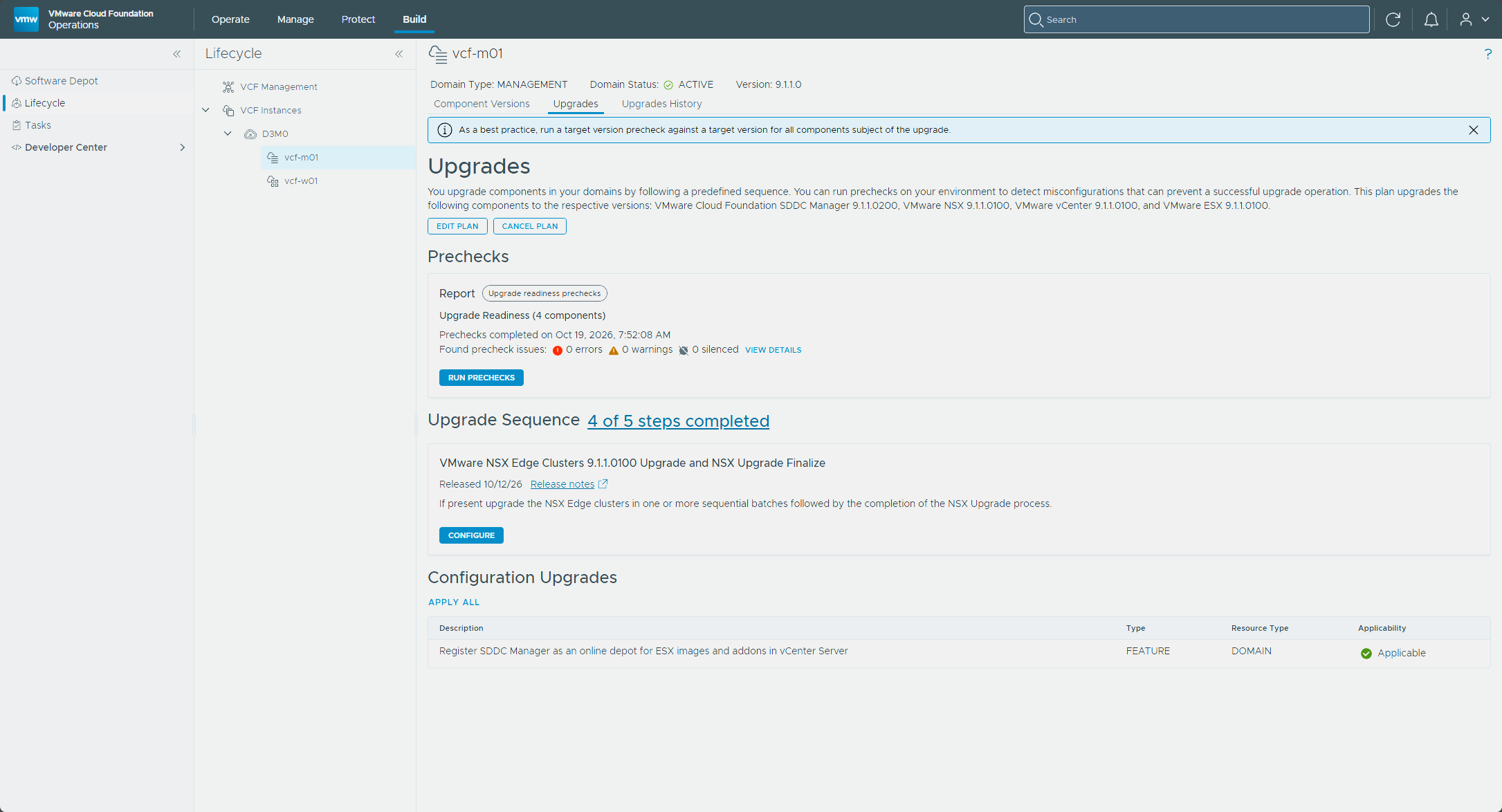
The Upgrades tab read “4 of 5 steps completed,” and the Configure button on the NSX Edge Clusters tile was available.
NSX Edge and finalize
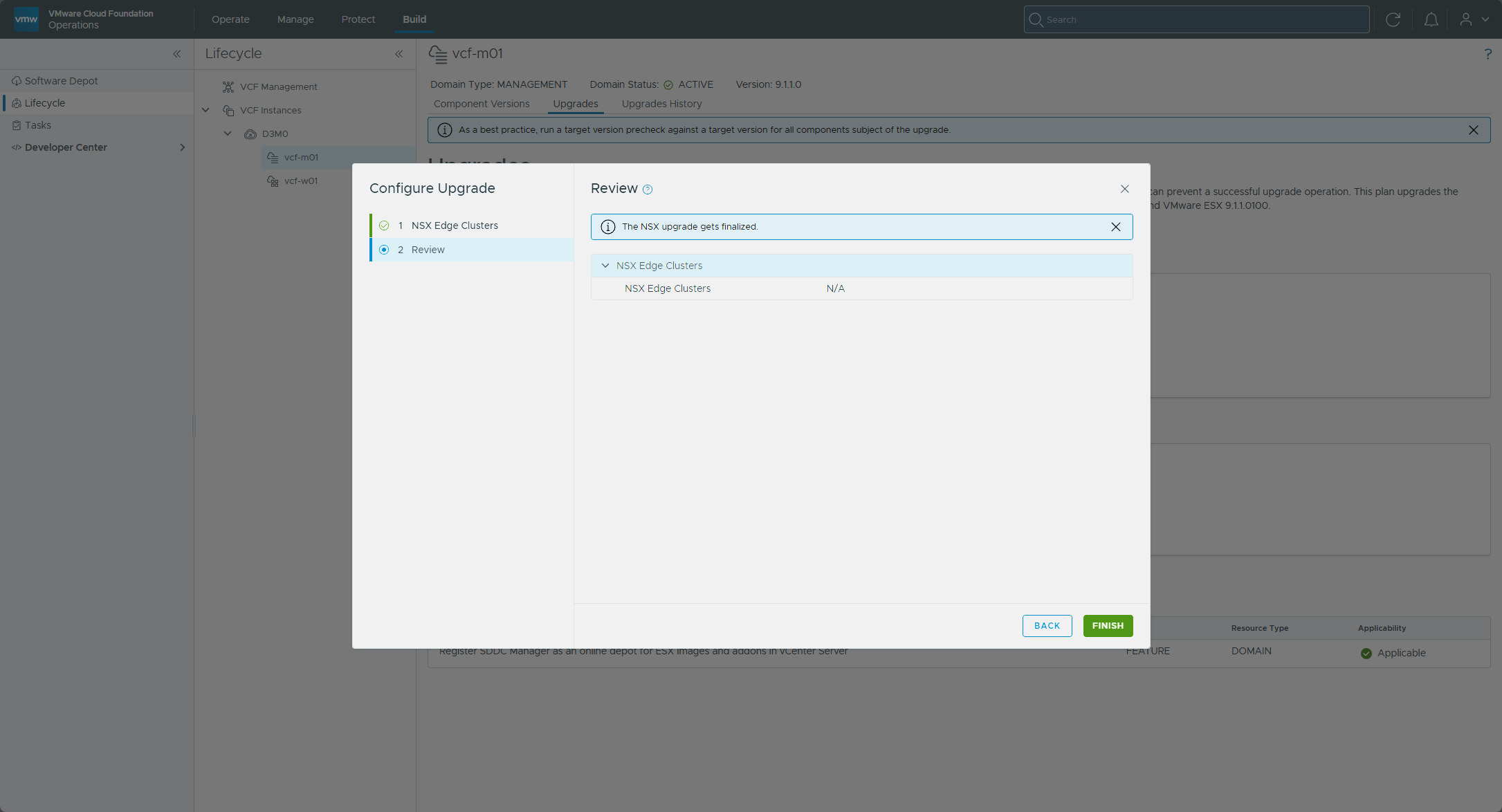
There are no NSX Edge clusters in my management domain, so the last step in the vcf-m01 sequence only finalizes the NSX upgrade. When I clicked Configure on the NSX Edge Clusters tile, the Review page listed NSX Edge Clusters as N/A and noted that the NSX upgrade gets finalized.
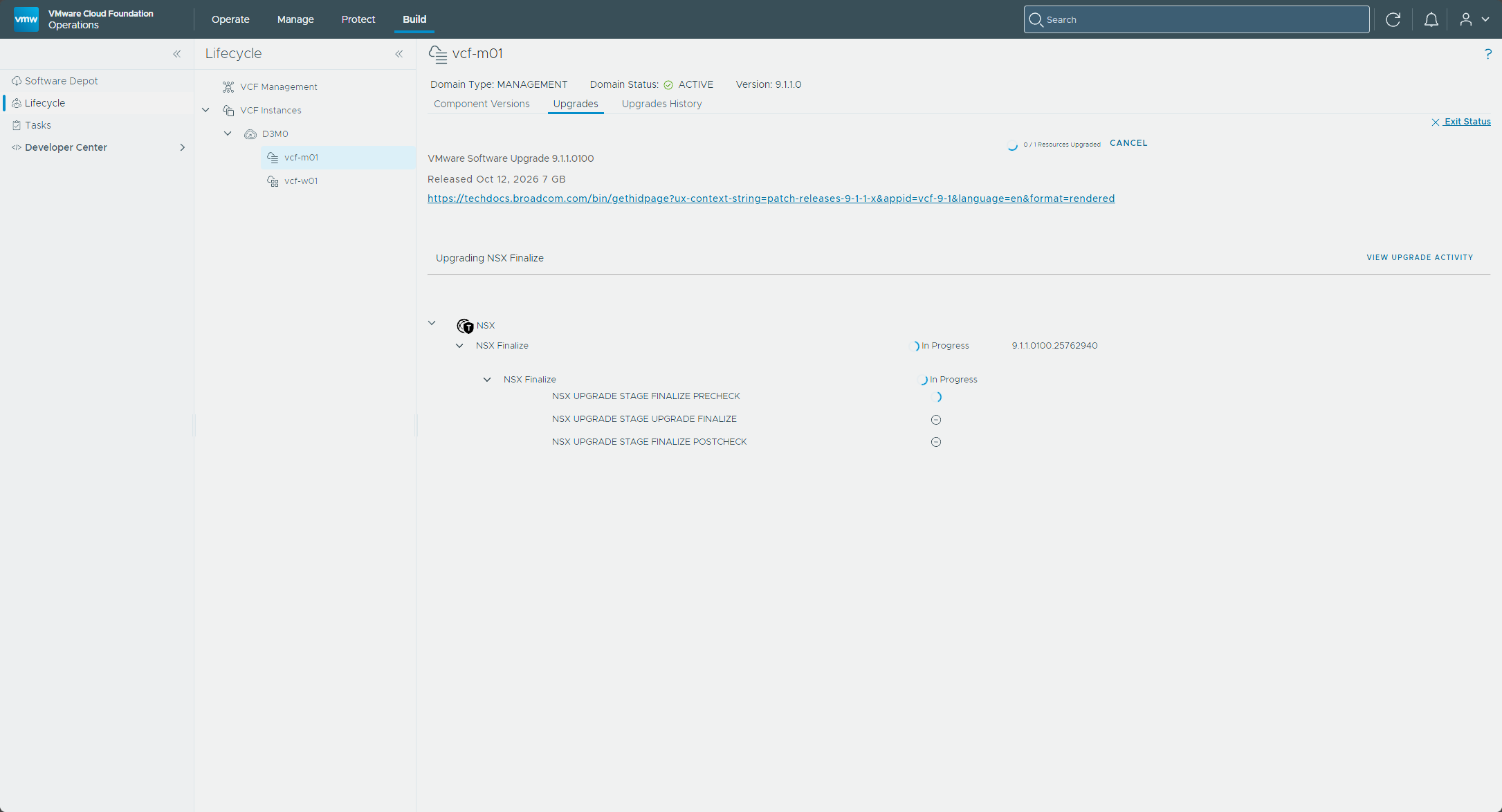
I ran it from the tile, and the progress view showed NSX Finalize working through its precheck, finalize, and postcheck stages.
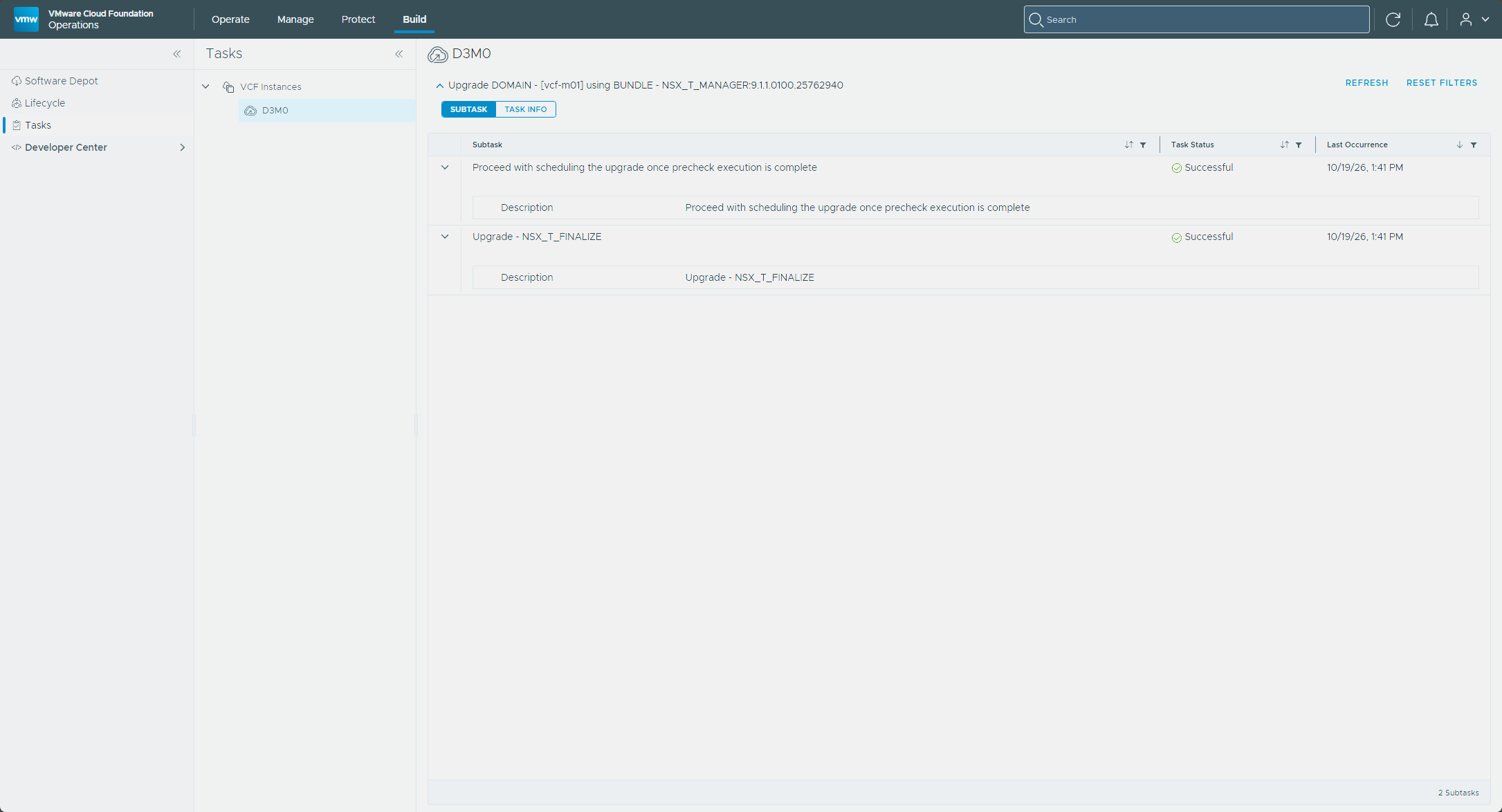
The Tasks page showed the NSX finalize upgrade as Successful.
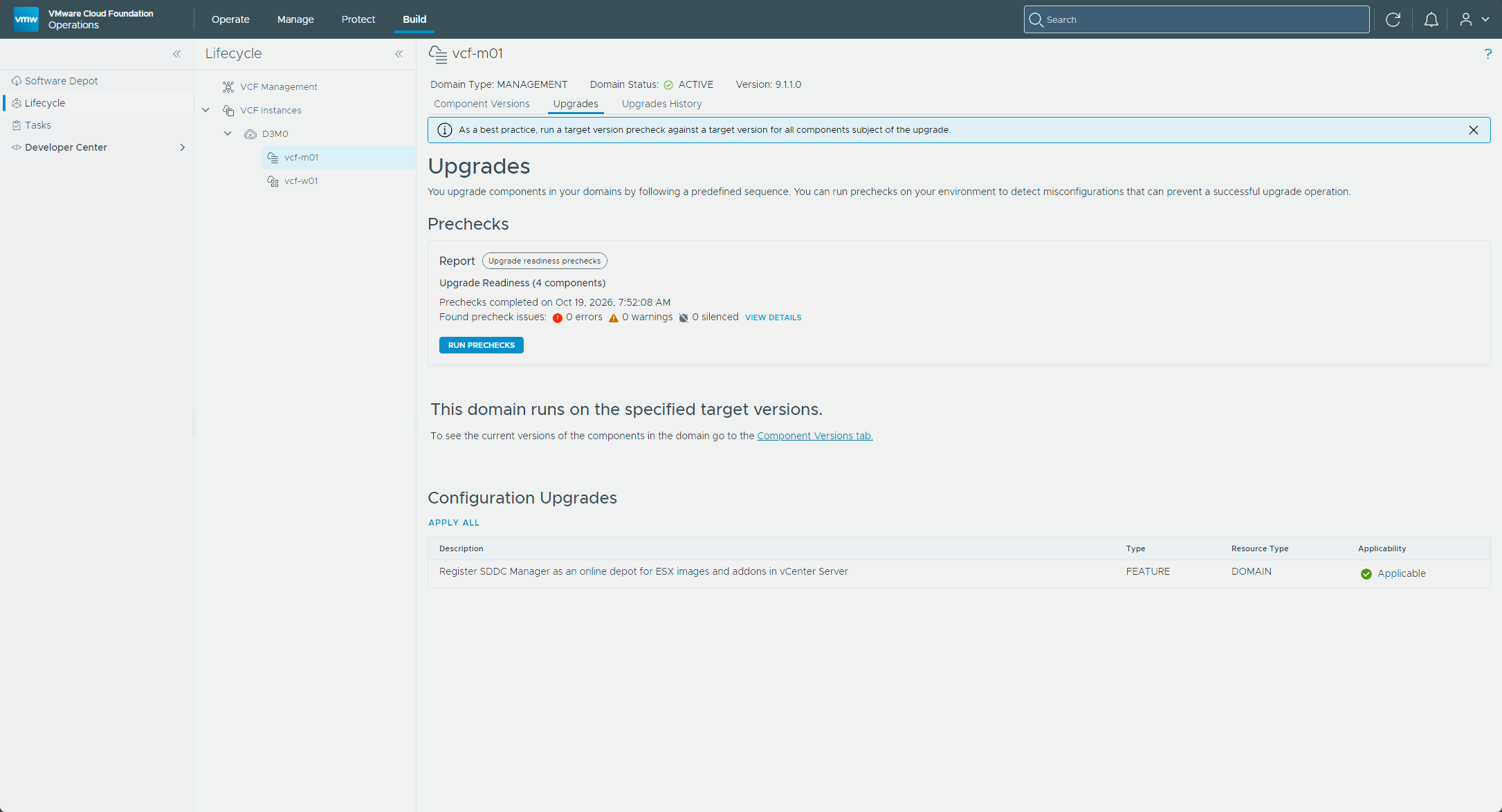
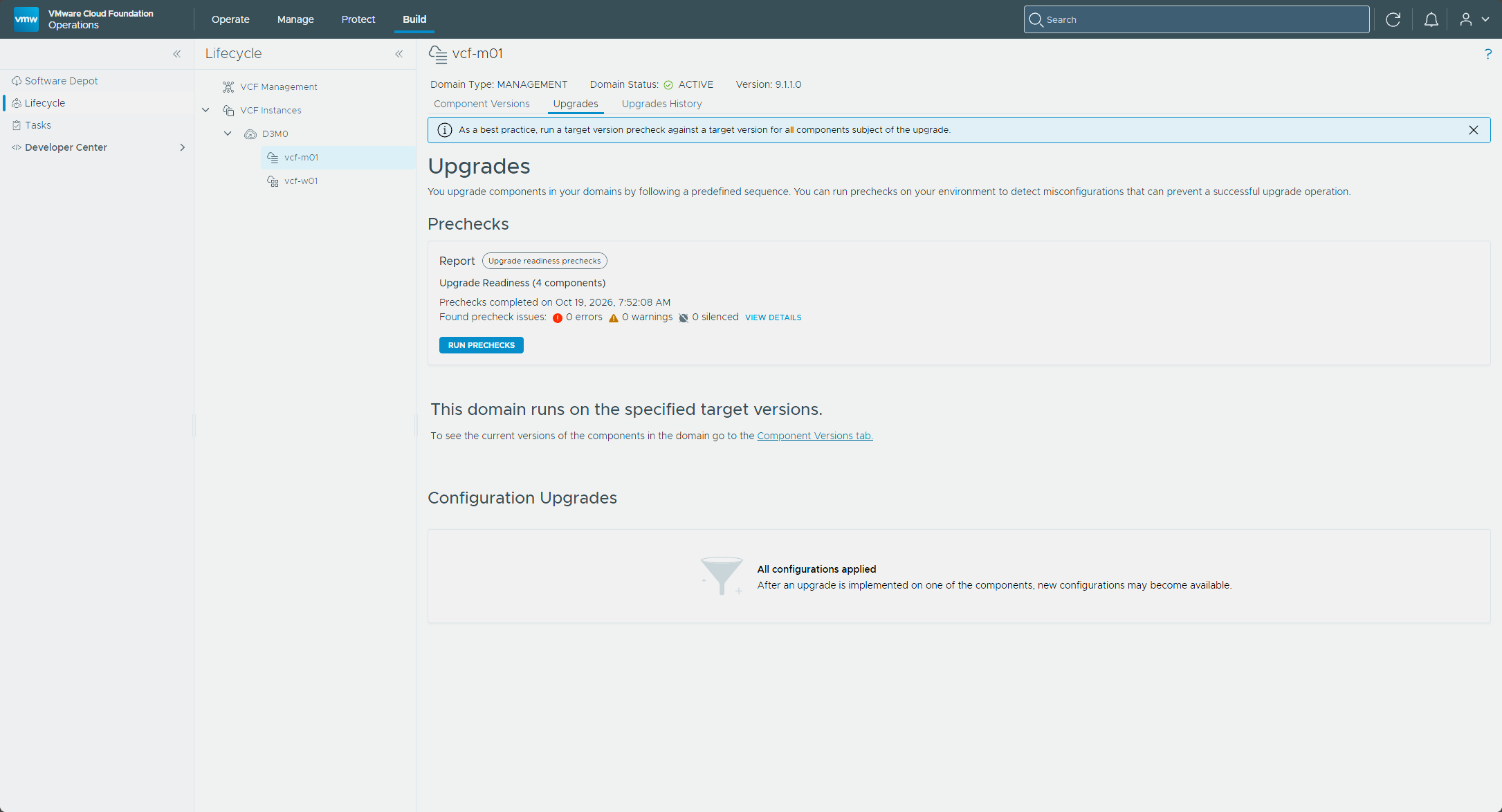
With that done, the Upgrades tab for vcf-m01 read “This domain runs on the specified target versions,” and the only thing left on the page was the list of configuration upgrades.
Configuration upgrades
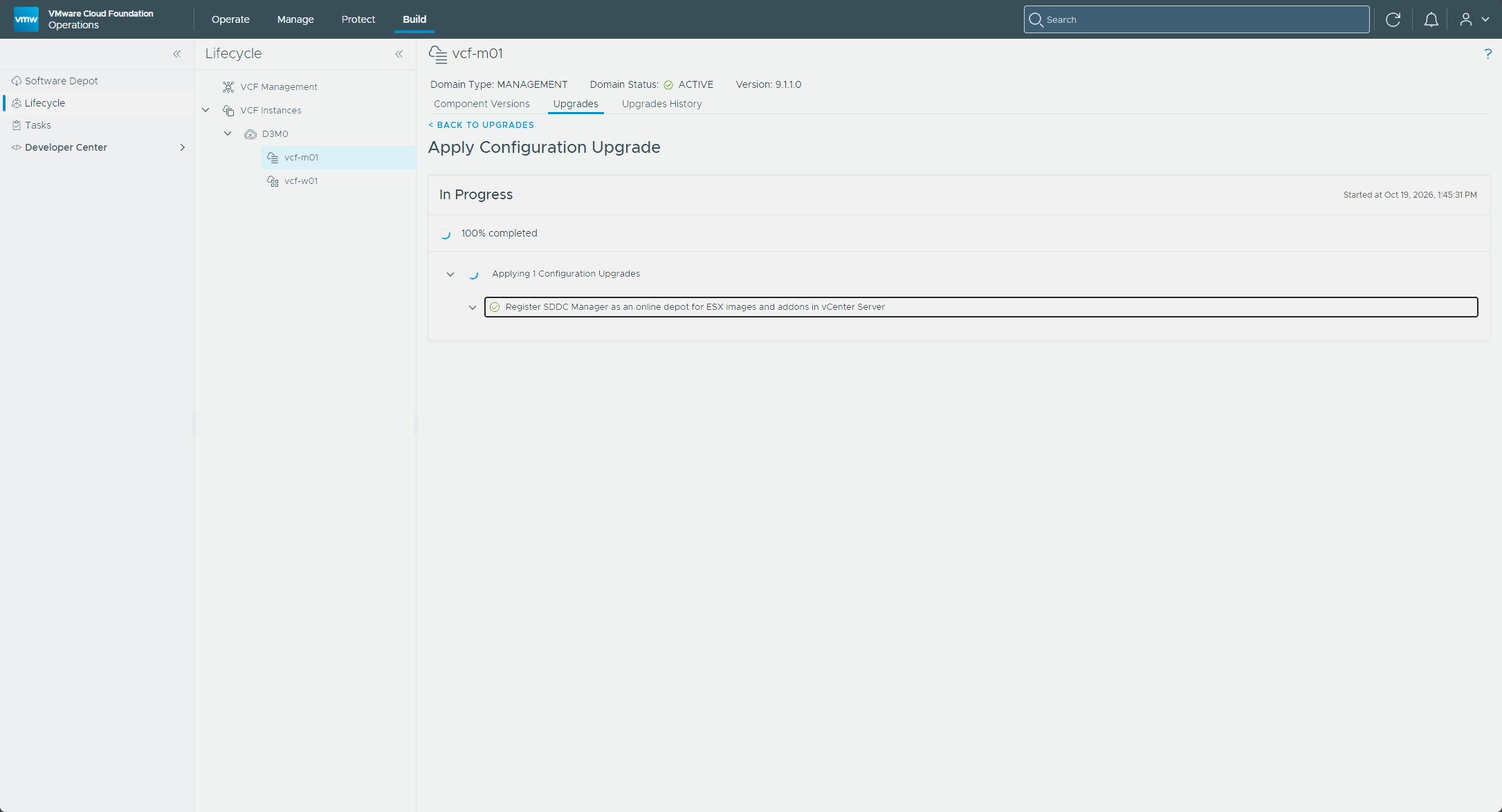
The one configuration upgrade left was “Register SDDC Manager as an online depot for ESX images and addons in vCenter Server.” I clicked Apply All, and the page showed it applied.
Afterward the section read “All configurations applied.”
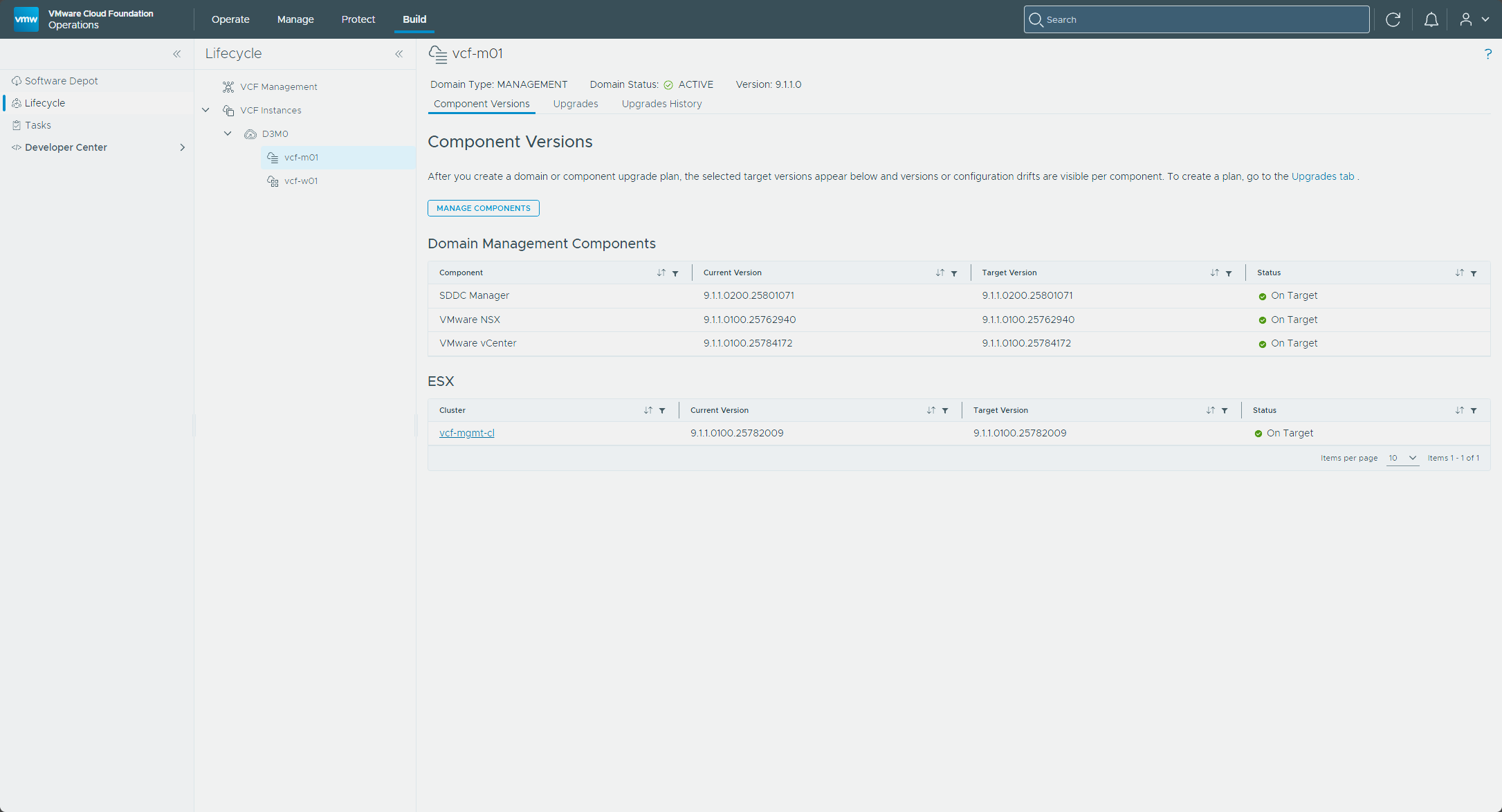
The Component Versions tab then showed SDDC Manager, NSX, vCenter, and the ESX cluster all On Target. The NSX Version Drift was gone.
The vcf-w01 Edge stage
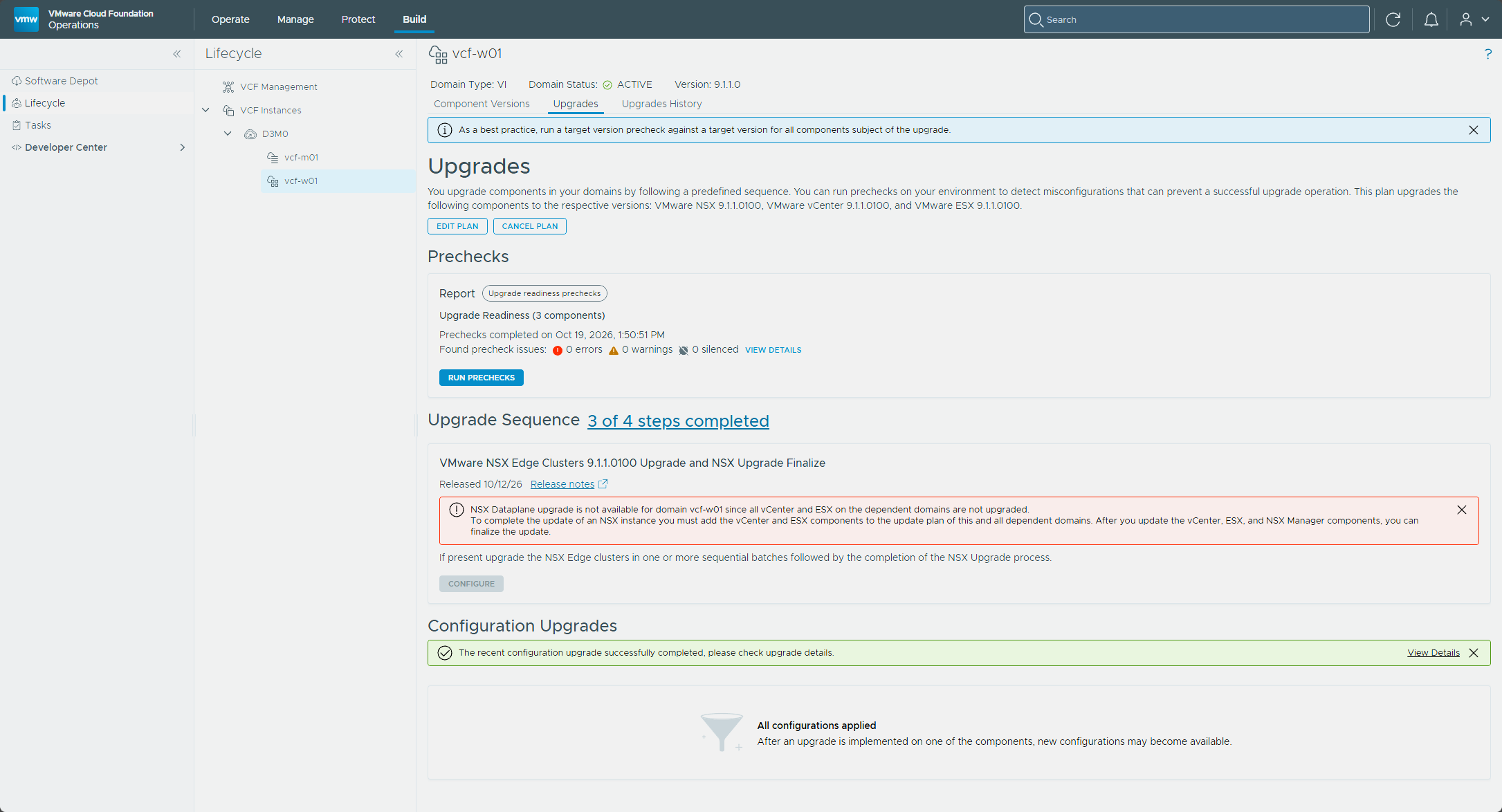
The vcf-w01 domain does have an NSX Edge cluster, so this is the stage I couldn’t show in the management domain. When I got there, Configure on the NSX Edge Clusters tile was grayed out, with a red banner saying the NSX Dataplane upgrade isn’t available because vCenter and ESX on the dependent domains aren’t upgraded. Both were already done.
Broadcom has two KBs for this exact message. KB 446110 covers NSX with no transport nodes configured, and KB 444026 covers a stale host entry in NSX. Neither matched what I was seeing, so I looked at the hosts in NSX Manager under System → Fabric → Hosts. vcf-w01-esx02 showed Install Failed, even though its tunnels were up. Clicking it gave me this error: “Failed to manage NSX optional services on the host. Error: Fabric-node installation failure. Failed to manage NSX optional services on the host. Error: Timeout waiting for response from Service Fabric Host Component. Verify that nsx-sfhc is running on host.”
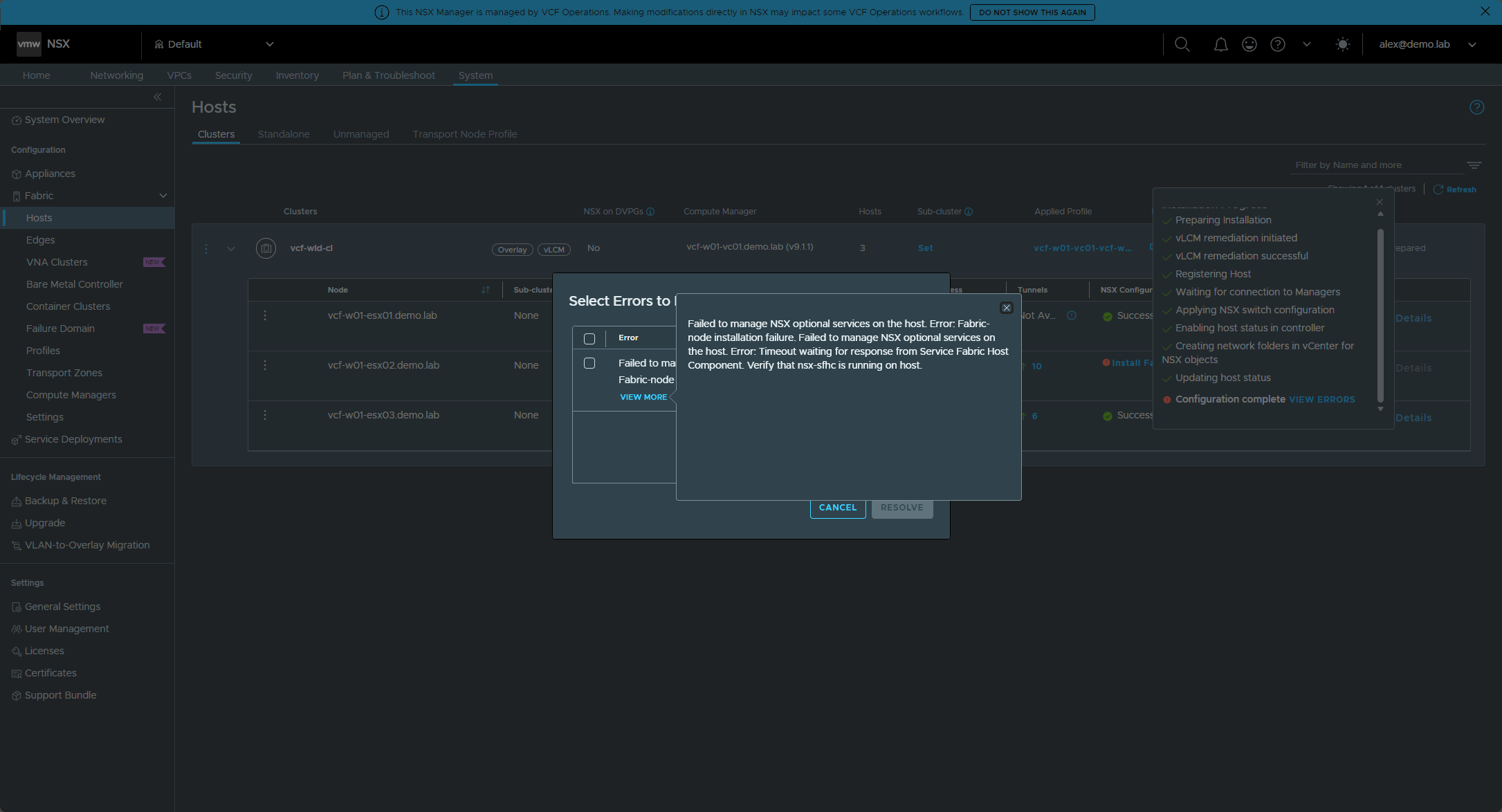
I ticked the error in the Select Errors to Resolve dialog and clicked Resolve. After that, esx02 showed Success and the cluster read 3 Hosts Up.
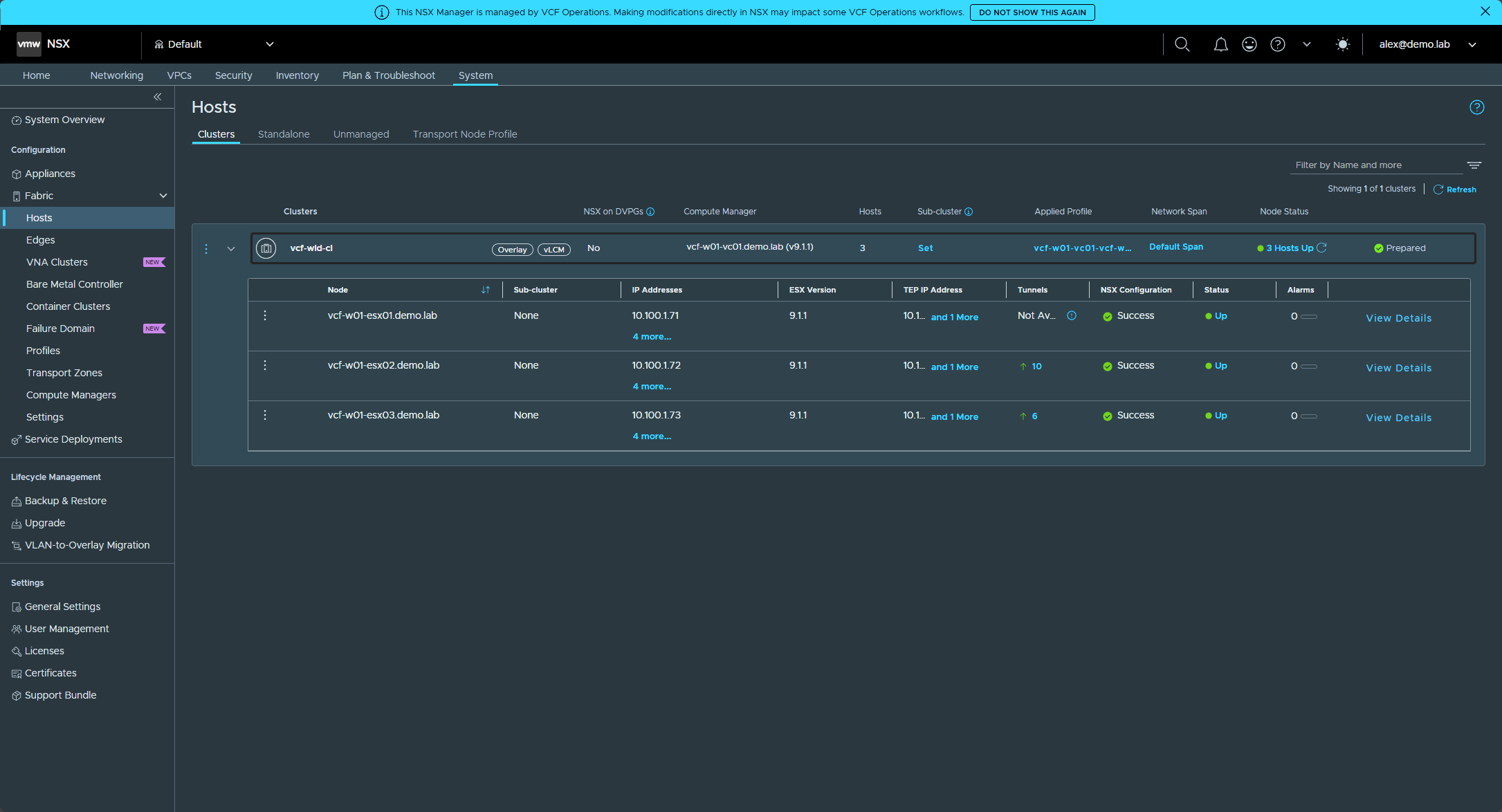
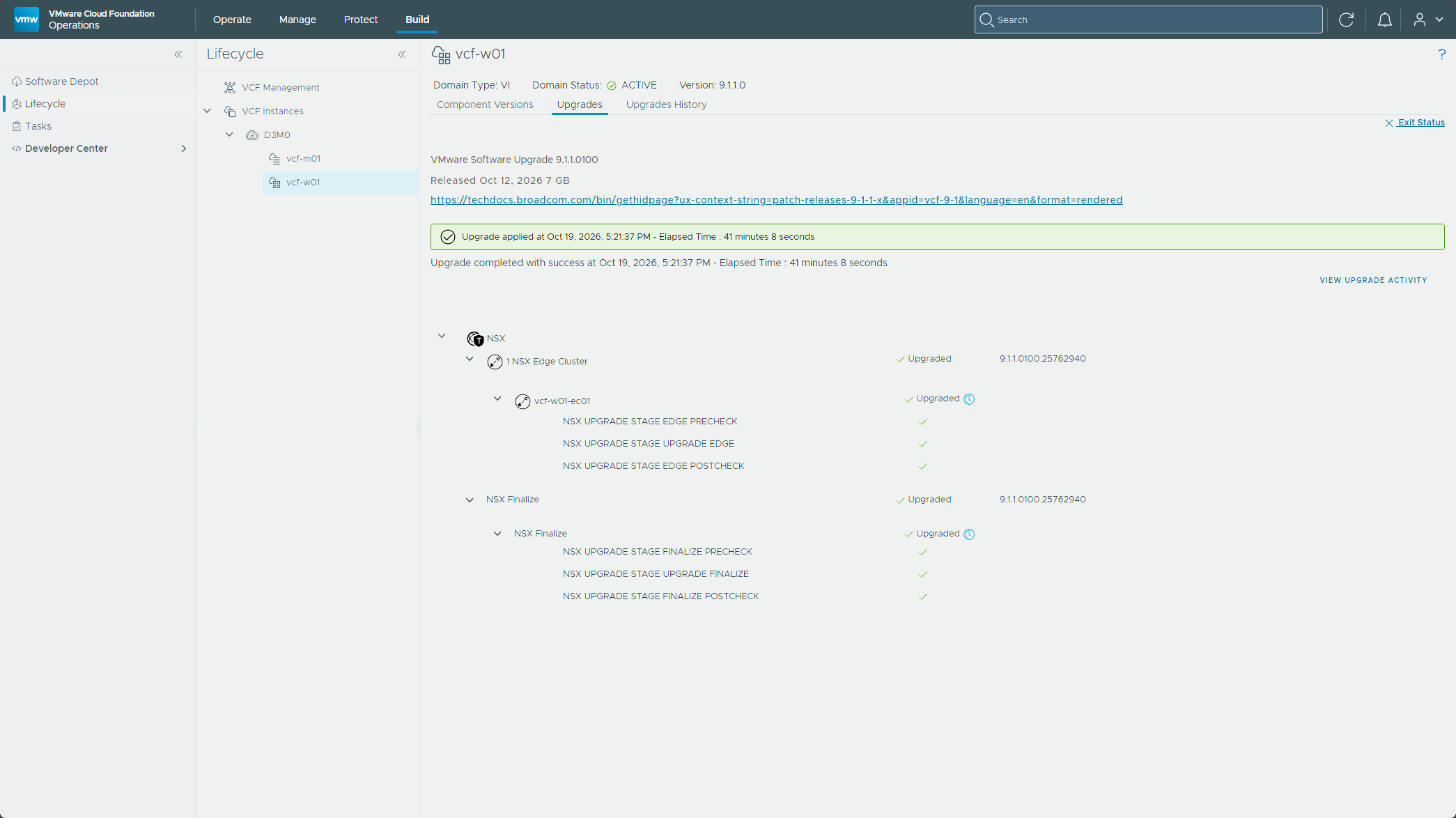
Back in VCF Operations, the banner was gone and Configure on the NSX Edge Clusters tile was available. From there it ran like the finalize in the management domain, except this time the Edge cluster was in the plan. The progress view showed vcf-w01-ec01 going through its Edge precheck, upgrade, and postcheck stages, followed by NSX Finalize with its own precheck, finalize, and postcheck. Both came back Upgraded on 9.1.1.0100.
Verifying
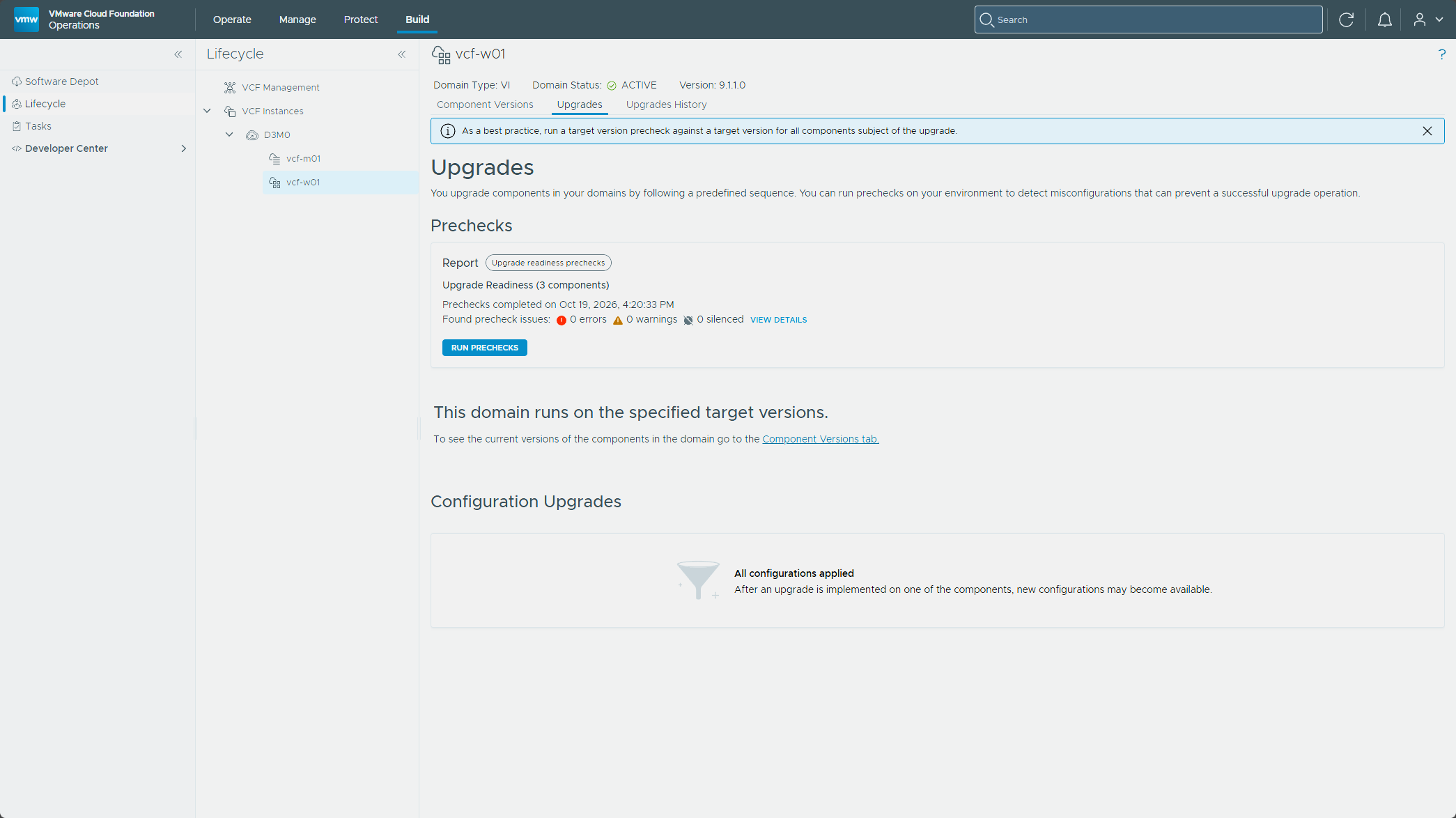
The Upgrades tab for vcf-w01 now reads “This domain runs on the specified target versions,” with a clean precheck and “All configurations applied” under Configuration Upgrades, the same as vcf-m01.
Wrapping up
That closes out the series. Compared to the upgrade from 9.0.2 to 9.1.1, patching 9.1.1 was a much simpler process, and it went smoother. Man, it was a nice change. Between the management components in Part 1 and the core components here, everything landed on its target version.
If you’re patching your own environment, work through the order in the overview, and I hope this saves you some time and a few headaches. Drop a comment and let me know how your patching goes!
-virtualex-
Comments