Patching VMware Cloud Foundation 9.1.1, Part 1: Management Components
In the series overview I covered what’s in the October 12th patch set and the caveats to know first. This part patches the management plane.
Patch binaries
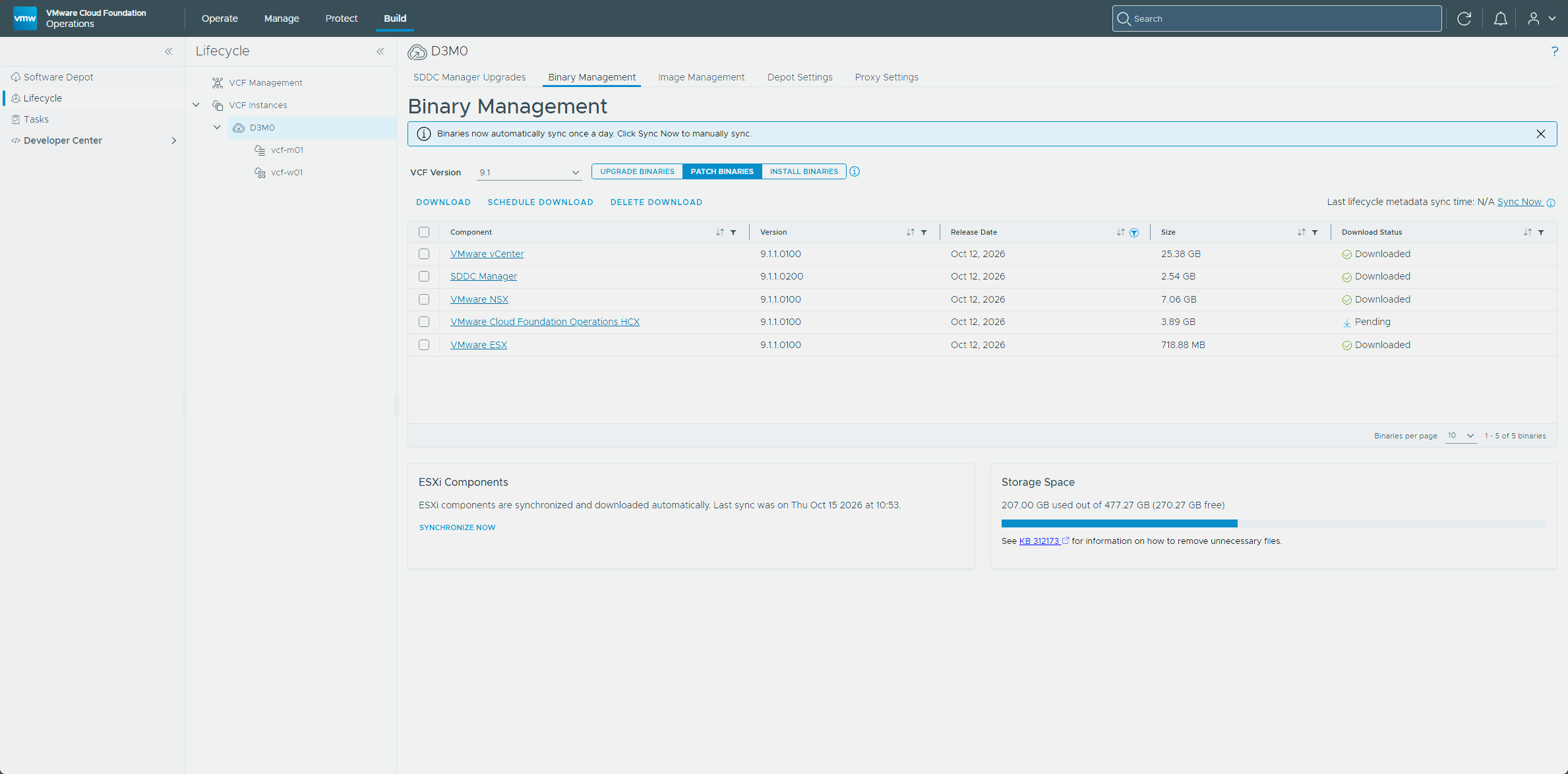
On the instance’s Binary Management tab, Patch binaries for VCF version 9.1 lists five patches, and I downloaded the vCenter, SDDC Manager, NSX, and ESX ones before planning anything.
Fleet Lifecycle first
The VCF management services Fleet Lifecycle component gets patched before any other VCF component, which is also the planner’s first step (Lifecycle Management of VCF Components). That guidance is written for 9.1.0.x environments and my lab is already on 9.1.1.0, so I’m treating the order as the safe one.
The Upgrade tab lists Fleet Lifecycle in its own section at the top, above the management components, and it already showed that an upgrade was available.
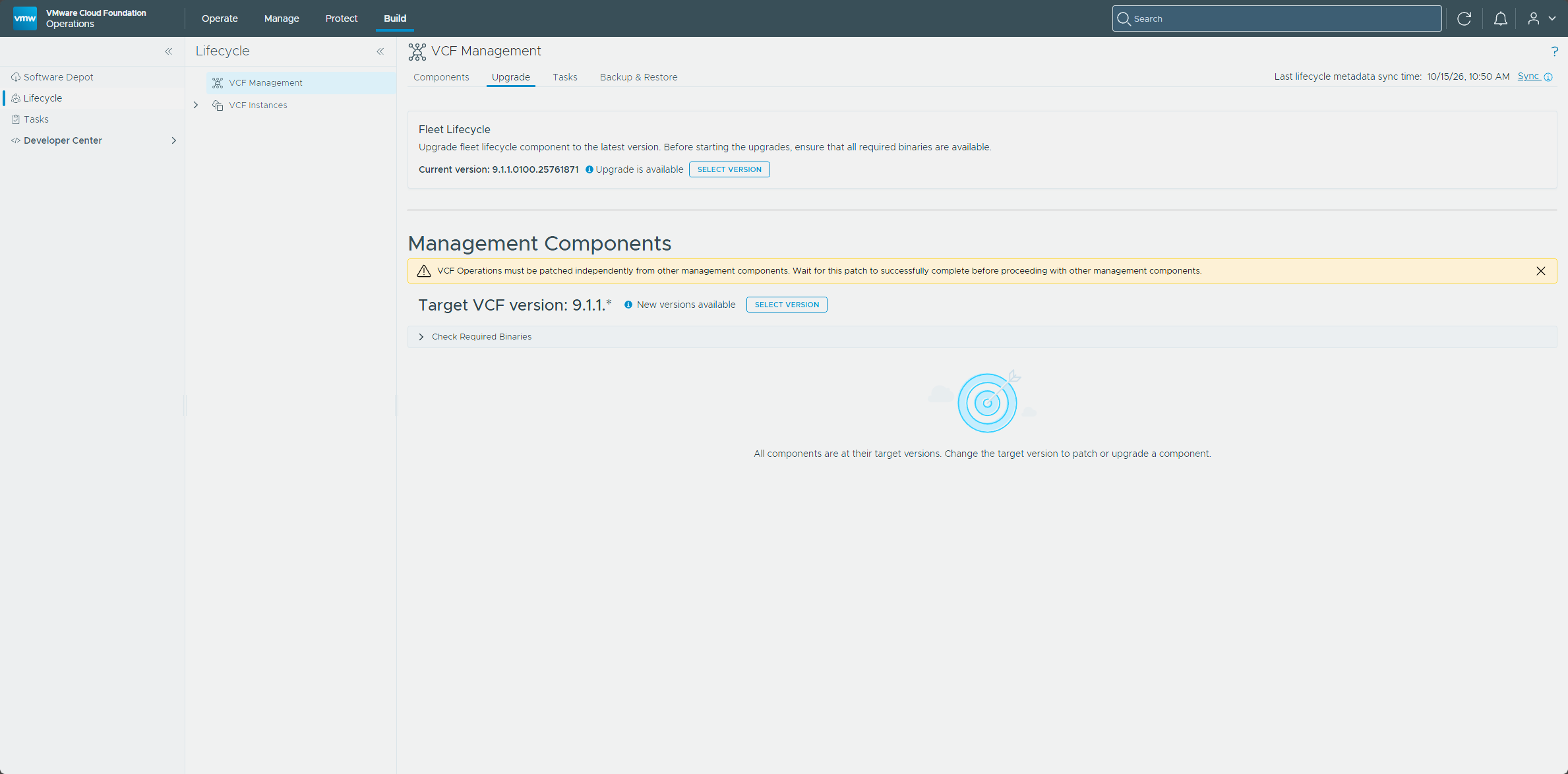
- In the Fleet Lifecycle section, click Select version.
- In the Fleet Lifecycle Component Target Version dialog, pick the target version, 9.1.1.0200, and click Set target version.
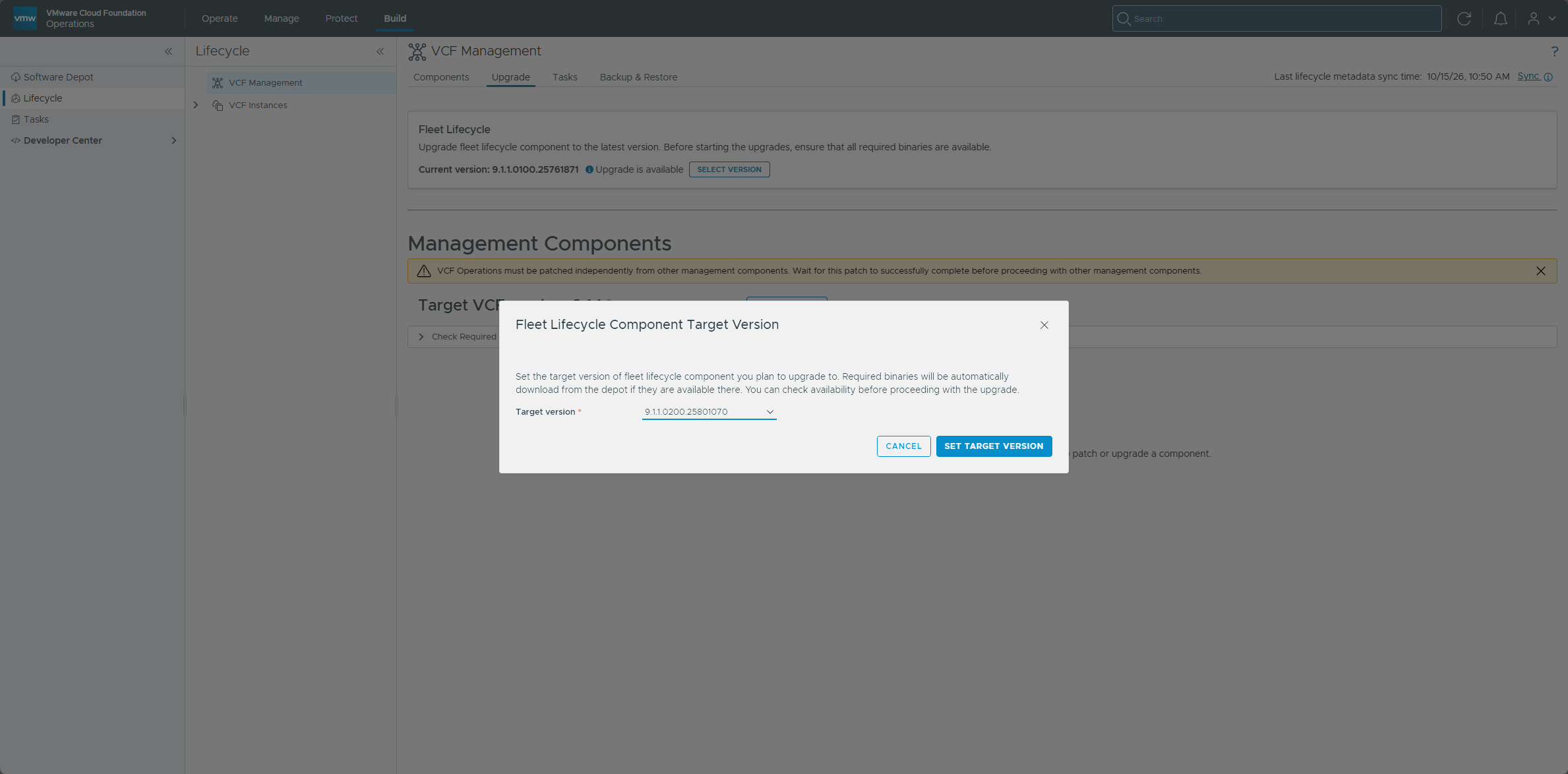
The dialog says the required binaries download from the depot automatically if they’re available there. Once the target was set, the section showed the move from 9.1.1.0100 to 9.1.1.0200, with Upgrade and Check binary availability buttons next to it.
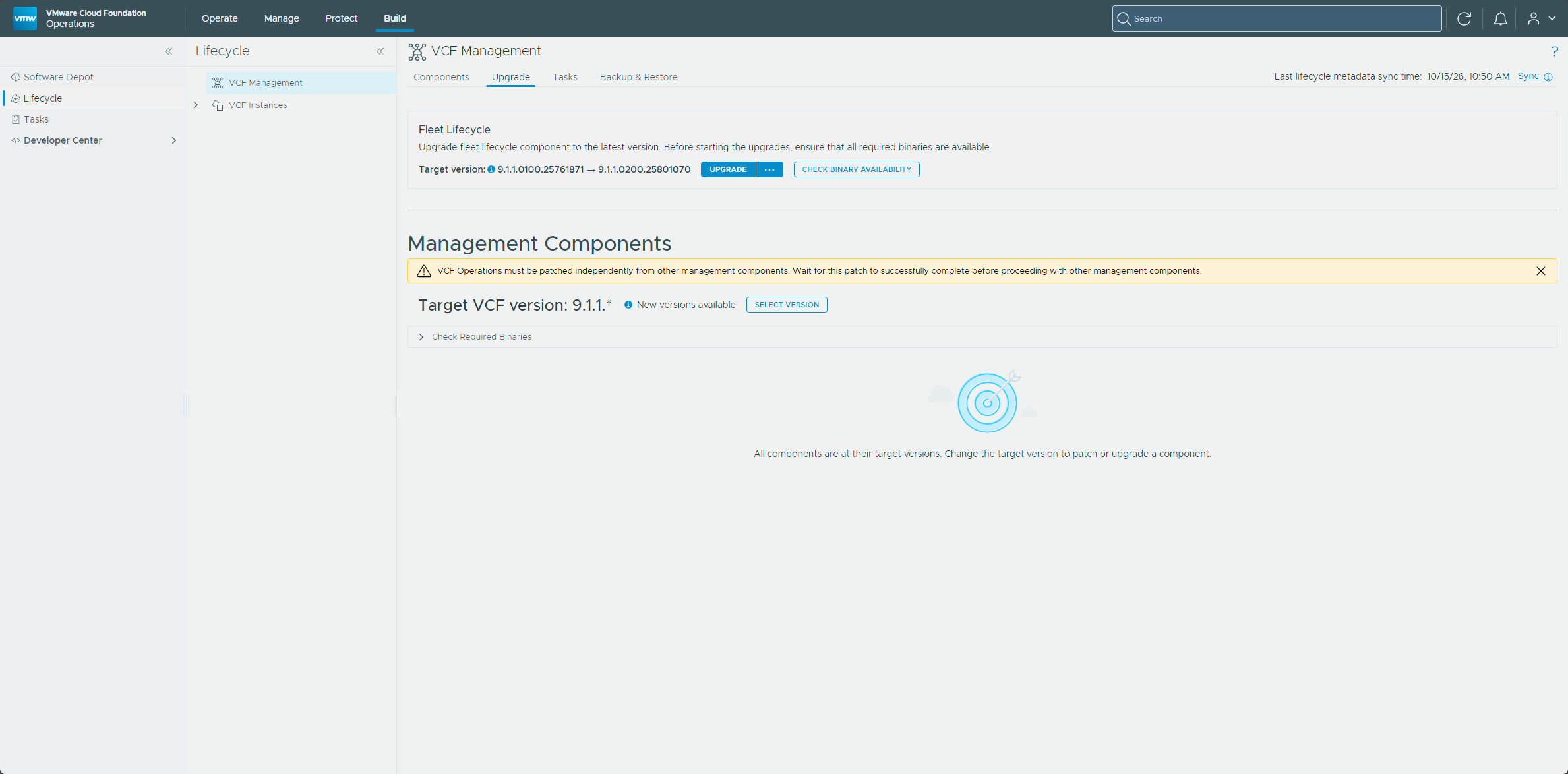
Then I clicked Upgrade. The Fleet Lifecycle section changed to Upgrade in progress with an Upgrade details link.
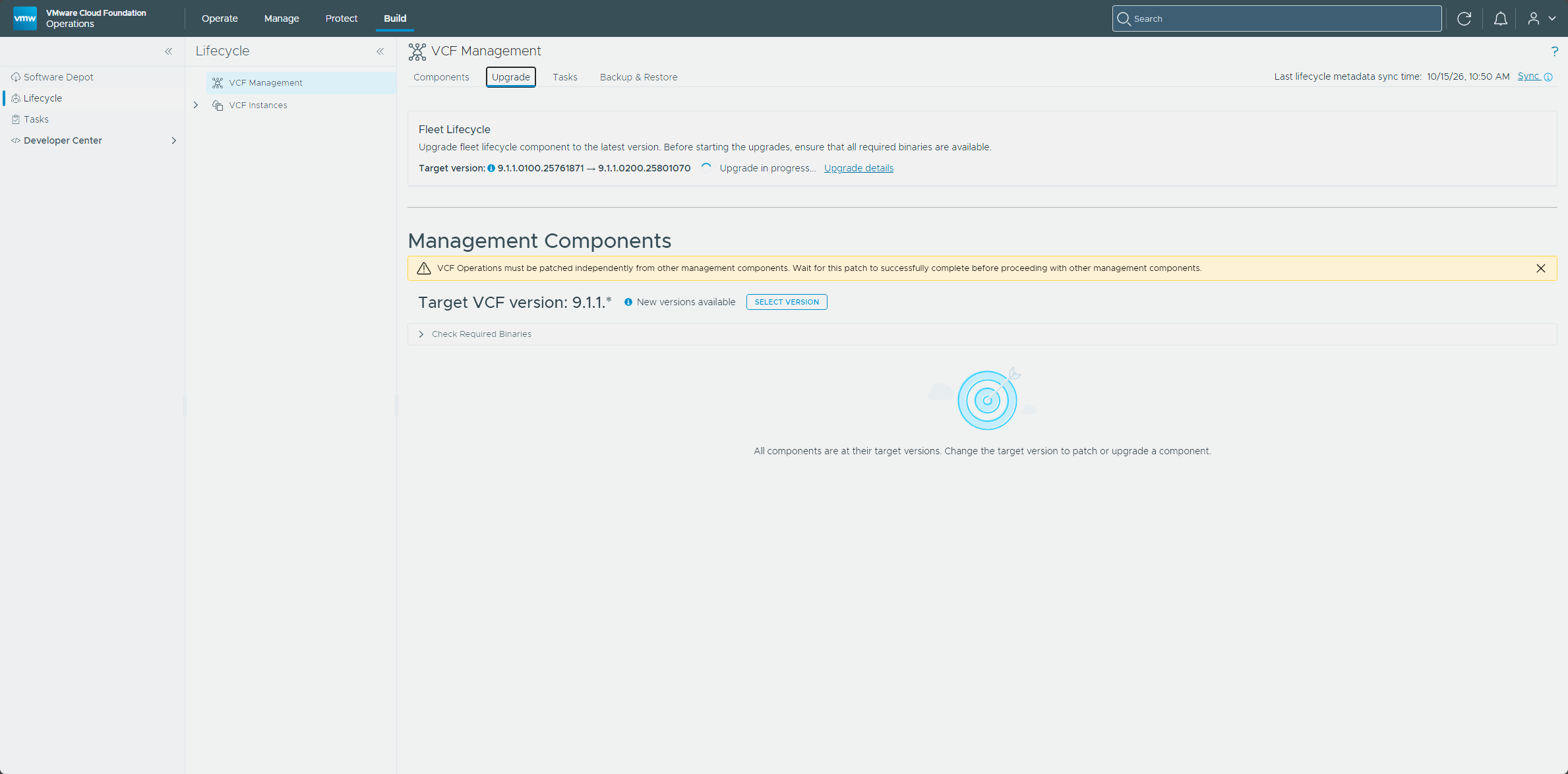
Upgrade details shows the Fleet lifecycle Upgrade Workflow. It started with two subtasks, setting the upgrade context for the workflow and staging the Fleet lifecycle plugin in the VCF services runtime.
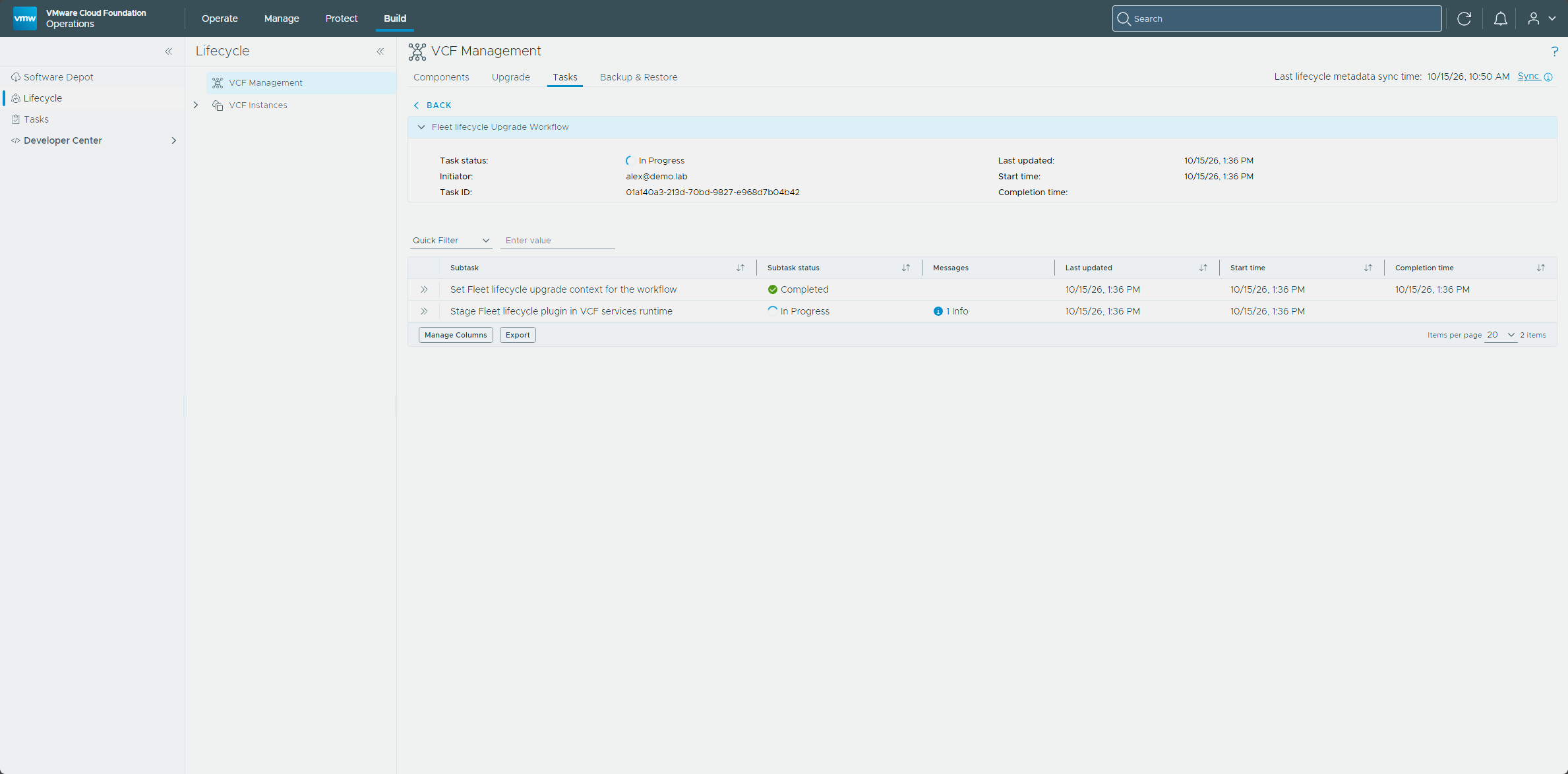
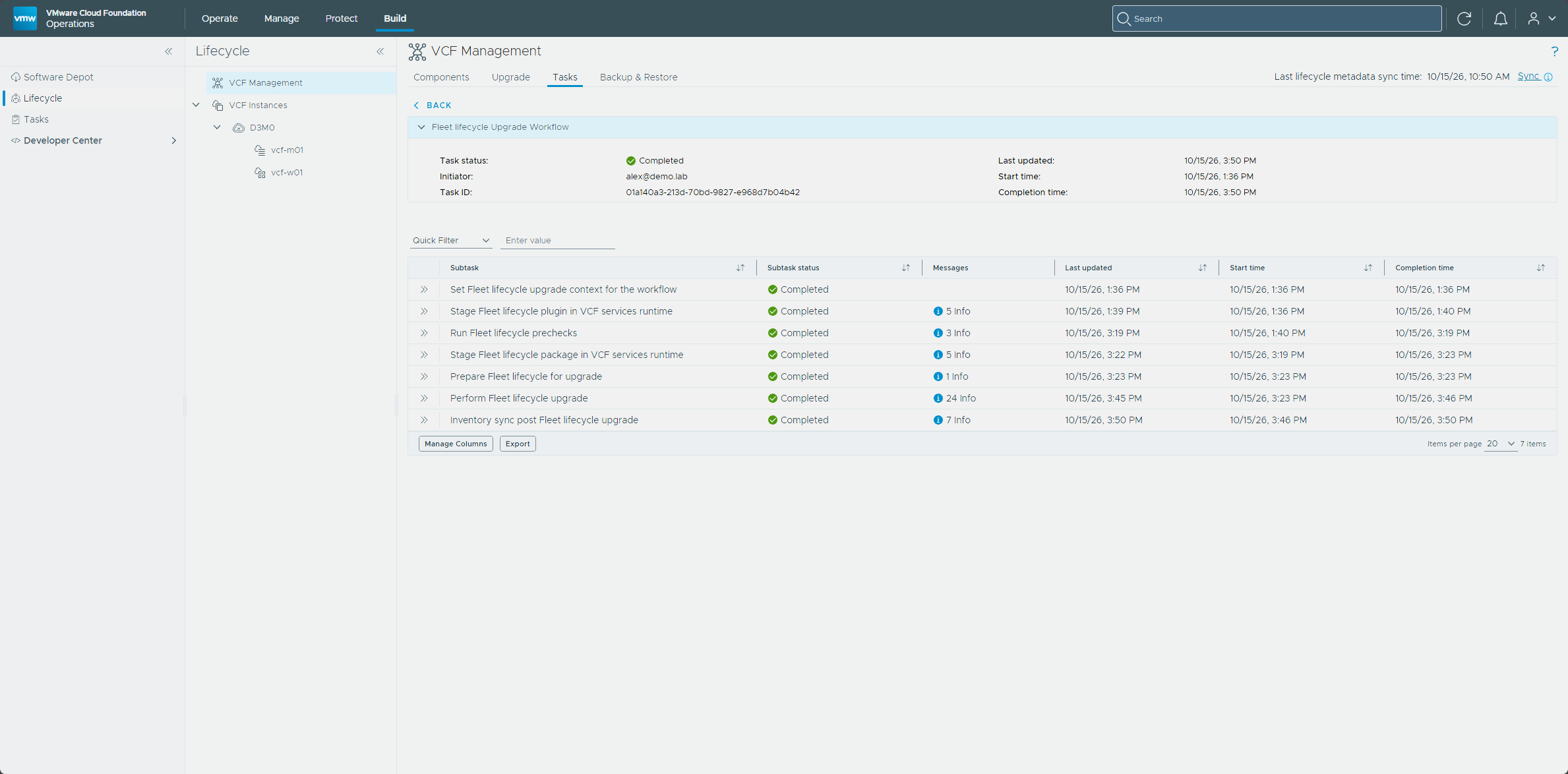
The workflow ran the prechecks, then staged the Fleet lifecycle package in the VCF services runtime, prepared Fleet lifecycle for the upgrade, performed the upgrade, and finished with an inventory sync. Every subtask ended Completed.
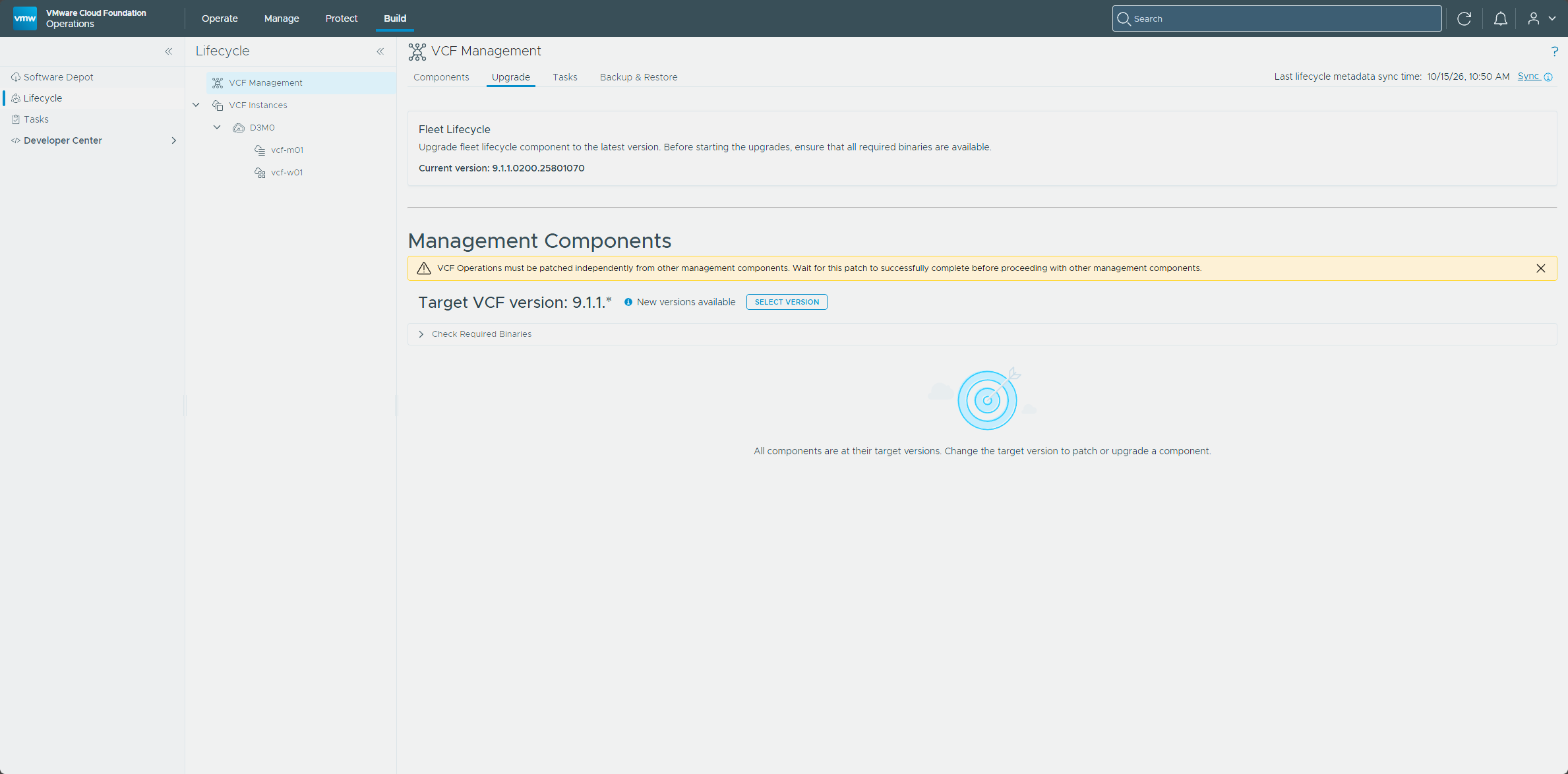
Back on the Upgrade tab, the Fleet Lifecycle section now shows 9.1.1.0200 as the current version.
SDDC Manager
SDDC Manager is patched from the management domain’s Upgrades tab with a component upgrade plan, not from the VCF Management tab. Updating only SDDC Manager doesn’t change the management domain’s version. The target version has to be compatible with every BOM version in the instance, and the patch binary has to be in the software depot (Upgrade or Patch SDDC Manager from VCF Operations).
- In VCF Operations, go to Build → Lifecycle, expand VCF Instances, and select the management domain, vcf-m01.
- On the Upgrades tab, click Plan component upgrade.
- On Select components and target version, select SDDC Manager, VMware ESX, VMware NSX, and VMware vCenter, keep the target versions it offers, and click Next.
- On vCenter and NSX upgrade options, pick the sequential option and click Next.
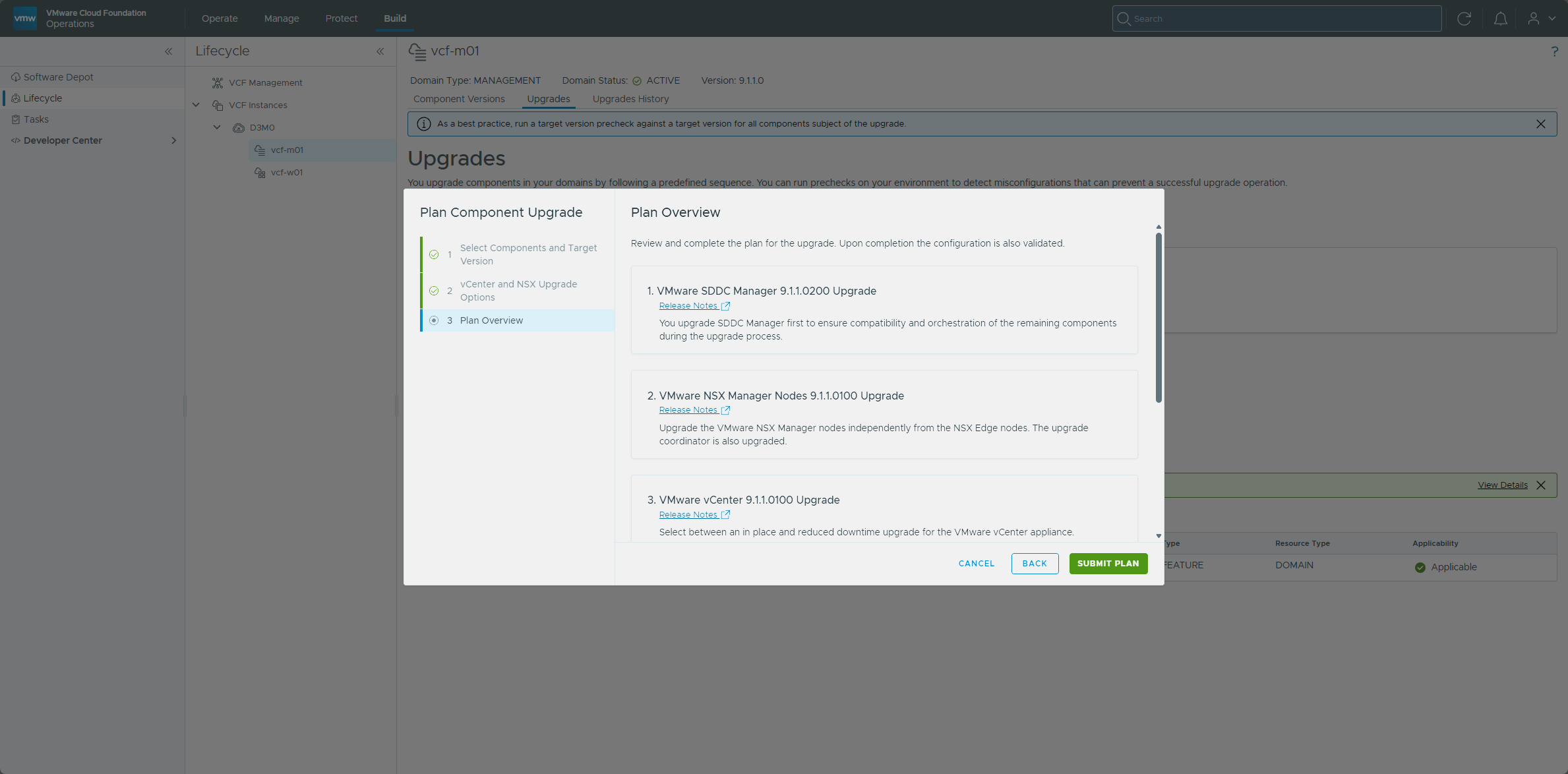
- On Plan overview, click Submit plan.
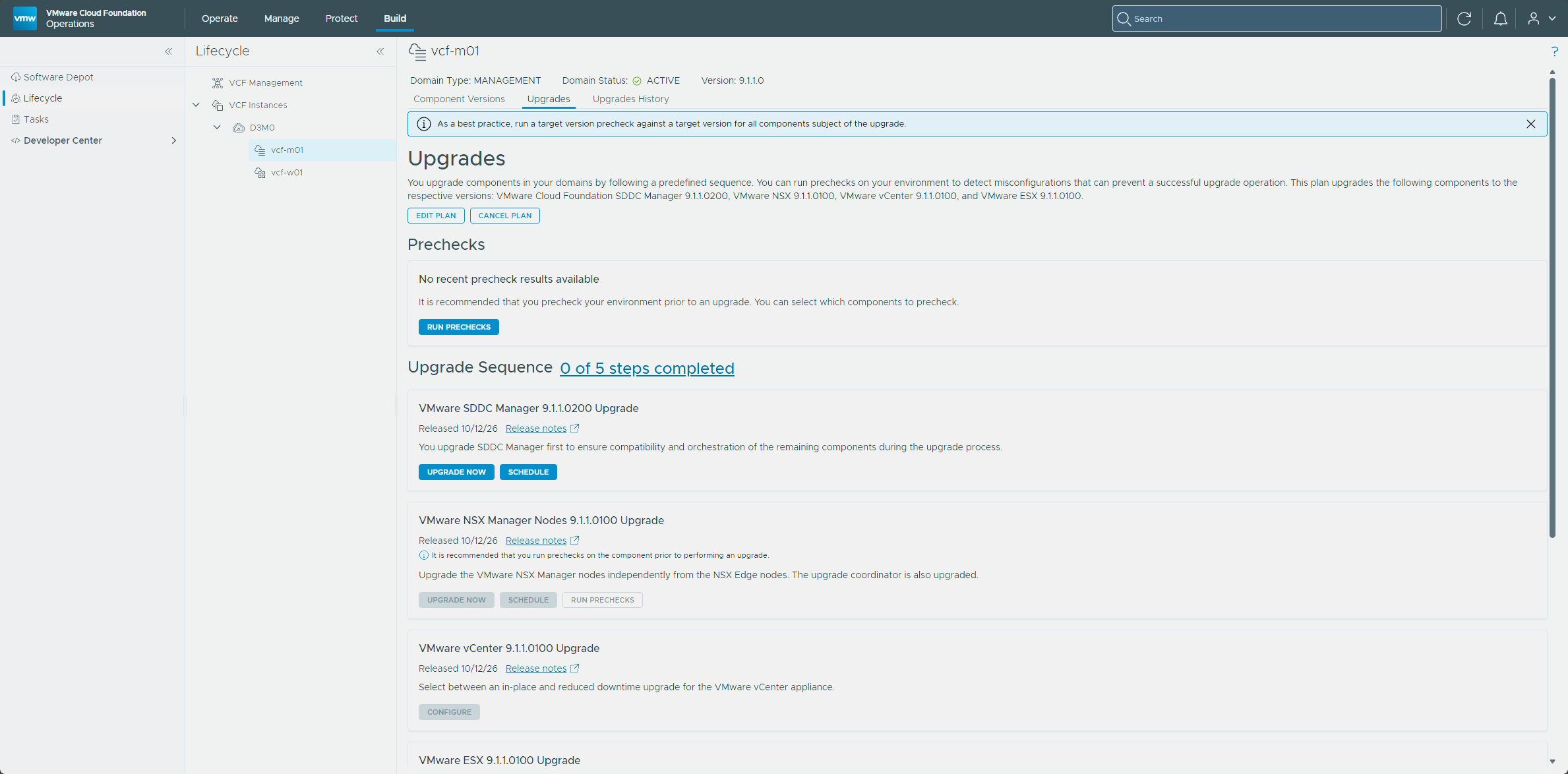
I put all four components in one plan so the whole management domain follows one sequence. The target versions were 9.1.1.0200 for SDDC Manager and 9.1.1.0100 for the other three.
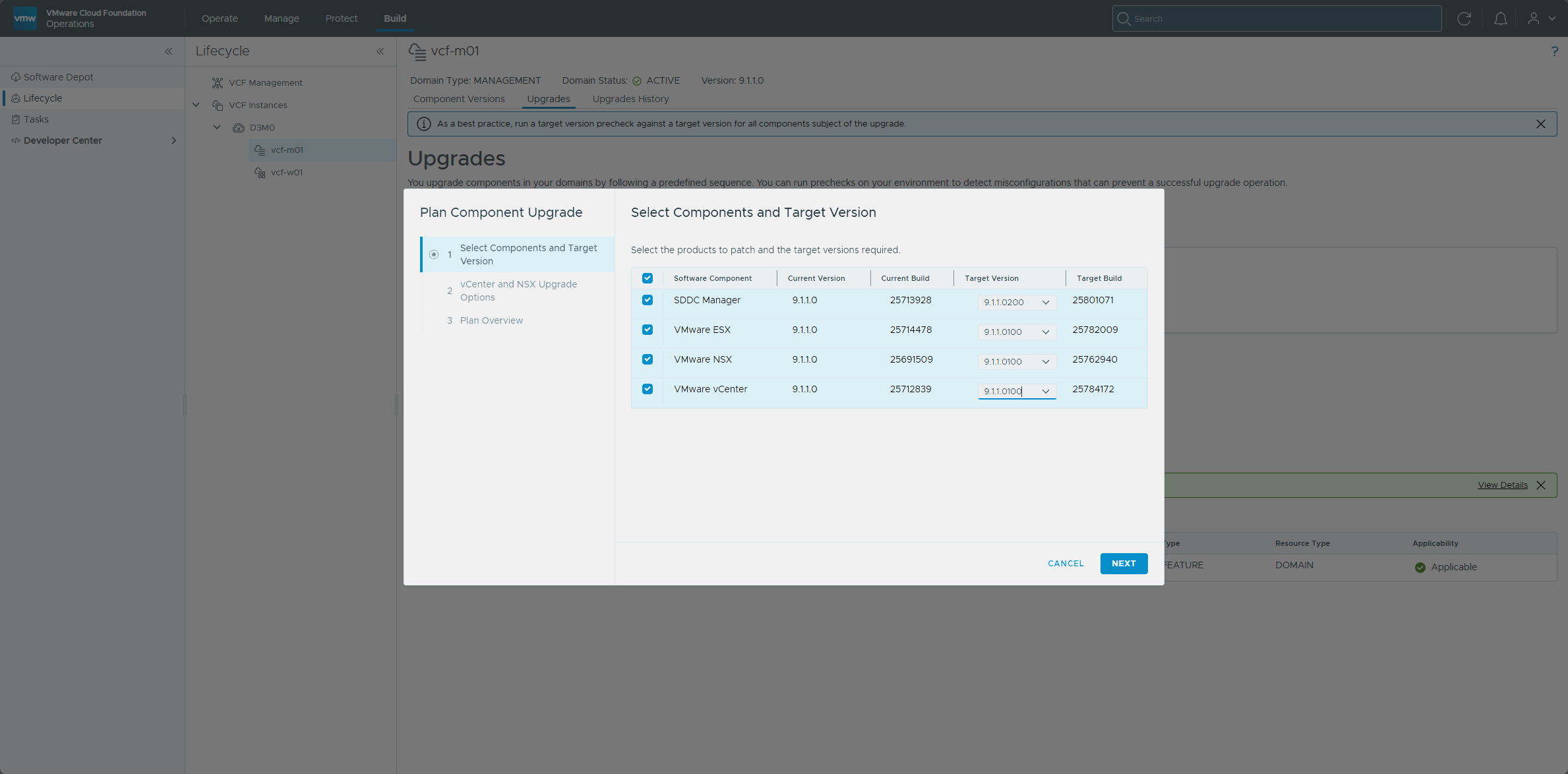
The overview lists the steps in order and says SDDC Manager goes first to keep the rest compatible and orchestrated.
Once the plan was submitted, the Upgrades tab summarized it and offered Edit plan and Cancel plan. The Upgrade Sequence showed 0 of 5 steps completed, with Upgrade now and Schedule available for SDDC Manager and the steps after it grayed out.
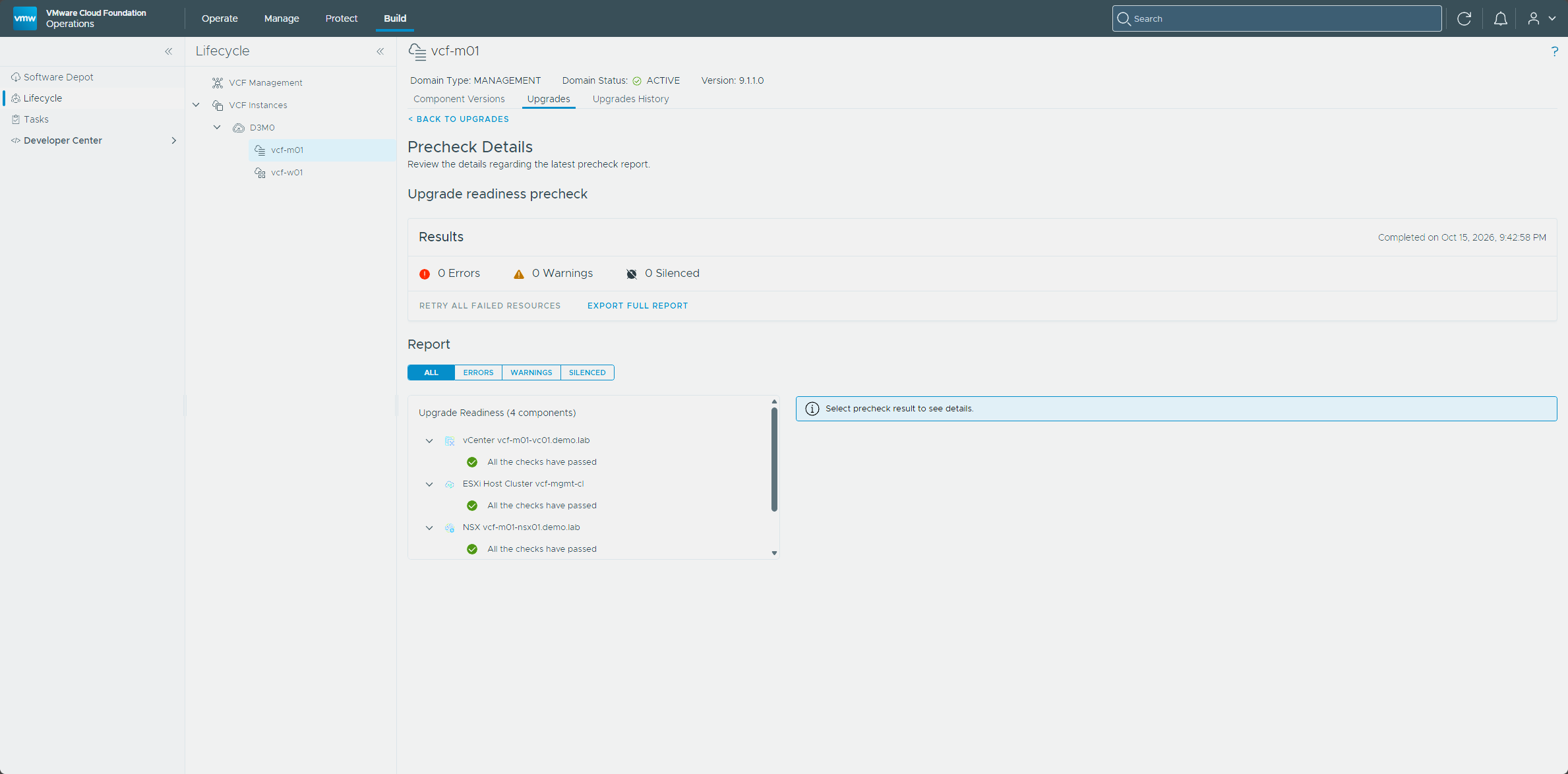
Before upgrading anything, I ran a precheck against the whole domain. In the Run Prechecks dialog I chose Upgrade readiness with the Entire Workload Domain scope. That checked four components, among them the vCenter, the cluster, and NSX.
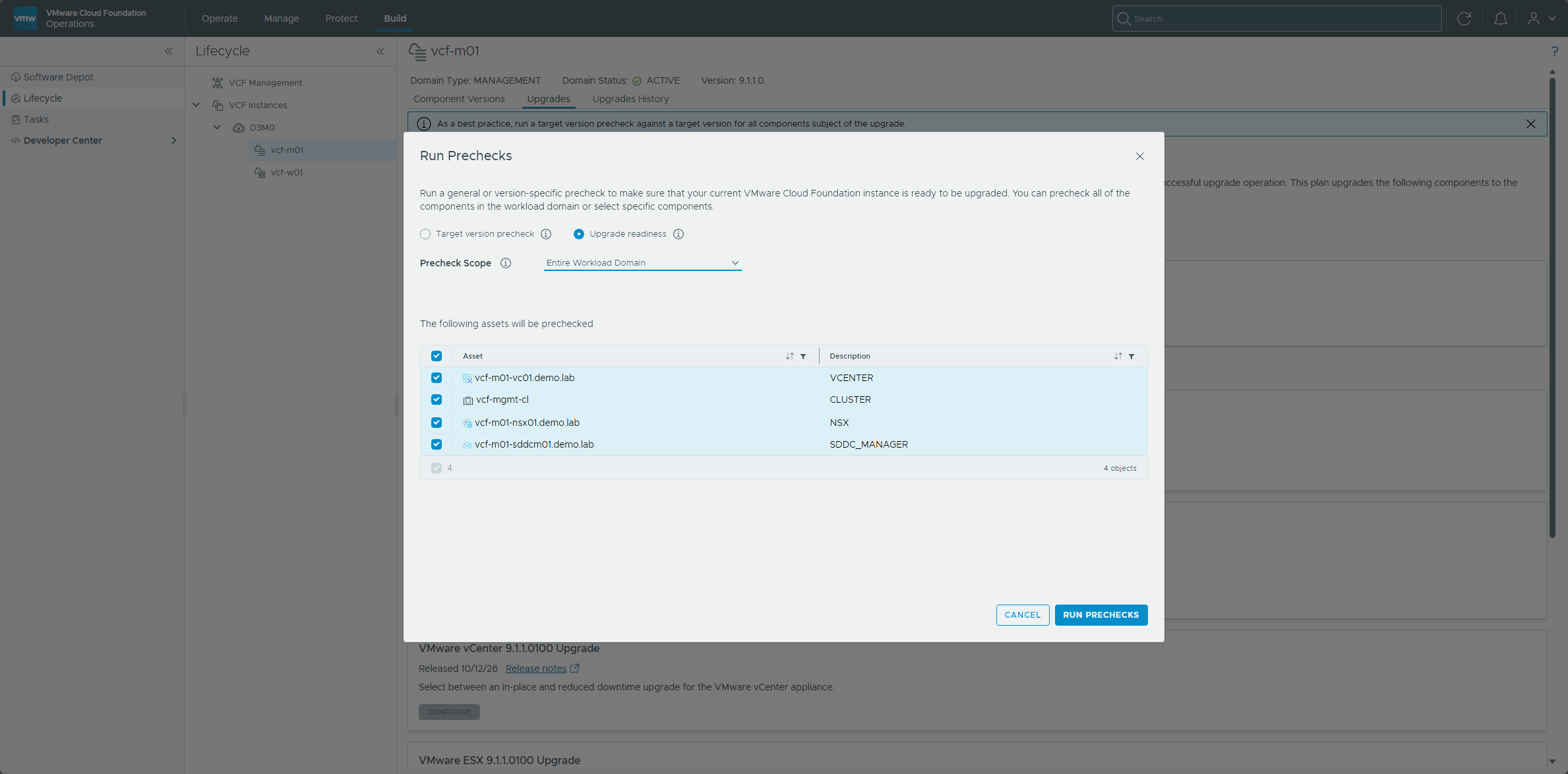
It came back clean.
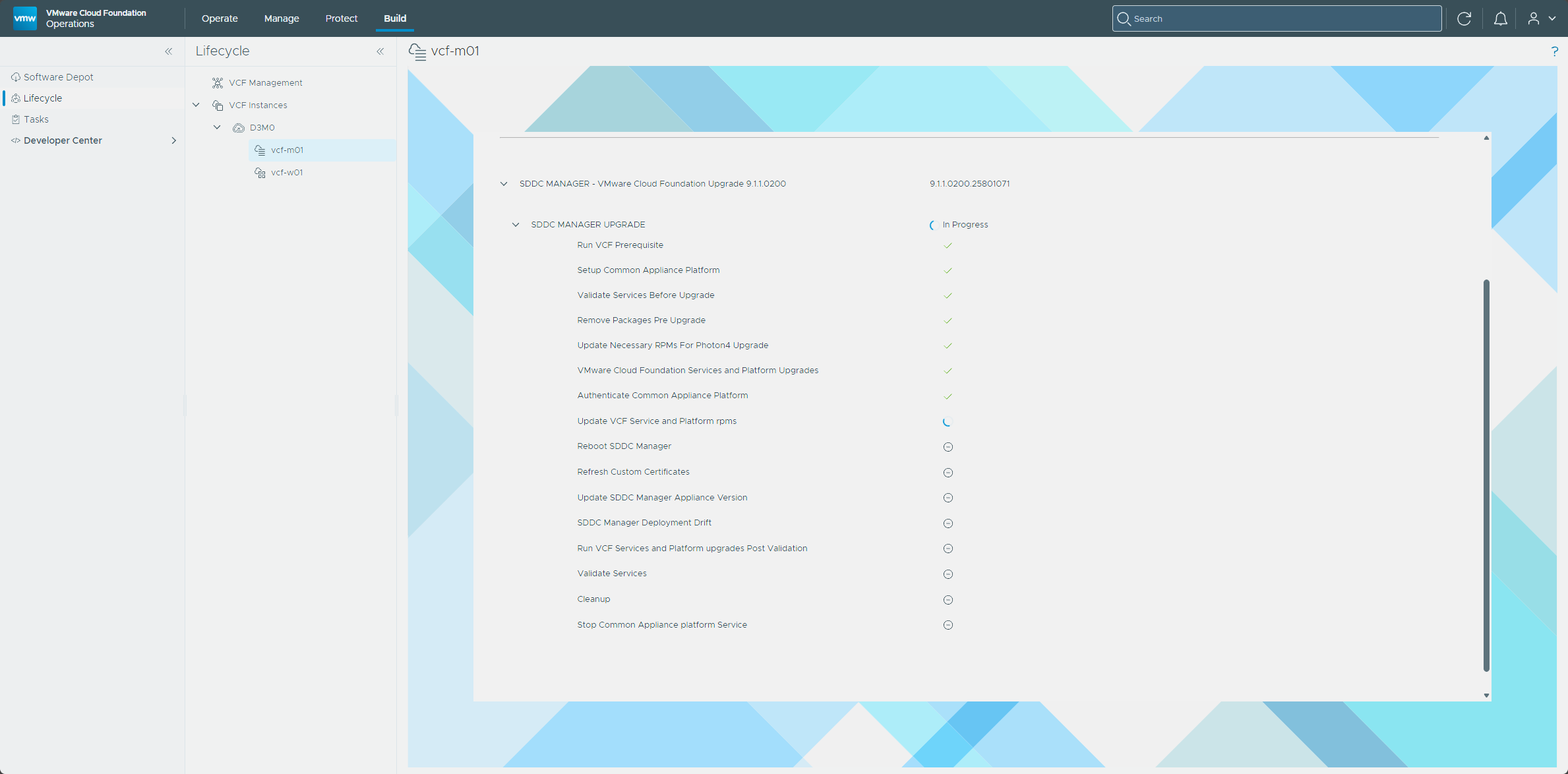
I clicked Upgrade now on the SDDC Manager step. The upgrade runs through 16 steps, from the VCF prerequisite check to stopping the Common Appliance platform service, with the SDDC Manager reboot and a cleanup along the way.
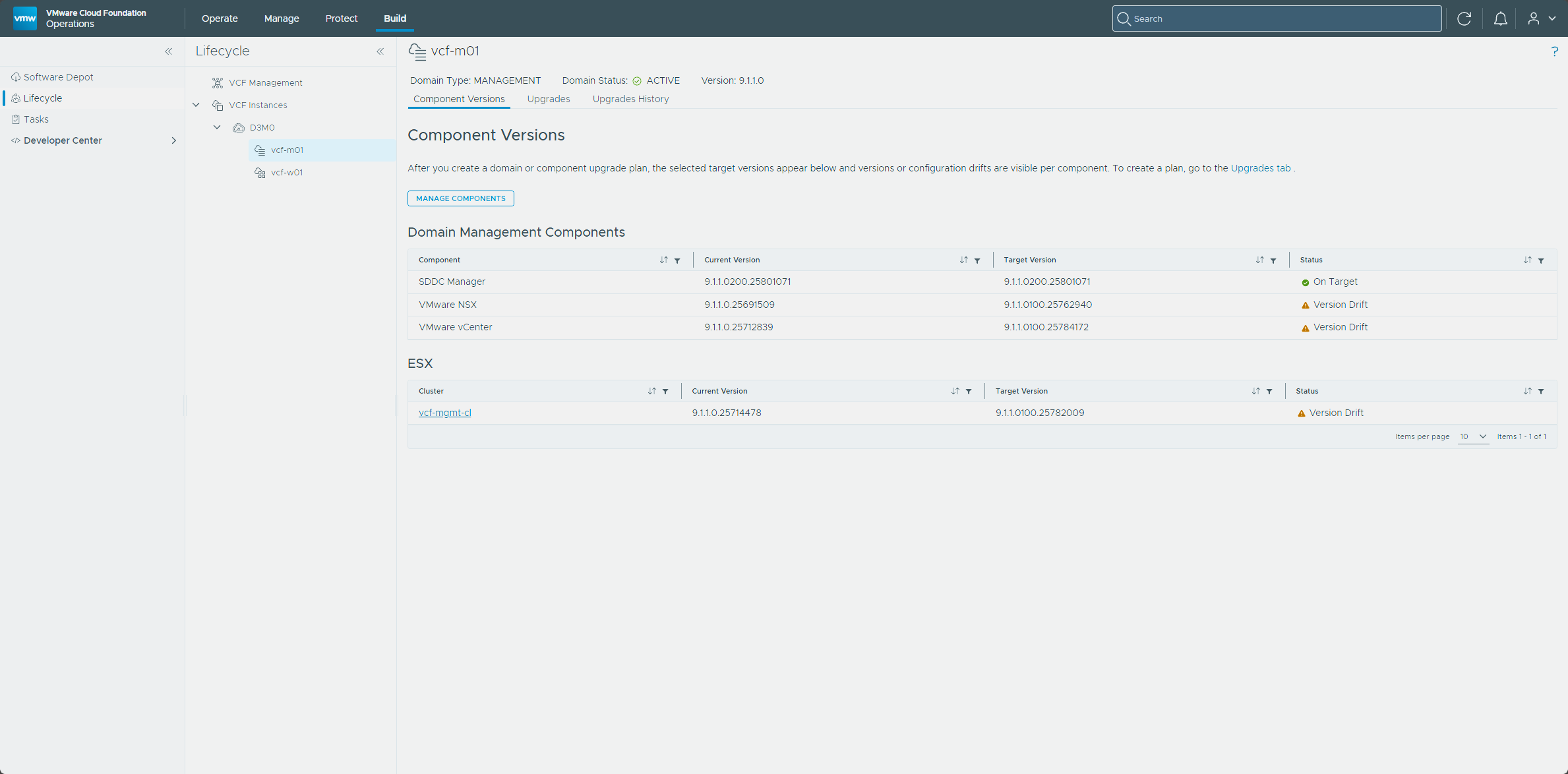
After I clicked Finish, the domain version still read 9.1.1.0, as the patch page says it would, and Component Versions showed SDDC Manager On Target. NSX, vCenter, and ESX still show Version Drift until I patch them.
The other management components
A few dependencies fix the order for the rest, and otherwise it’s up to you (Lifecycle Management of VCF Components). VCF Operations is the first of them. It has to be patched on its own, before any ESX host, and no other lifecycle operation can run while it patches.
VCF Operations
VCF Operations was next.
- In VCF Operations, go to Build → Lifecycle → VCF Management and open the Upgrade tab.
- Next to Target VCF version, click Select version.
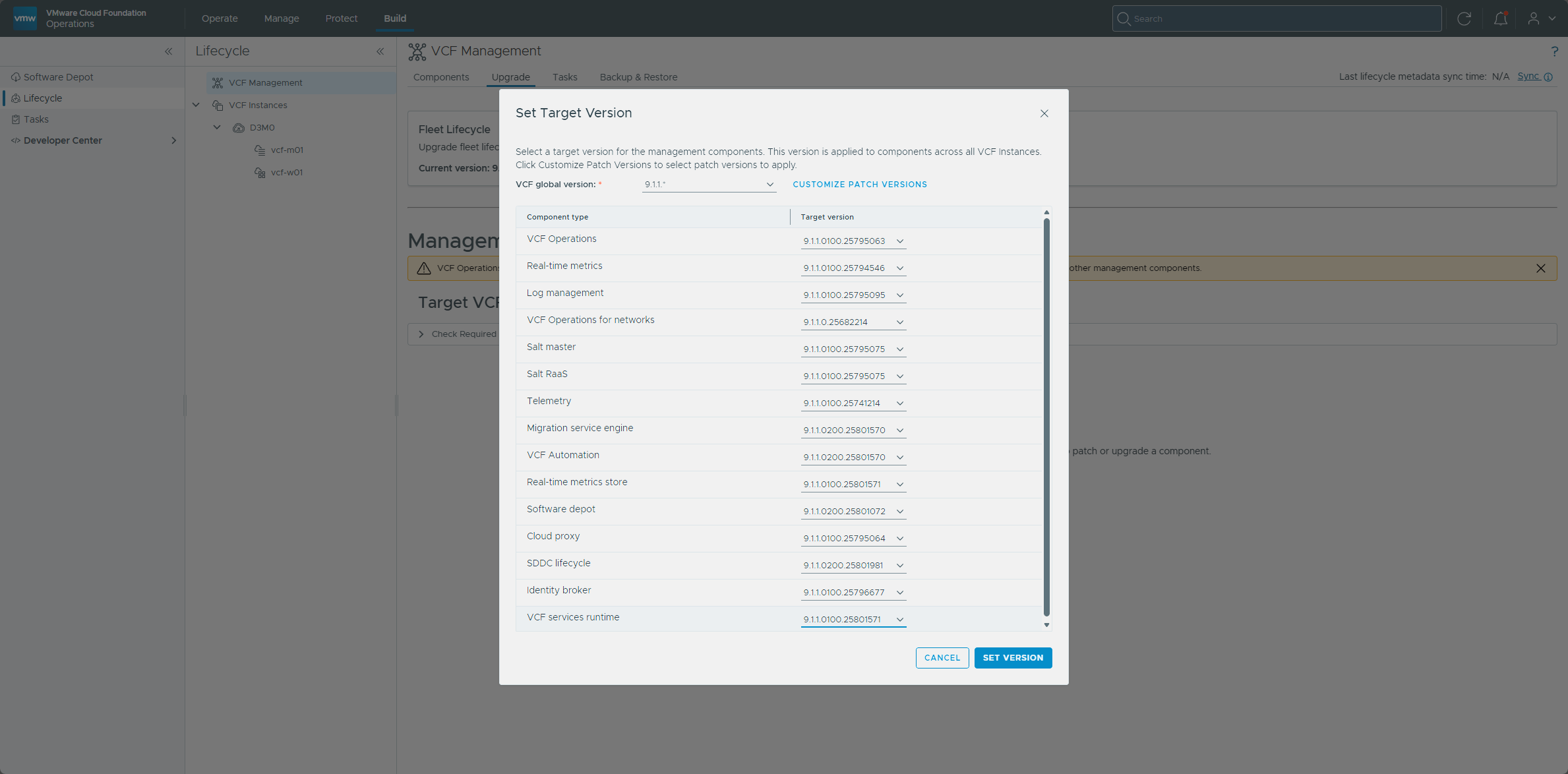
- In the Set Target Version dialog, pick 9.1.1.0100.25795063 for VCF Operations and click Set Version. I left every other component as it was.
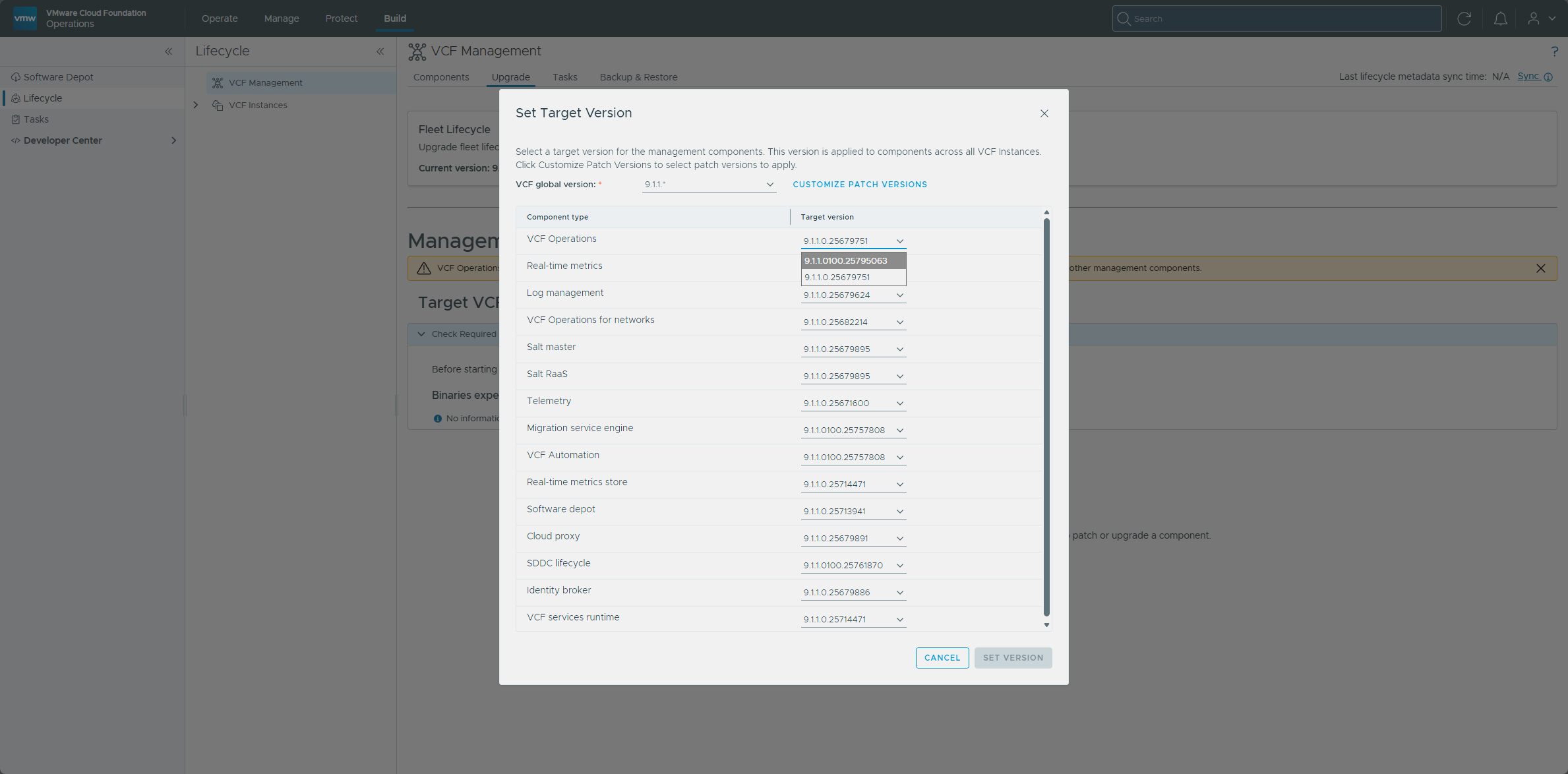
The VCF Operations row then showed the move from 9.1.1.0.25679751 to 9.1.1.0100.25795063 and Ready for upgrade.
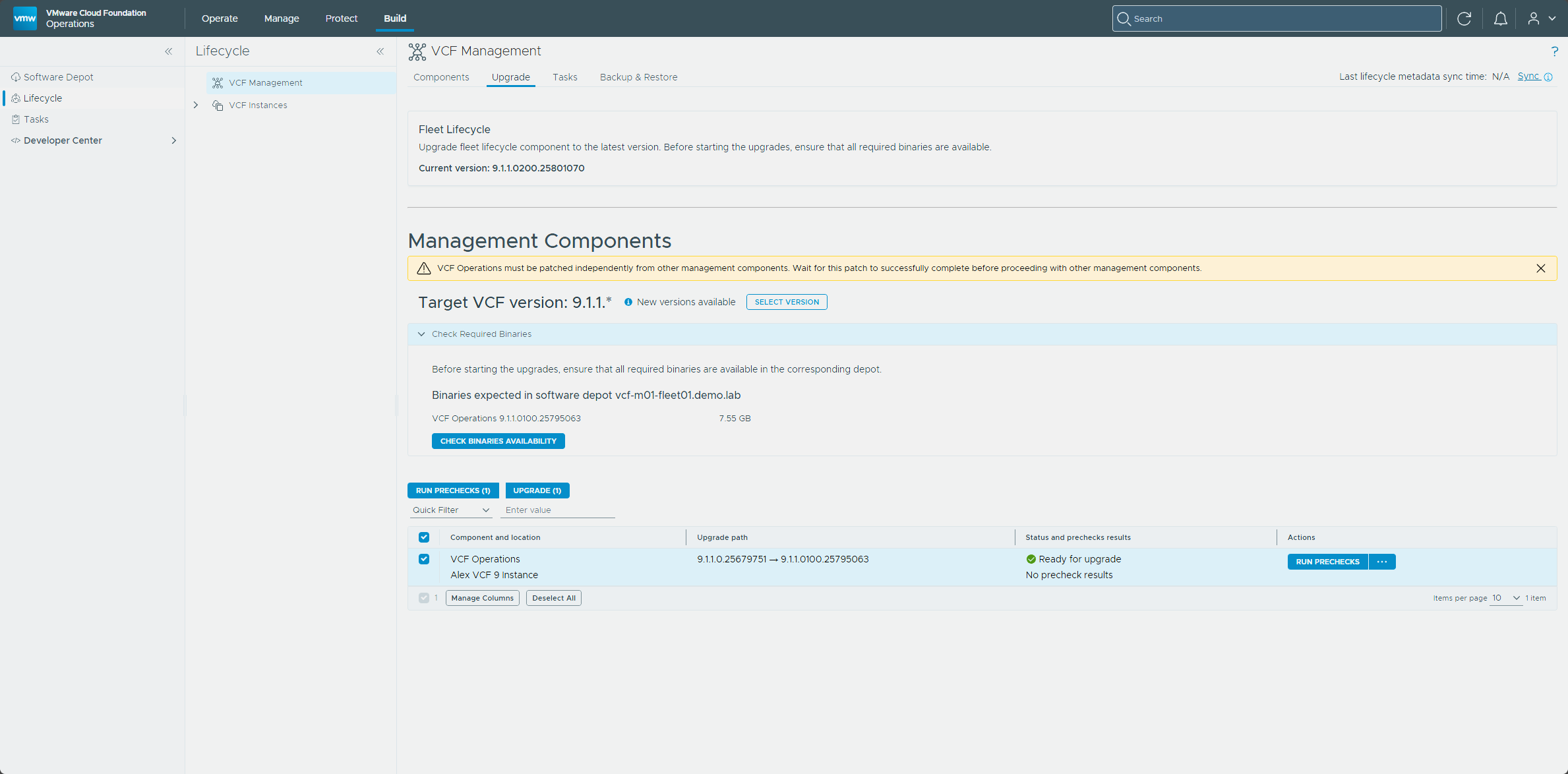
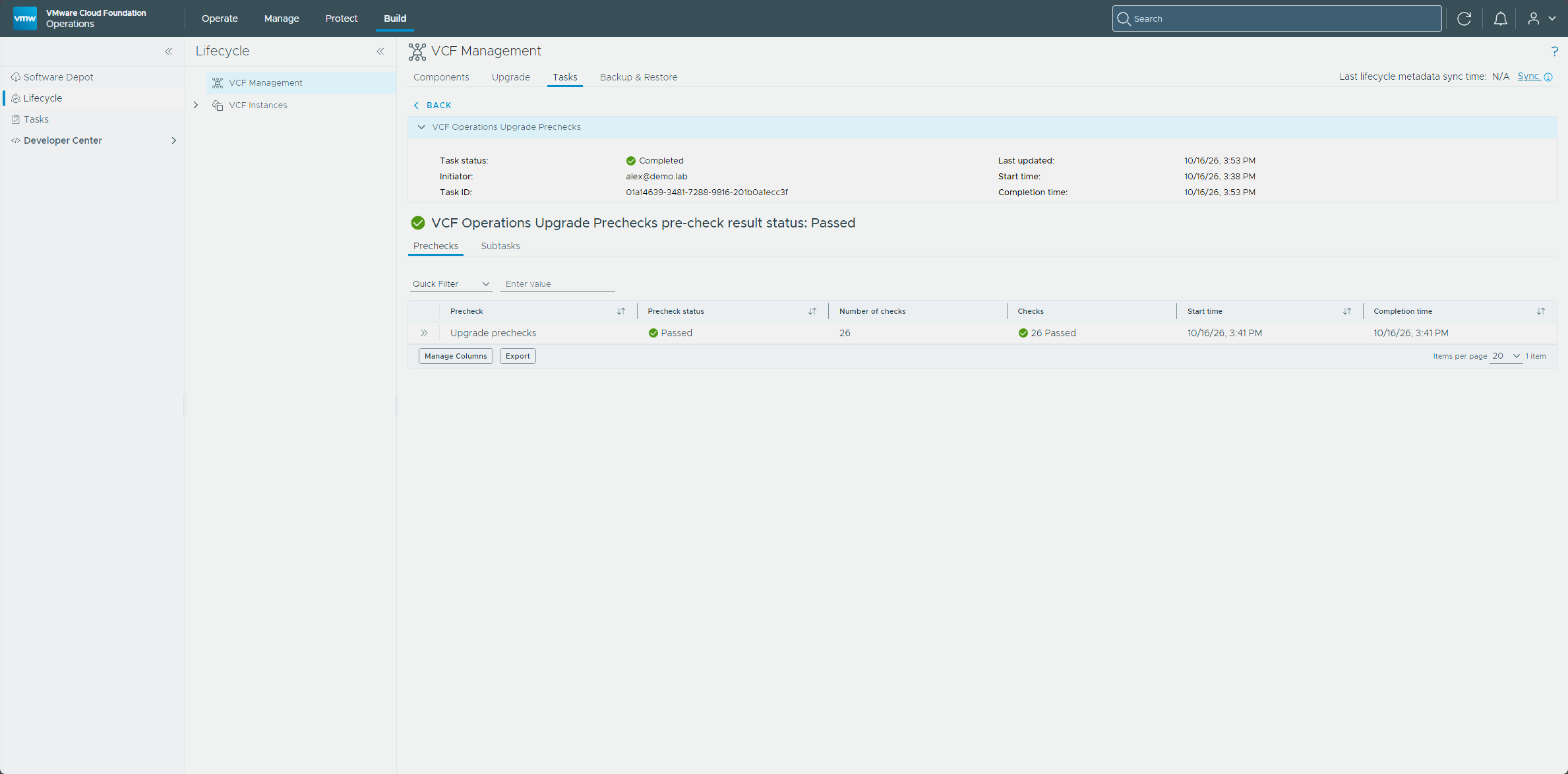
I ran the precheck first, and it passed.
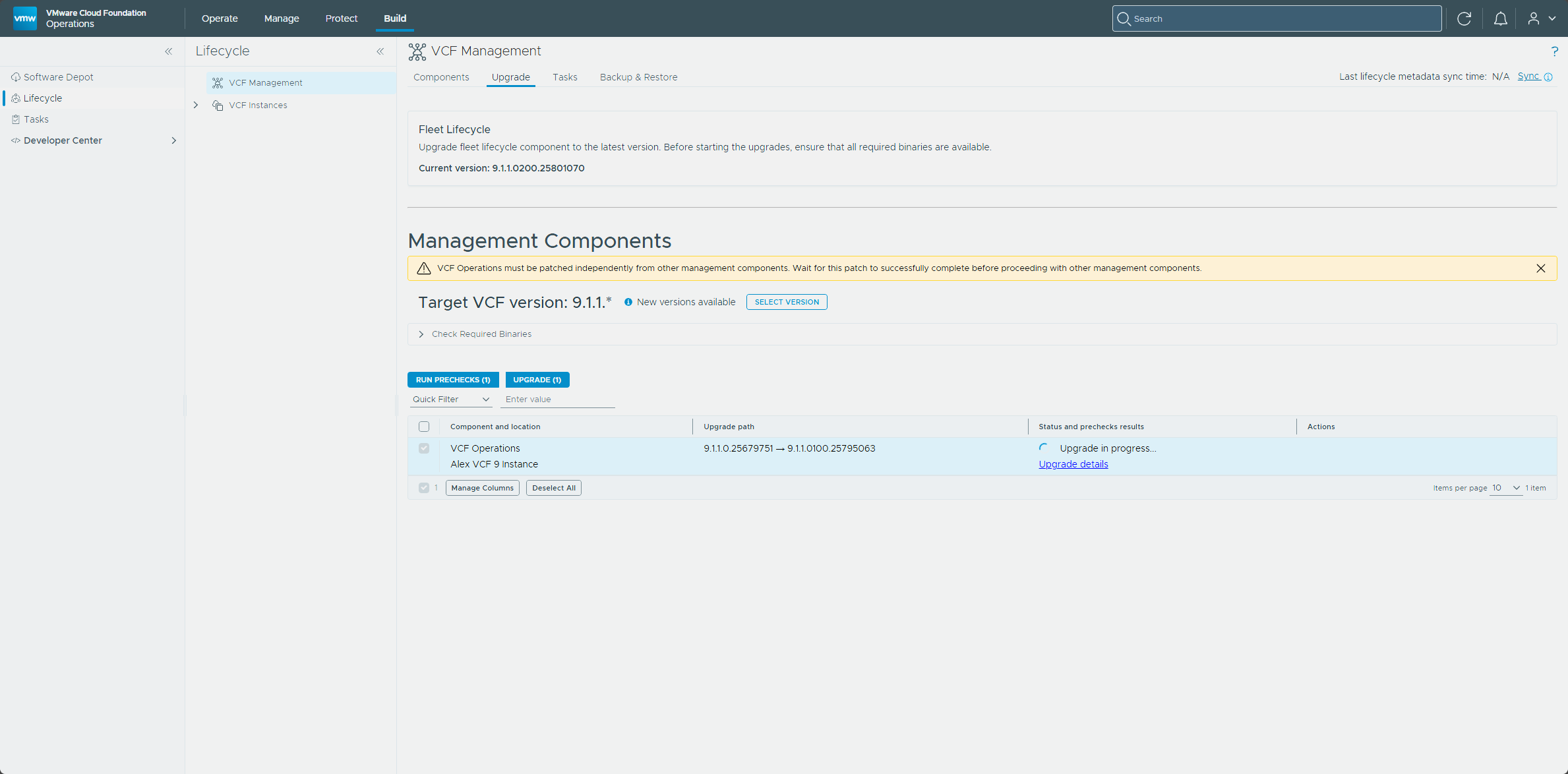
Then I started the upgrade, and the row showed Upgrade in progress with an Upgrade details link.
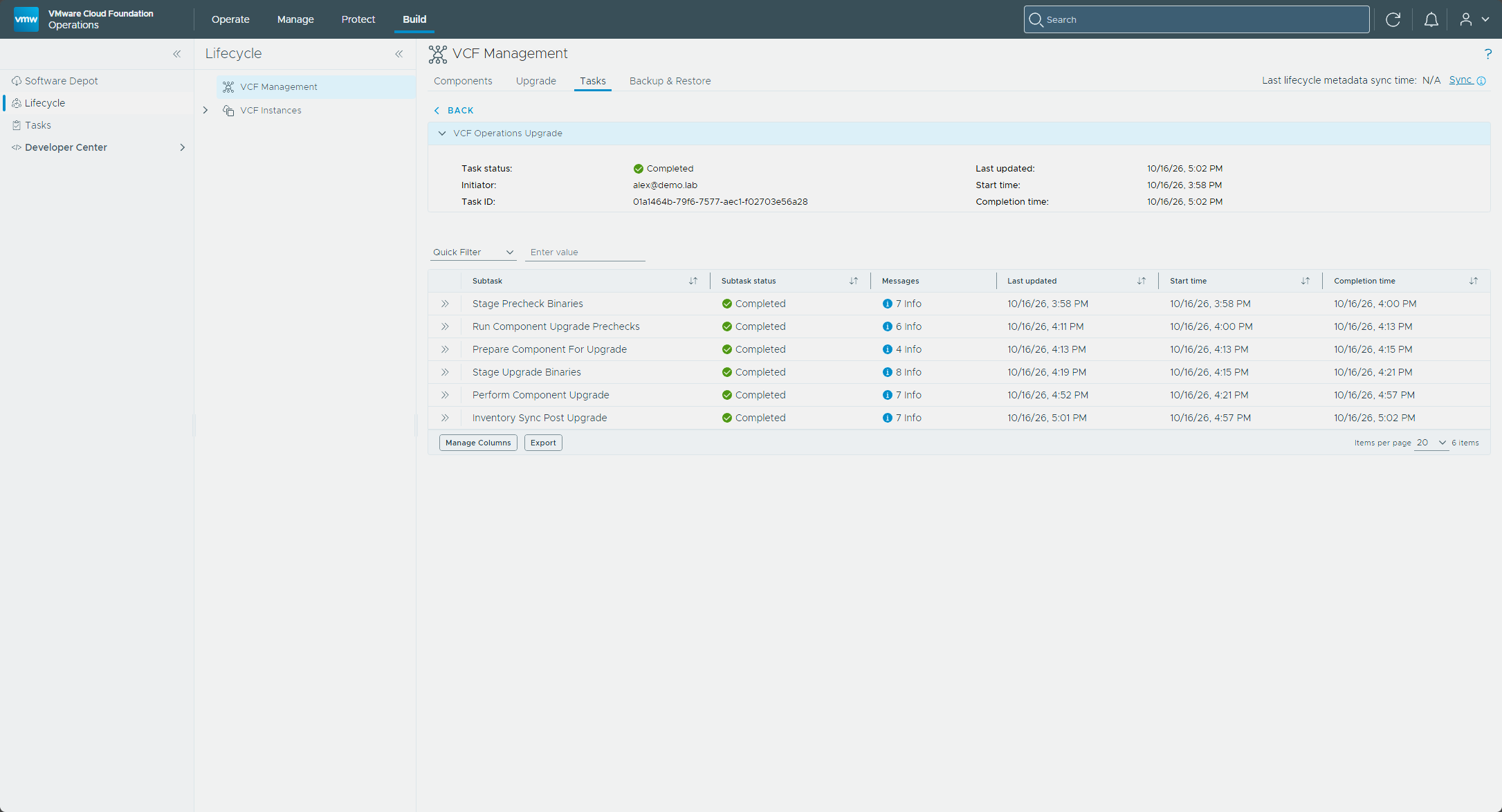
Upgrade details shows the VCF Operations Upgrade workflow, and every subtask ended Completed, from staging the precheck binaries to the inventory sync after the upgrade.
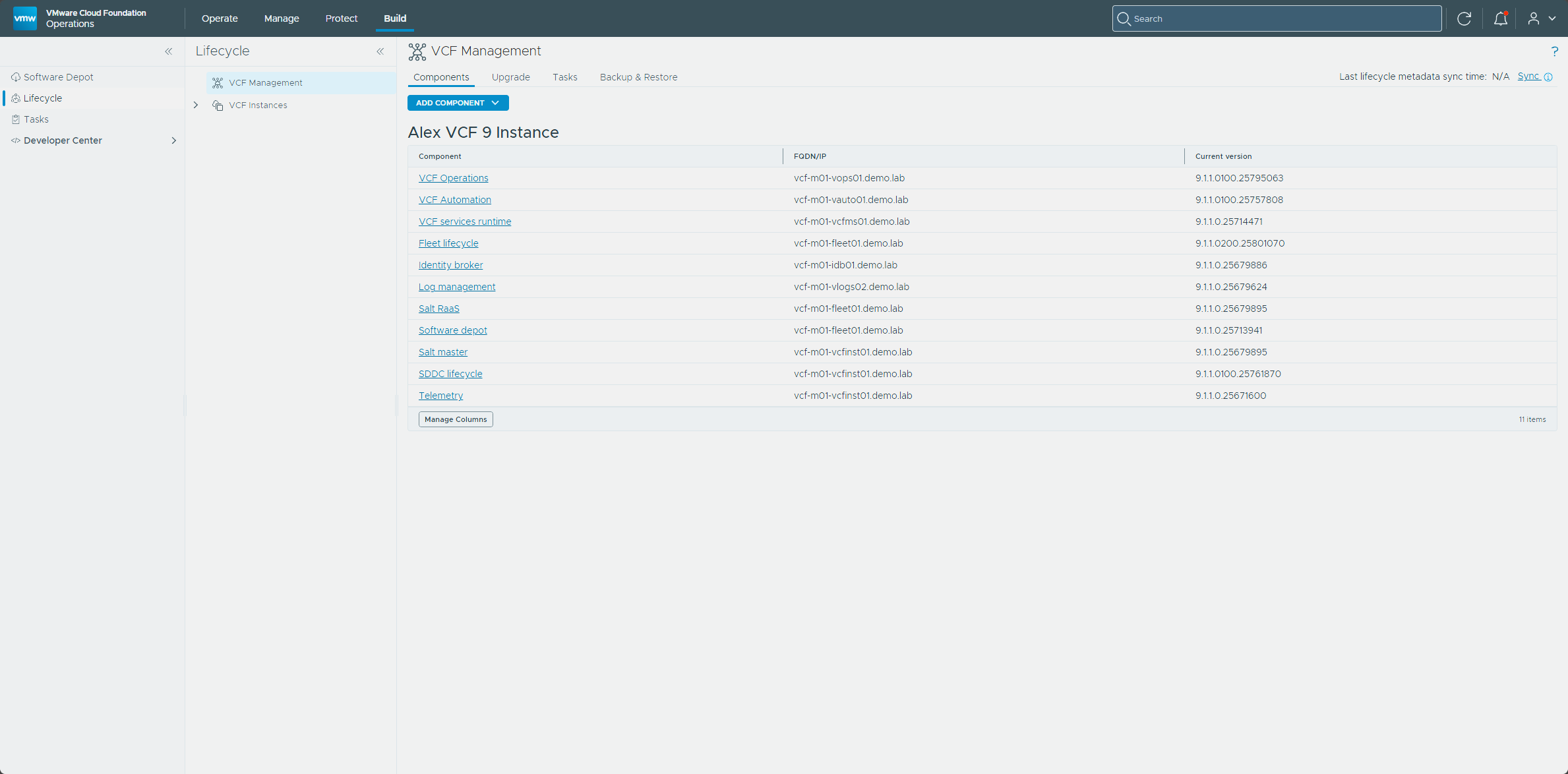
On the Components tab, VCF Operations now shows 9.1.1.0100.25795063.
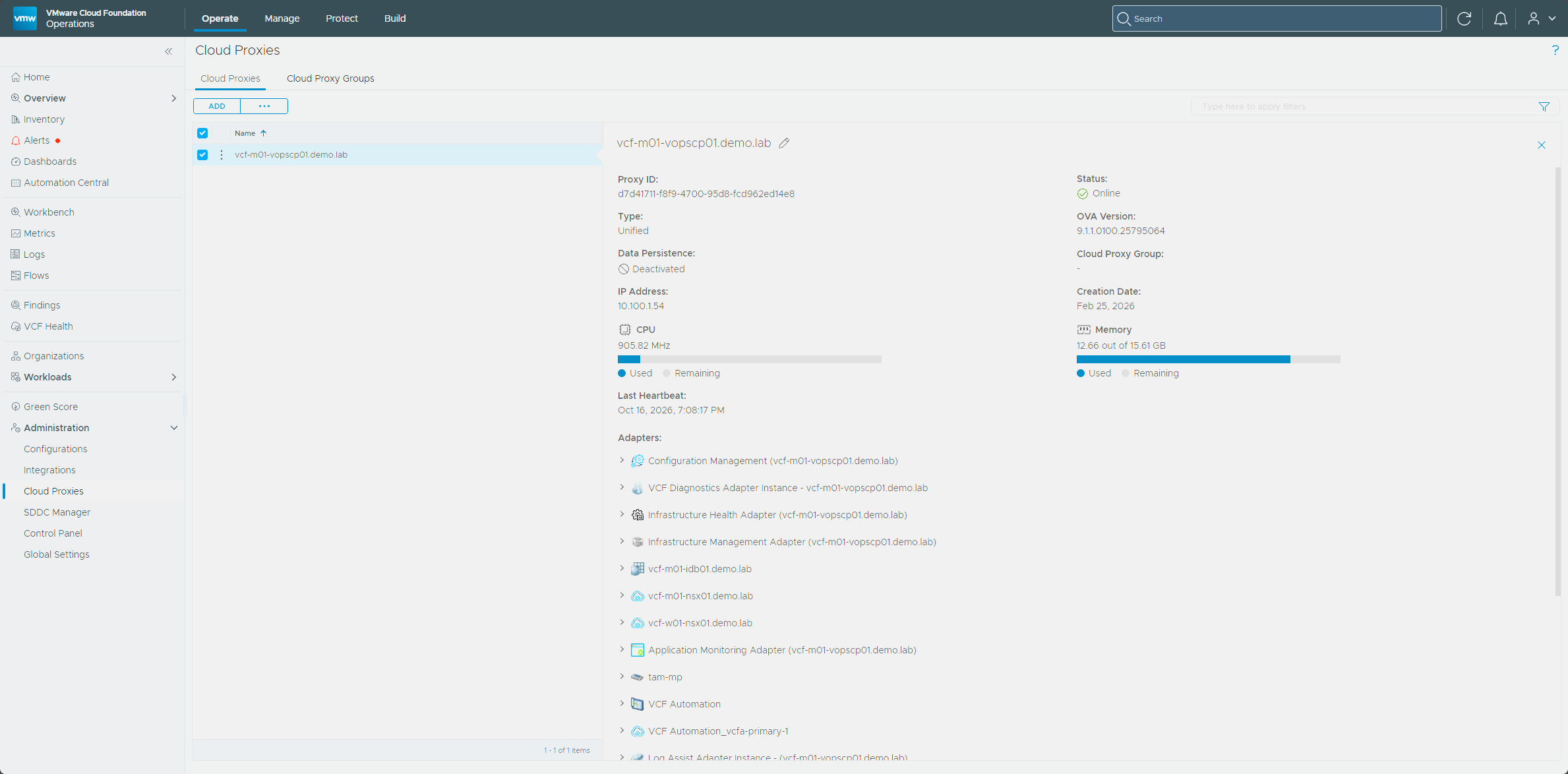
The Cloud Proxy doesn’t appear on the Components tab, so I checked Administration → Cloud Proxies. It was Online and its OVA version read 9.1.1.0100.25795064. The VCF Operations 9.1.1.0100 release notes say the cloud proxy and license server are patched automatically with VCF Operations, so there was no step of its own.
The rest of the management components
With VCF Operations patched, I opened Select version again. The Set Target Version dialog lists every management component with a target version, and I picked targets for the rest.
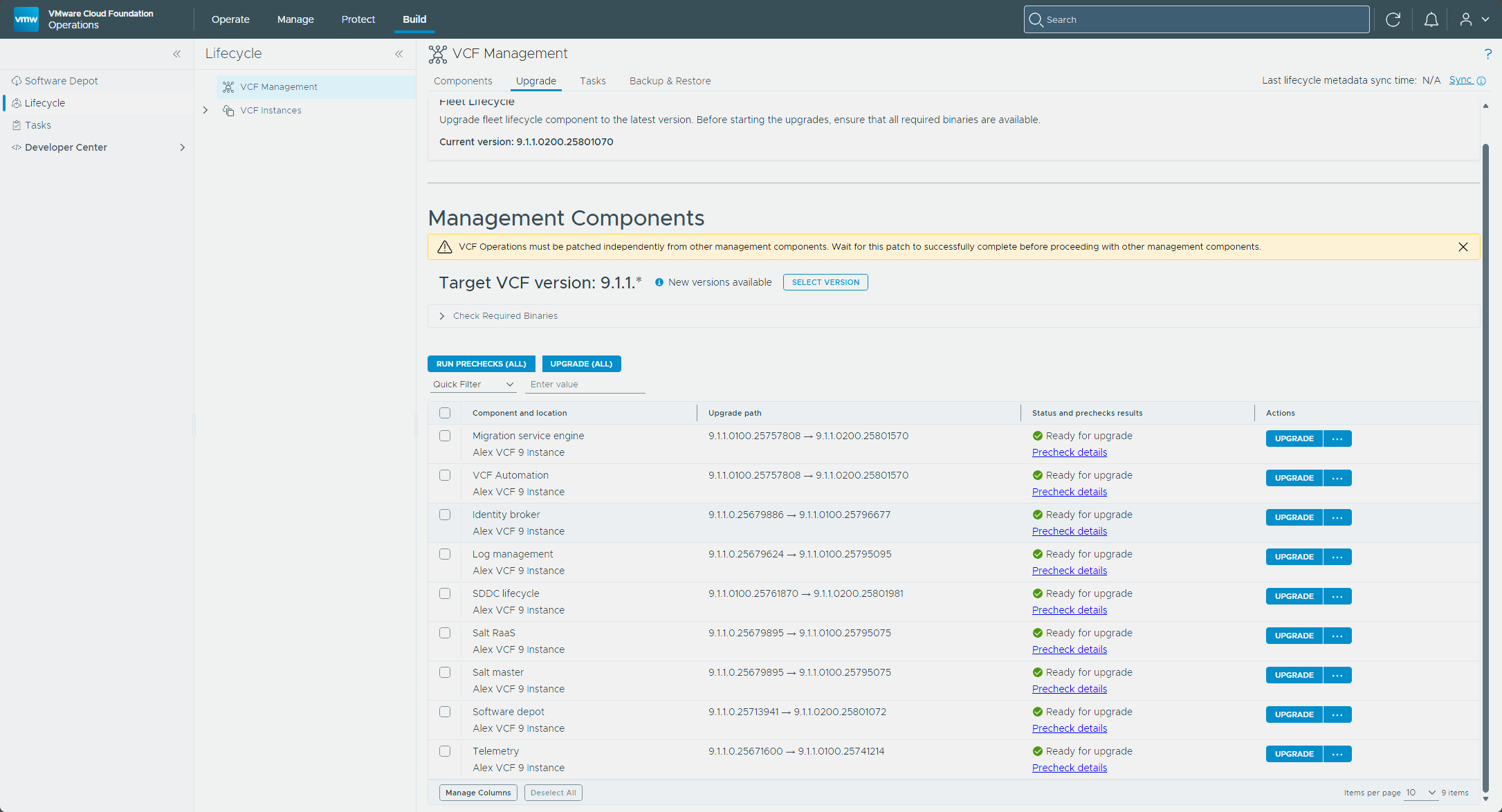
I ran the prechecks on all of them before upgrading any. Every row came back Ready for upgrade with its own precheck details.
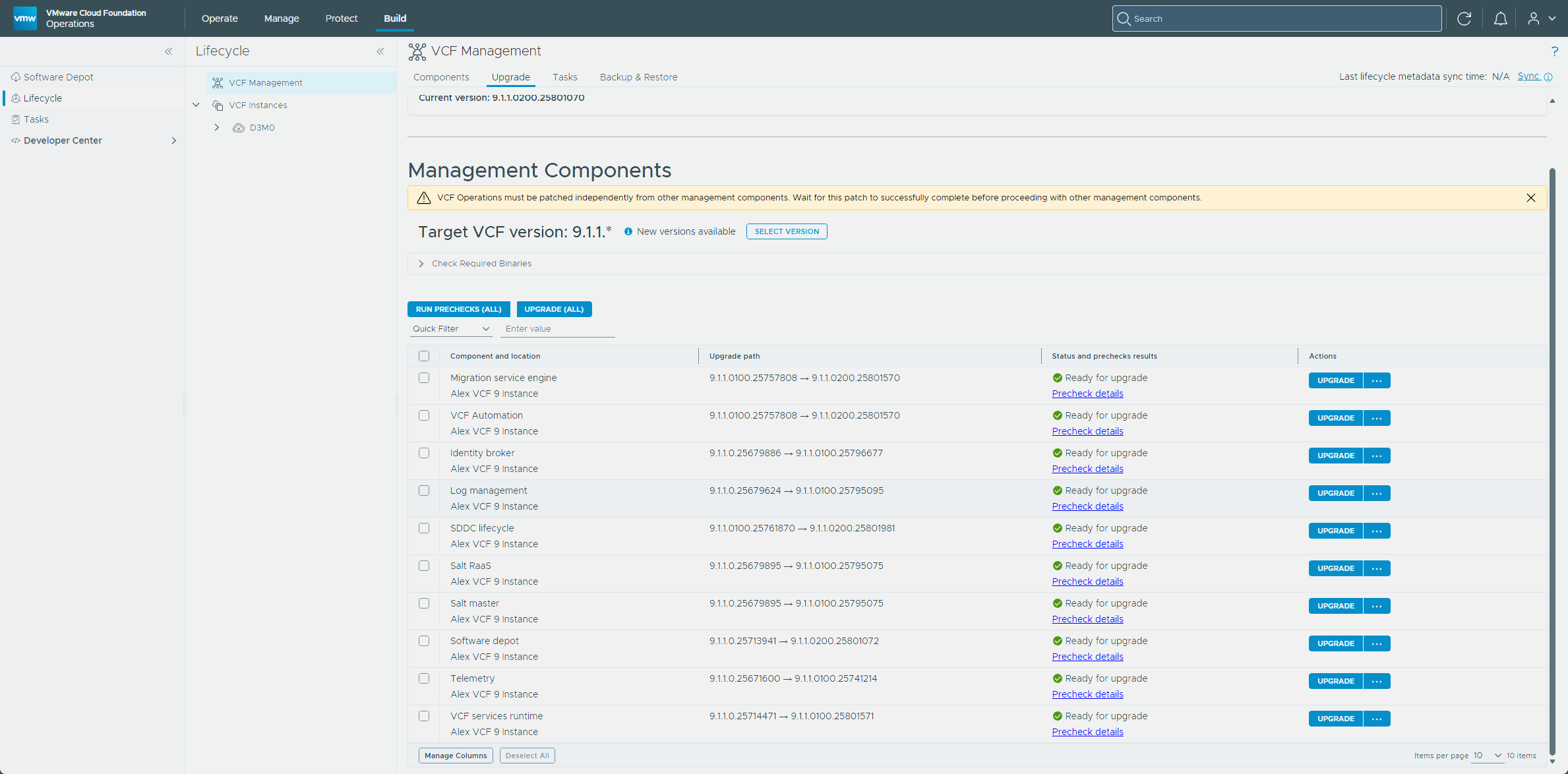
I ran them one at a time in this order.
| Order | Component | Why here |
|---|---|---|
| 1 | VCF services runtime | It has to go before an Identity Broker or Salt RaaS instance it hosts. |
| 2 | Identity broker | After the runtime. |
| 3 | Salt master | Not required, but the master and RaaS are the same 9.1.1.0100 patch, so I kept them together. |
| 4 | Salt RaaS | After the runtime. |
| 5 | VCF Automation | It has to go before the Migration service engine. |
| 6 | Migration service engine | After VCF Automation. |
| 7 | SDDC lifecycle | Free of ordering rules, so it goes here. |
| 8 | Log management | Security enhancements only. |
| 9 | Telemetry | Security enhancements only. |
| 10 | Software depot | Last, because patching it blocks patching anything else. |
VCF services runtime
The precheck had already passed on the VCF services runtime row, which showed the move from 9.1.1.0.25714471 to 9.1.1.0100.25801571, so I clicked Upgrade on that row. I left Upgrade (All) alone and the other components stayed as they were.
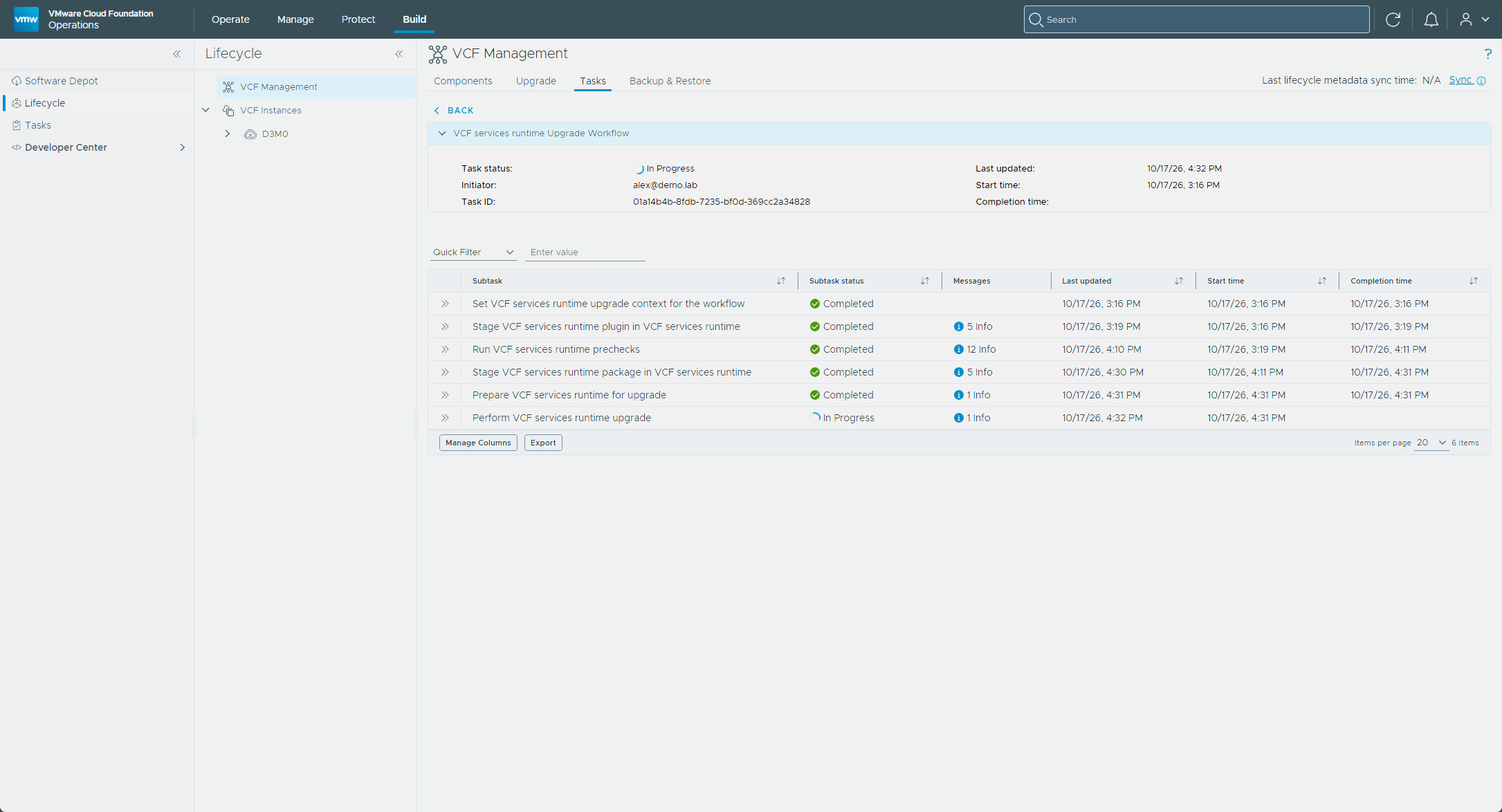
Upgrade details shows the VCF services runtime Upgrade Workflow. It sets the upgrade context, stages the runtime plugin, runs its own prechecks, stages the package, and prepares the runtime before it performs the upgrade.
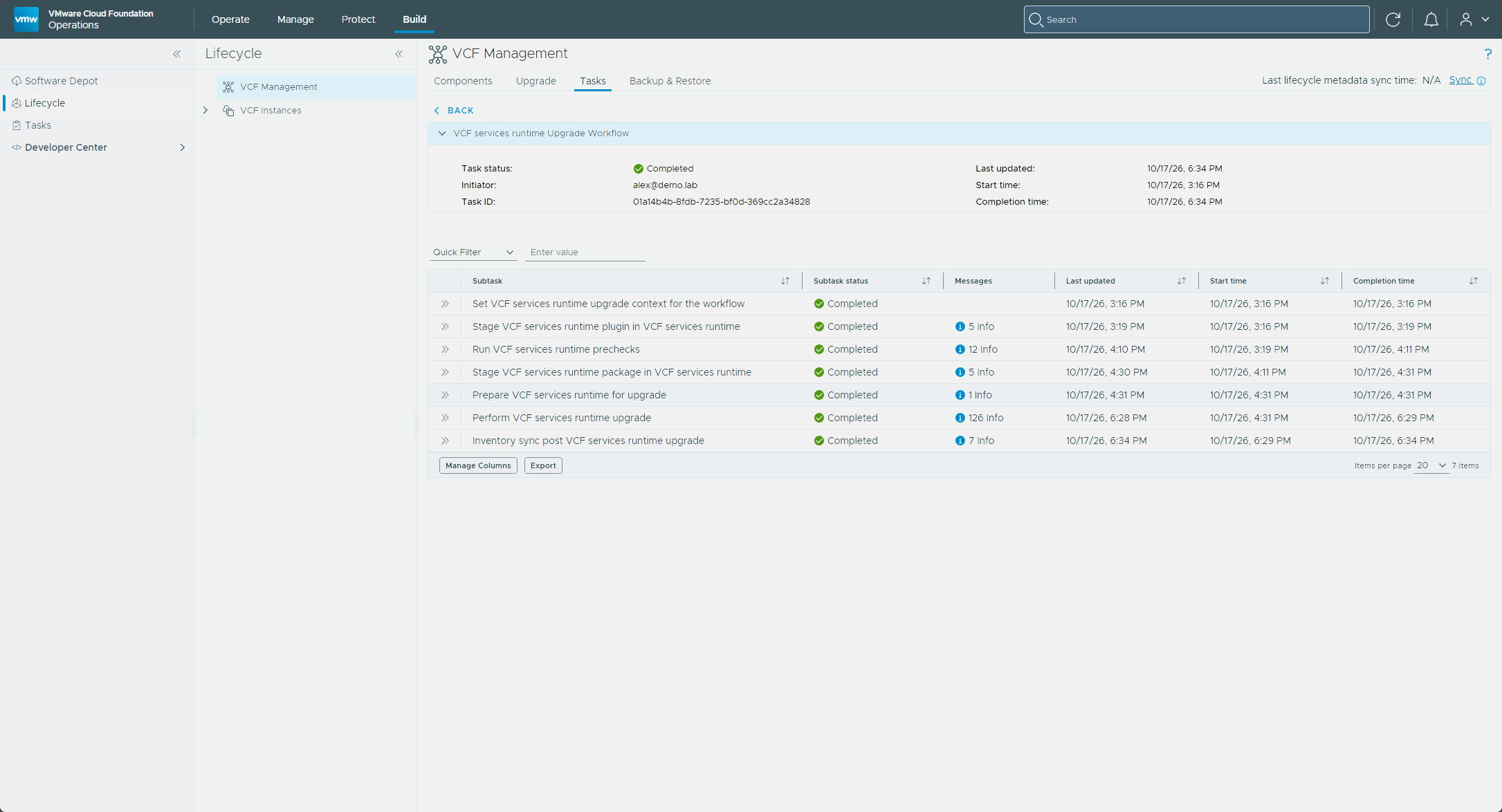
With the runtime done, its row dropped off the Upgrade tab and the rest of the components stayed Ready for upgrade.
Identity broker
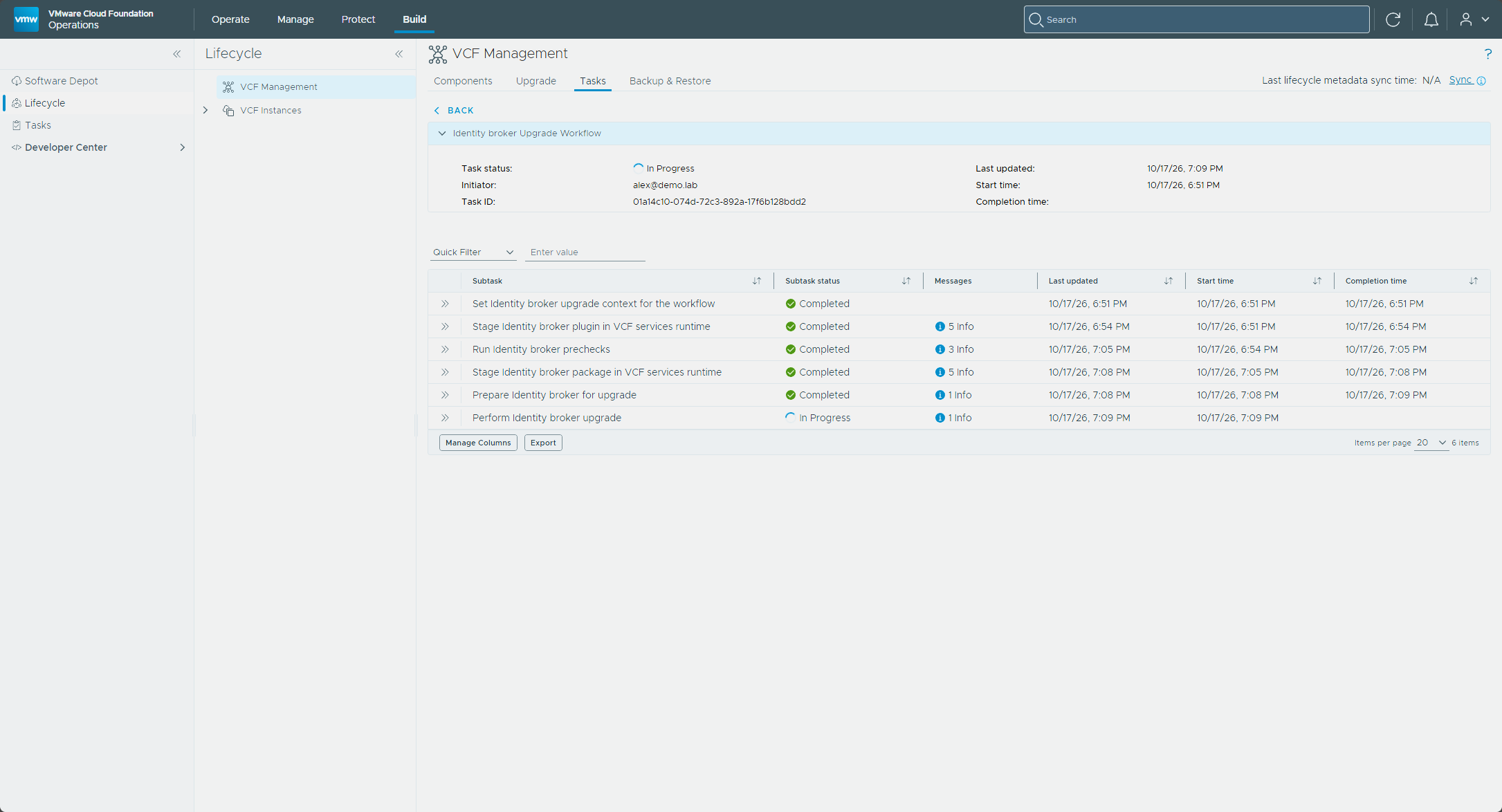
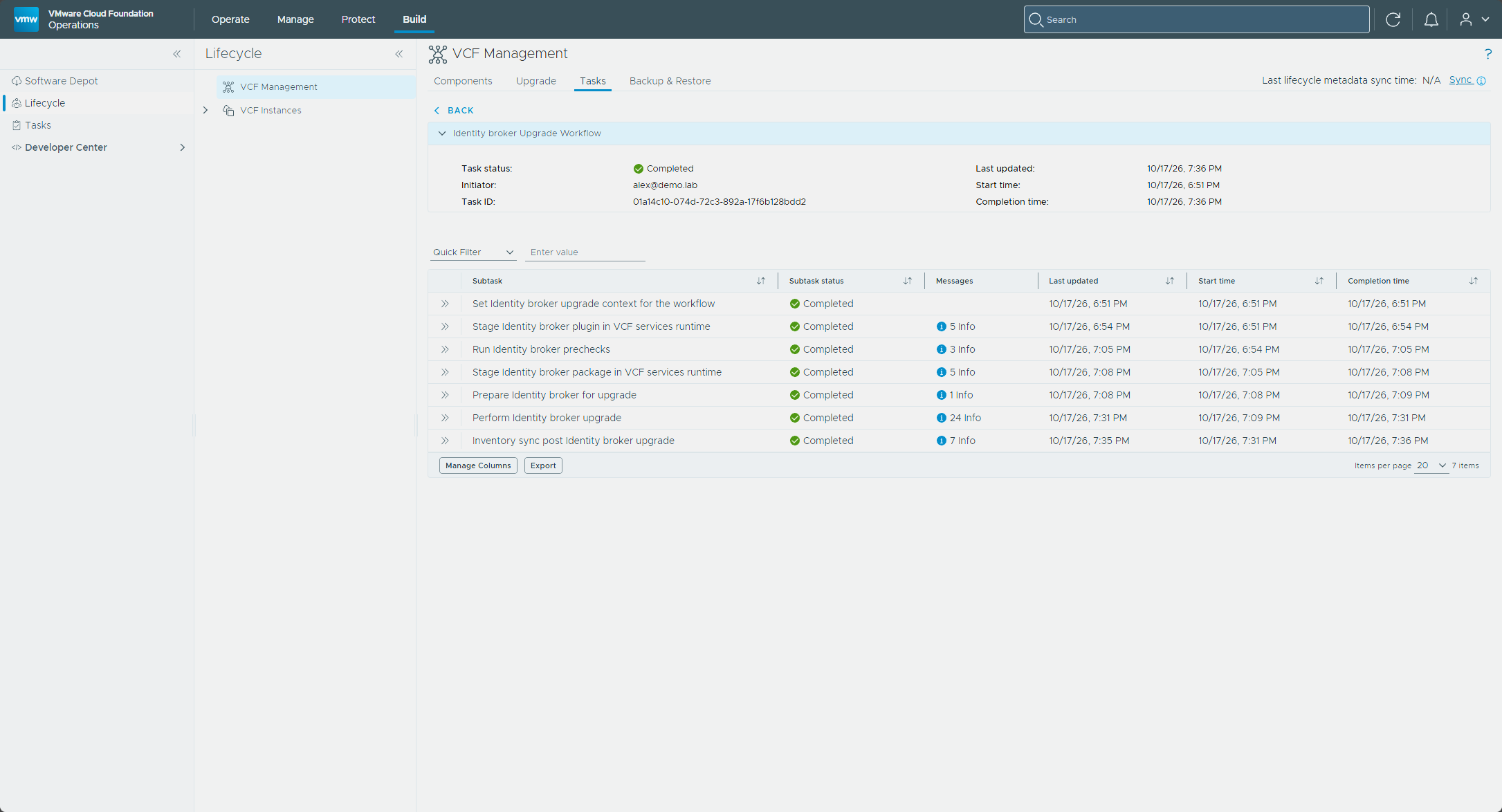
I clicked Upgrade on the Identity broker row, which showed the move from 9.1.1.0.25679886 to 9.1.1.0100.25796677. The workflow ran through the same subtasks as the runtime.
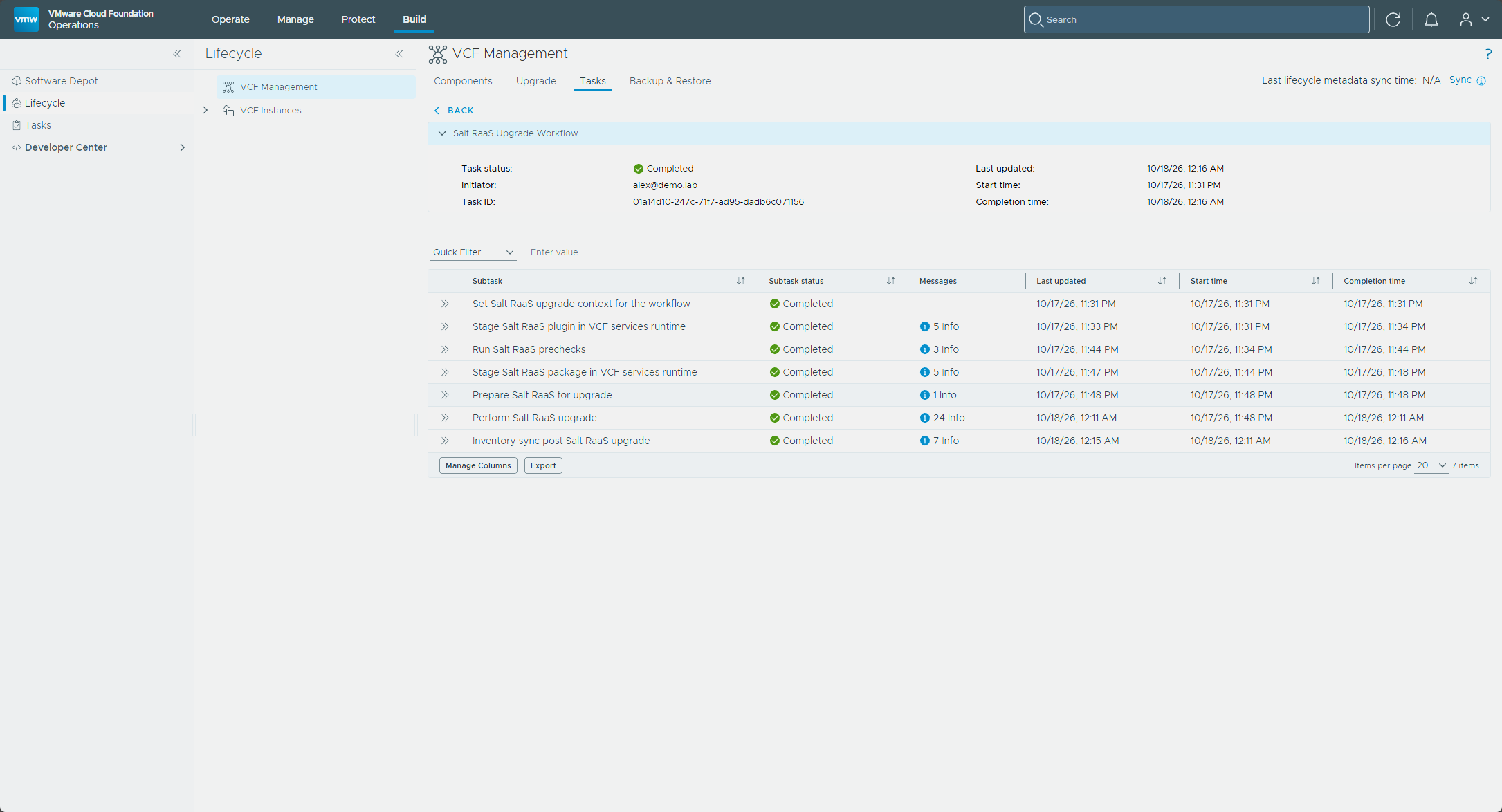
Salt master and Salt RaaS
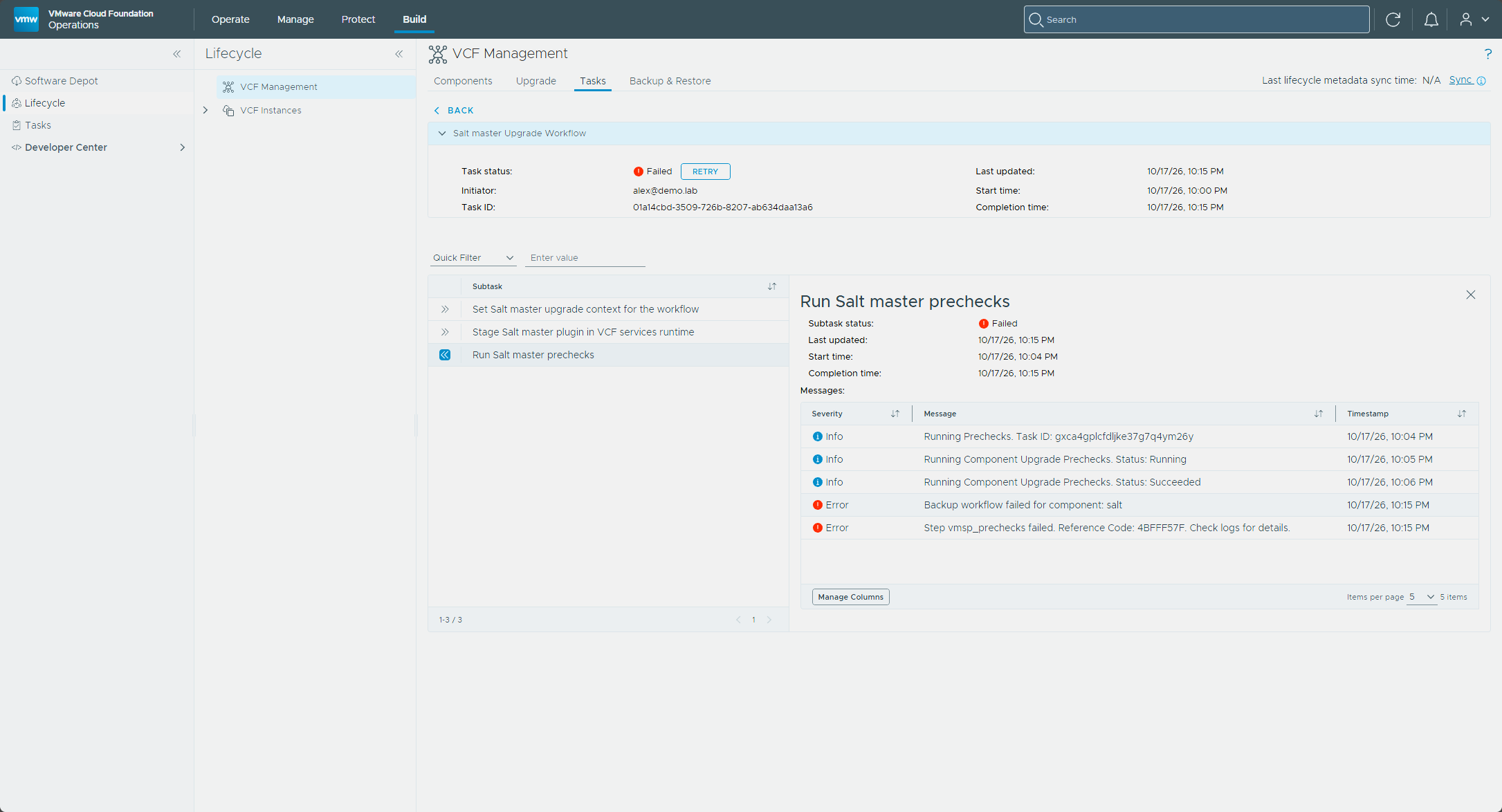
I took Salt master first and clicked Upgrade on its row, which showed the move from 9.1.1.0.25679895 to 9.1.1.0100.25795075. The workflow stopped at Run Salt master prechecks and the task showed Failed.
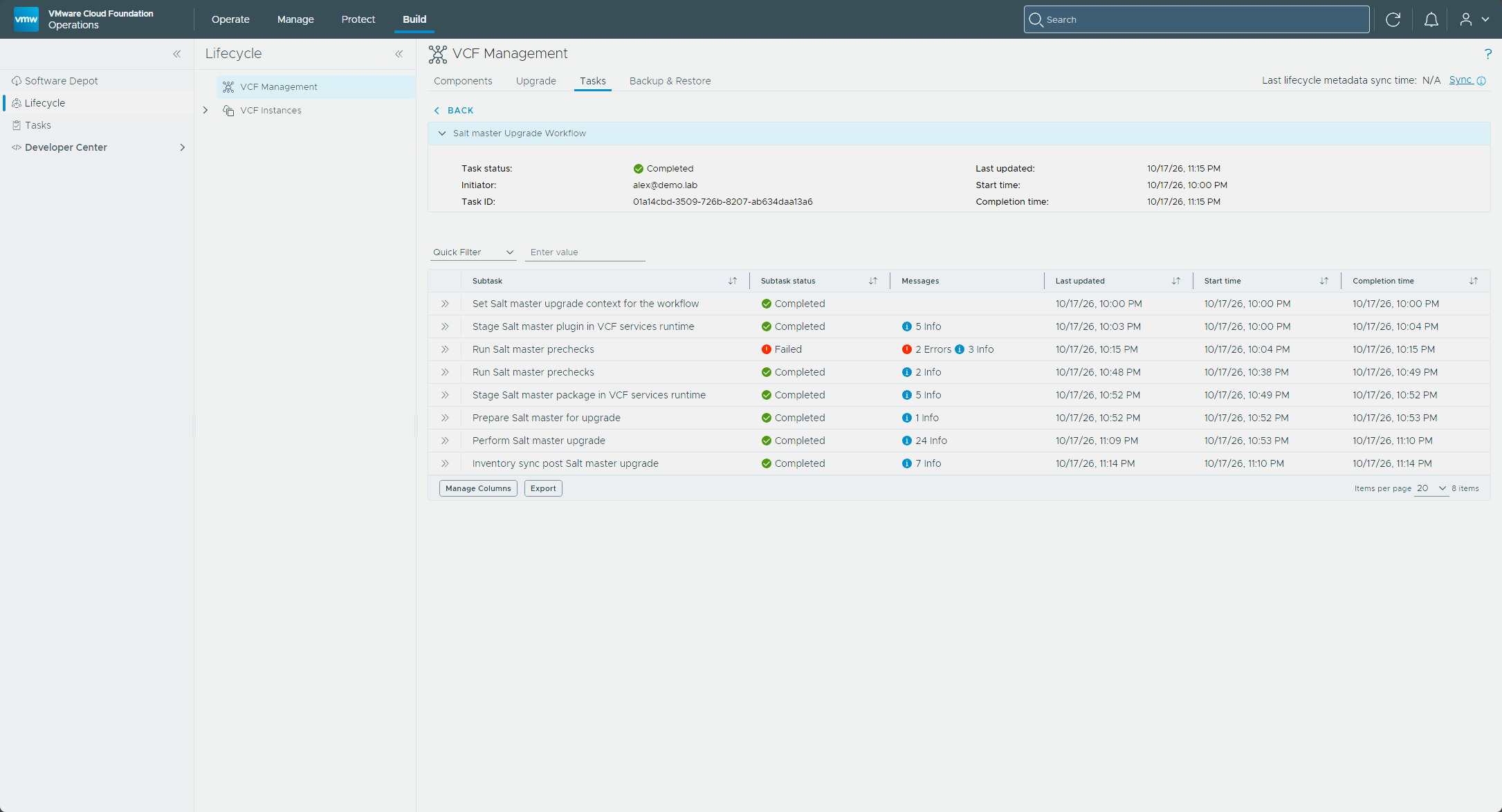
The retry passed, and the workflow ran on to the end. The failed precheck stays in the list above the one that passed.
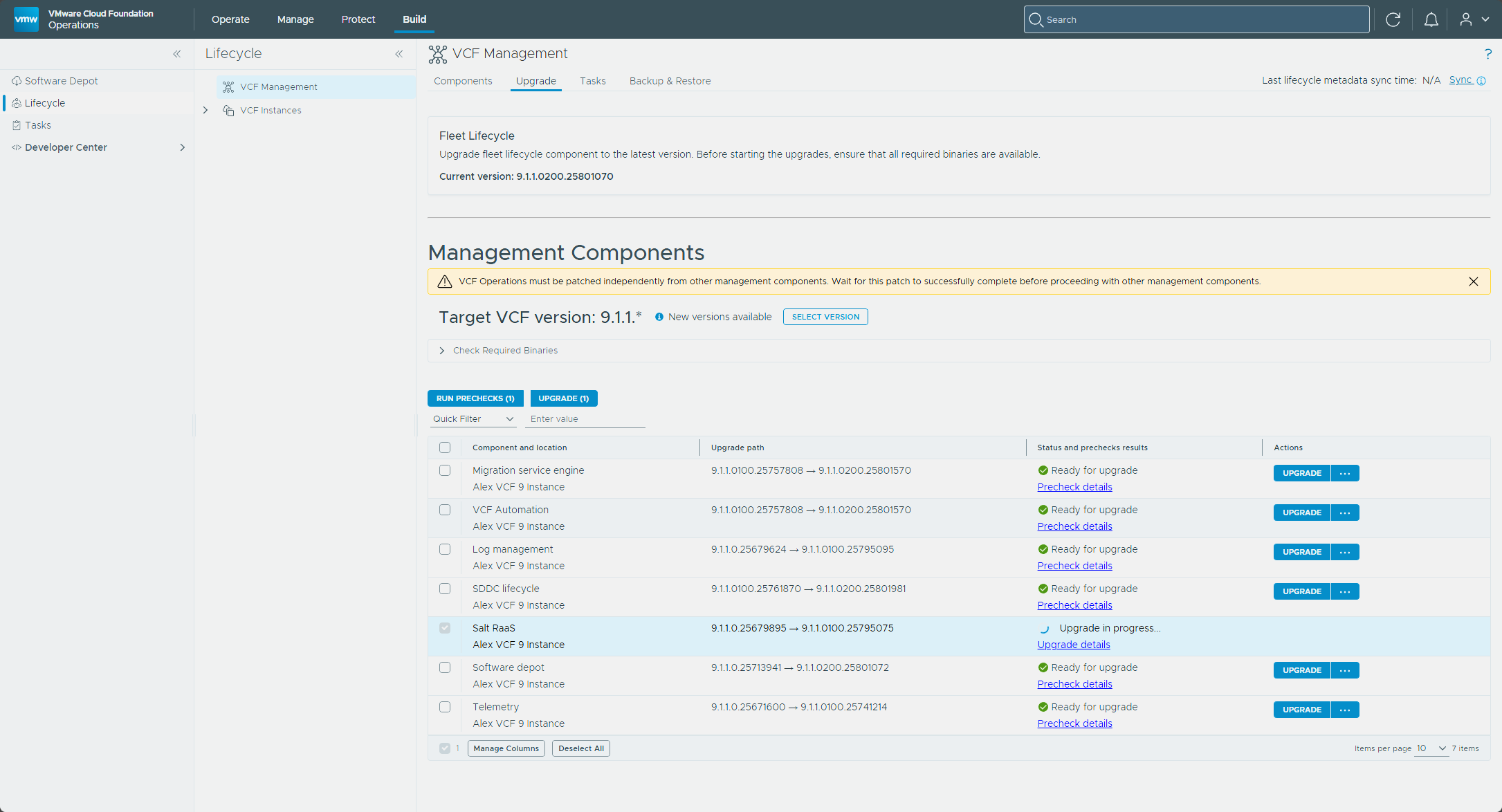
Salt RaaS was next, and it went through without a failed precheck. I selected its row and clicked Upgrade, which moved it from 9.1.1.0.25679895 to 9.1.1.0100.25795075.
VCF Automation and the Migration service engine
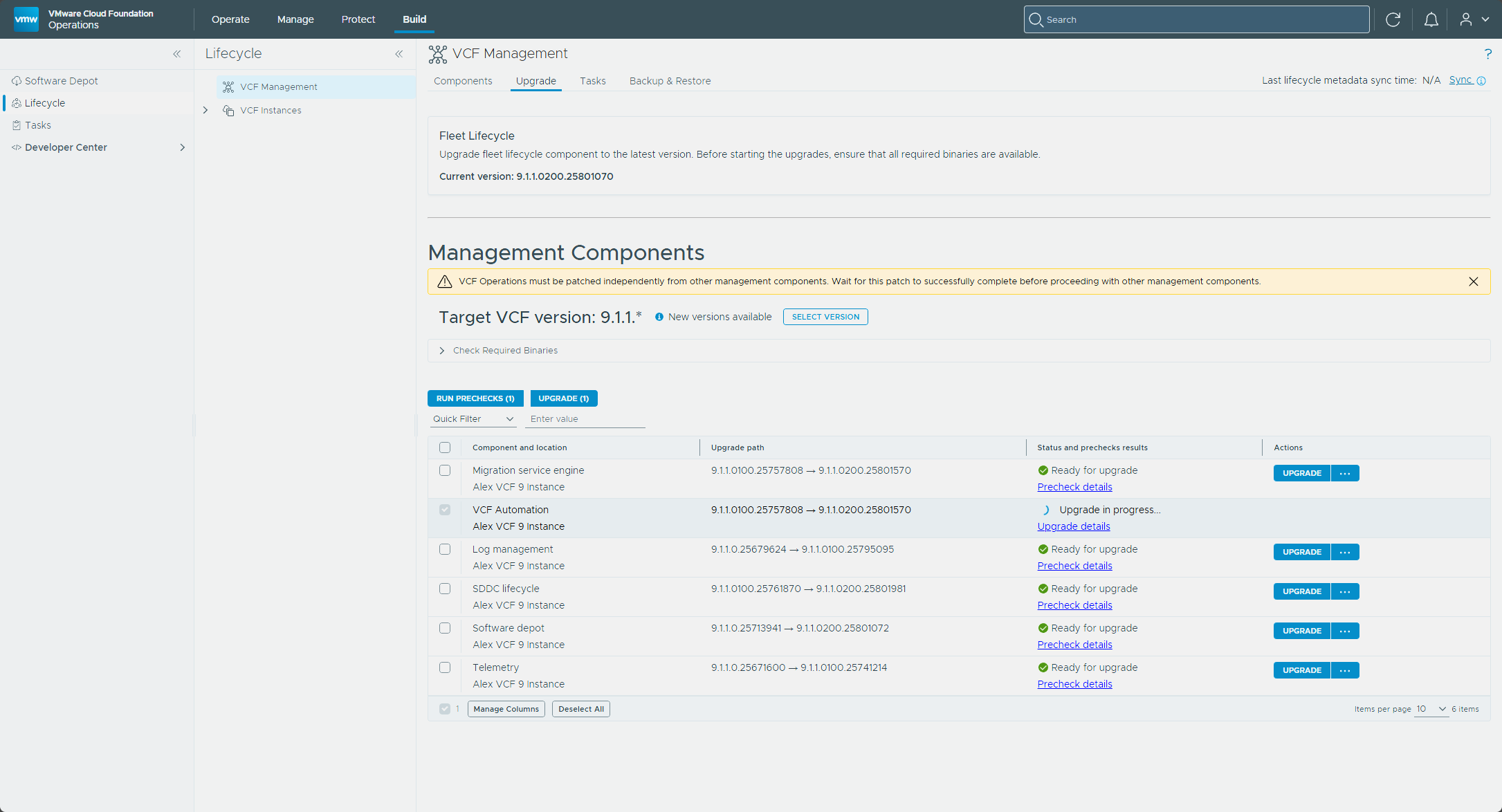
VCF Automation went first, since the Migration service engine has to wait for it. I selected the VCF Automation row and clicked Upgrade, which moved it from 9.1.1.0100.25757808 to 9.1.1.0200.25801570.
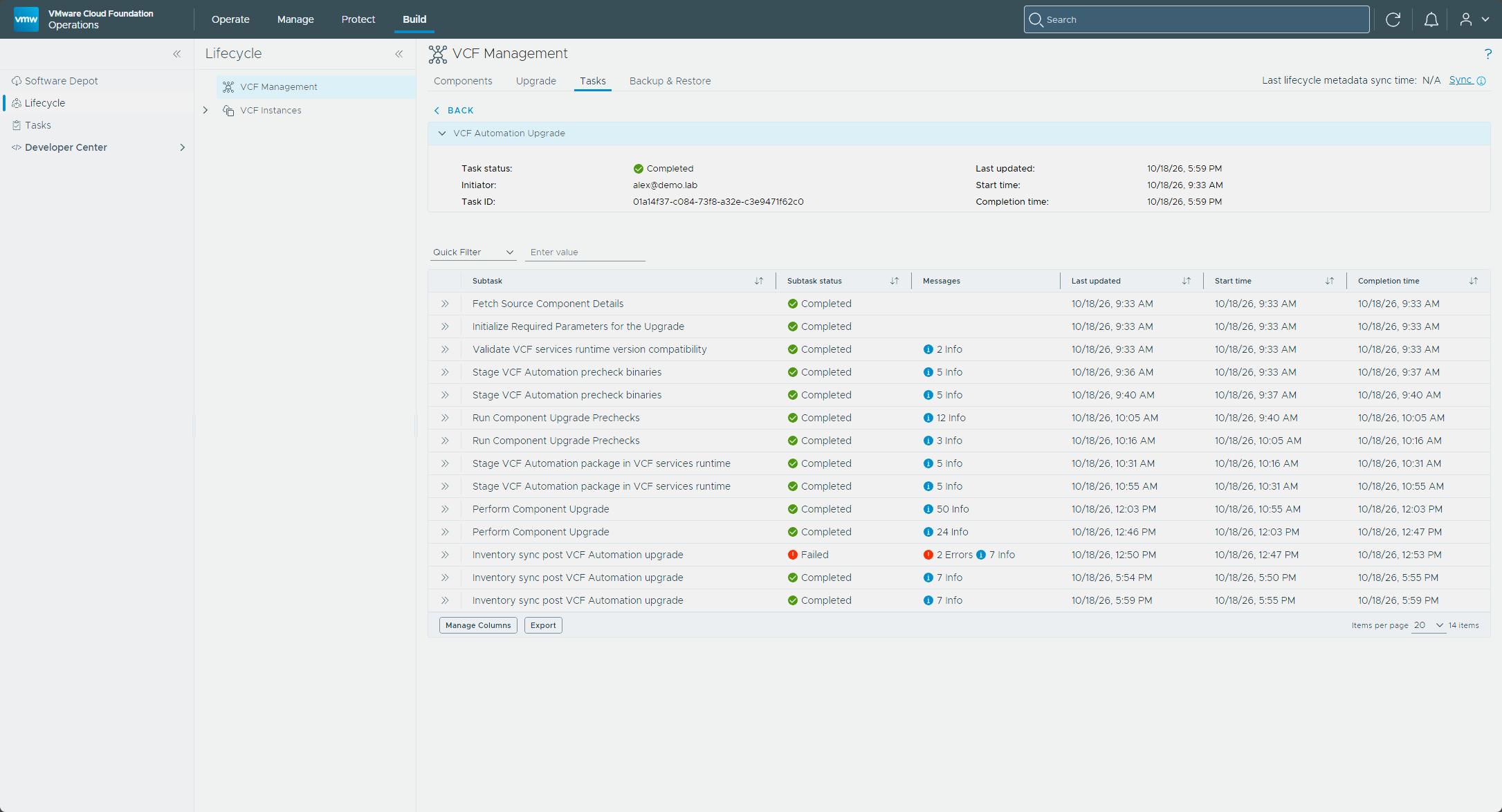
The Tasks tab for this workflow shows each of the staging, precheck, and upgrade subtasks twice.
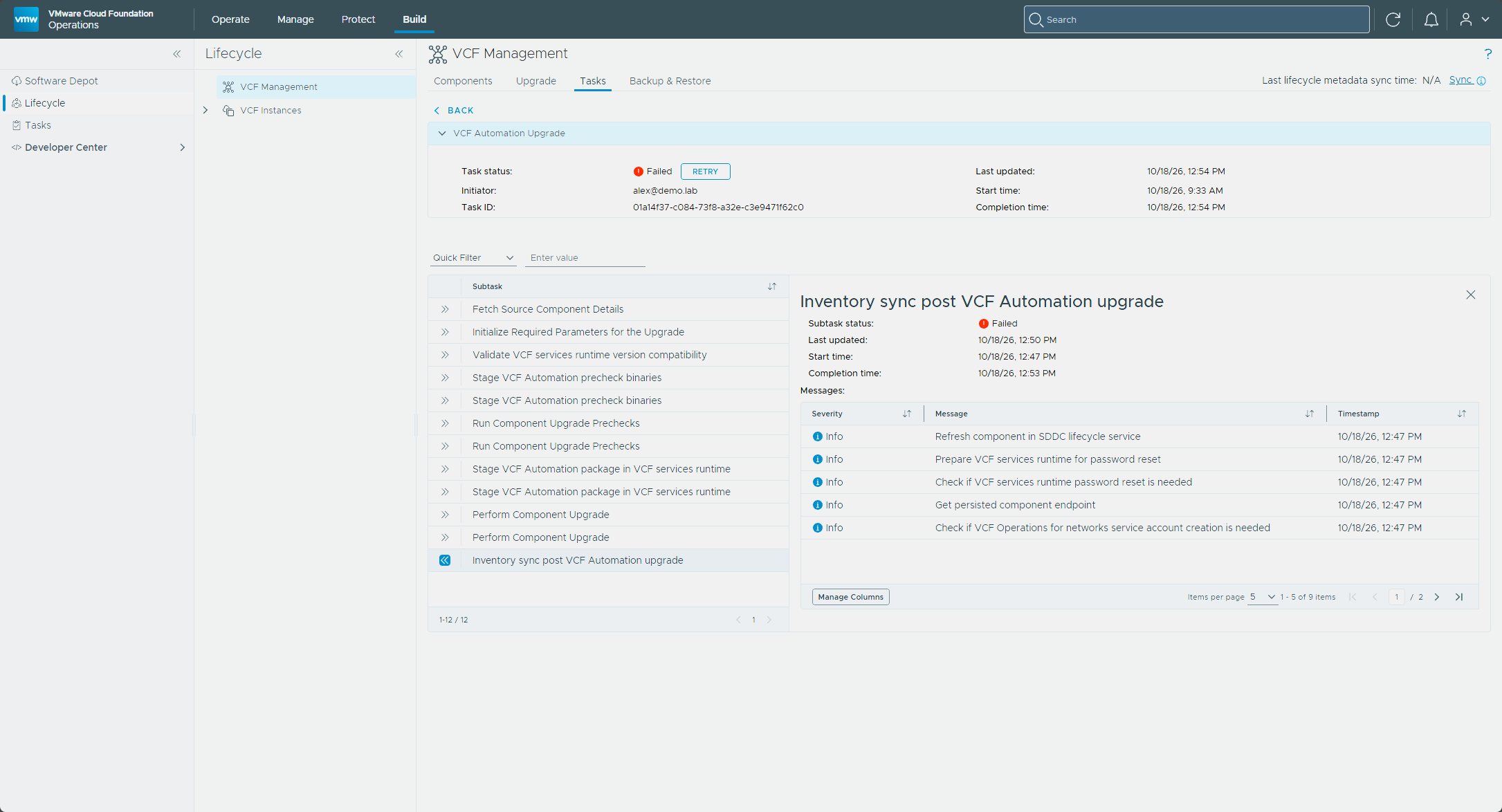
The retry ran the inventory sync again and the workflow completed. The failed subtask stays in the list above the two that passed.
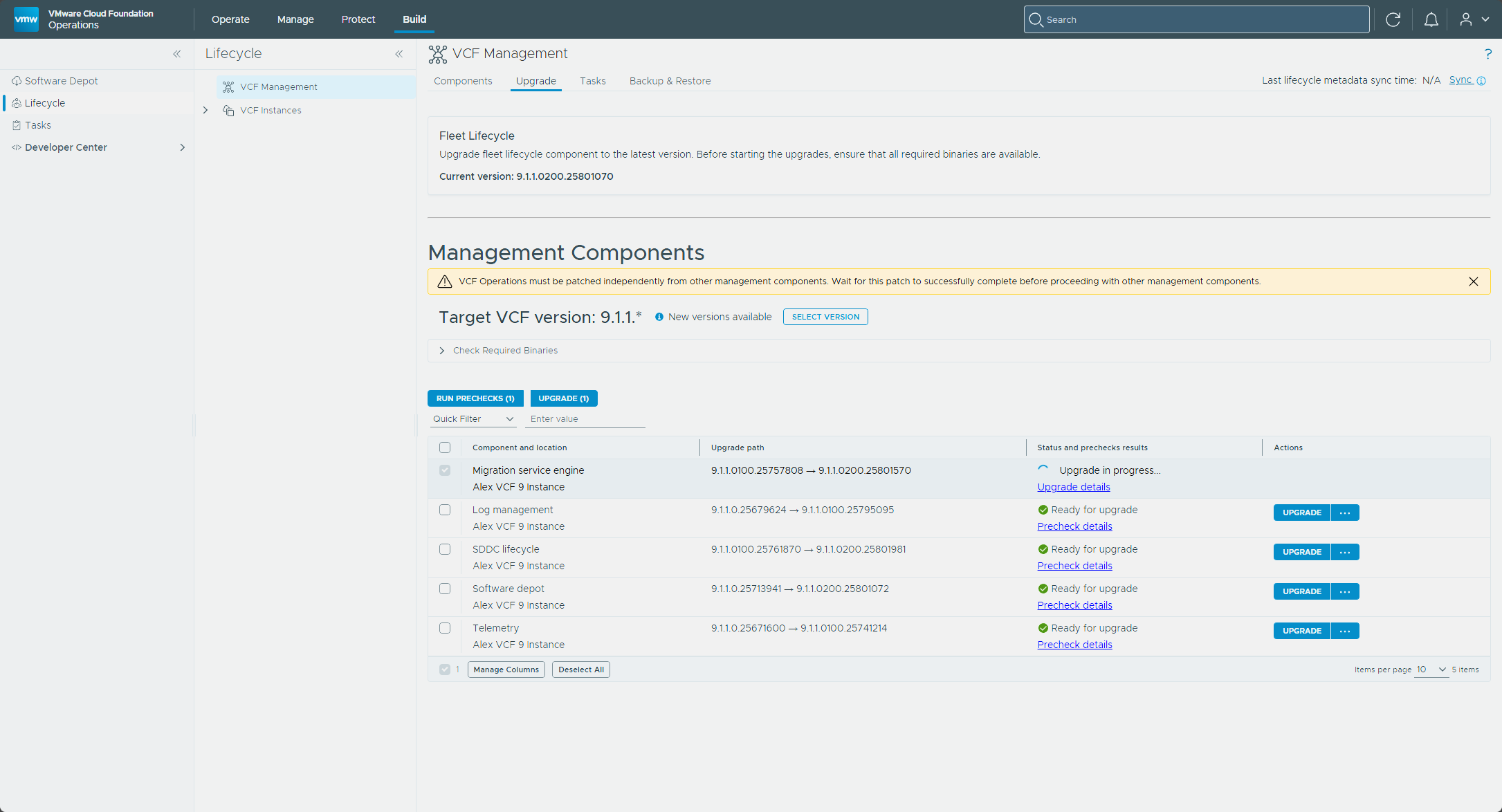
With VCF Automation patched, the Migration service engine was next. I selected its row and clicked Upgrade, which moved it from 9.1.1.0100.25757808 to 9.1.1.0200.25801570.
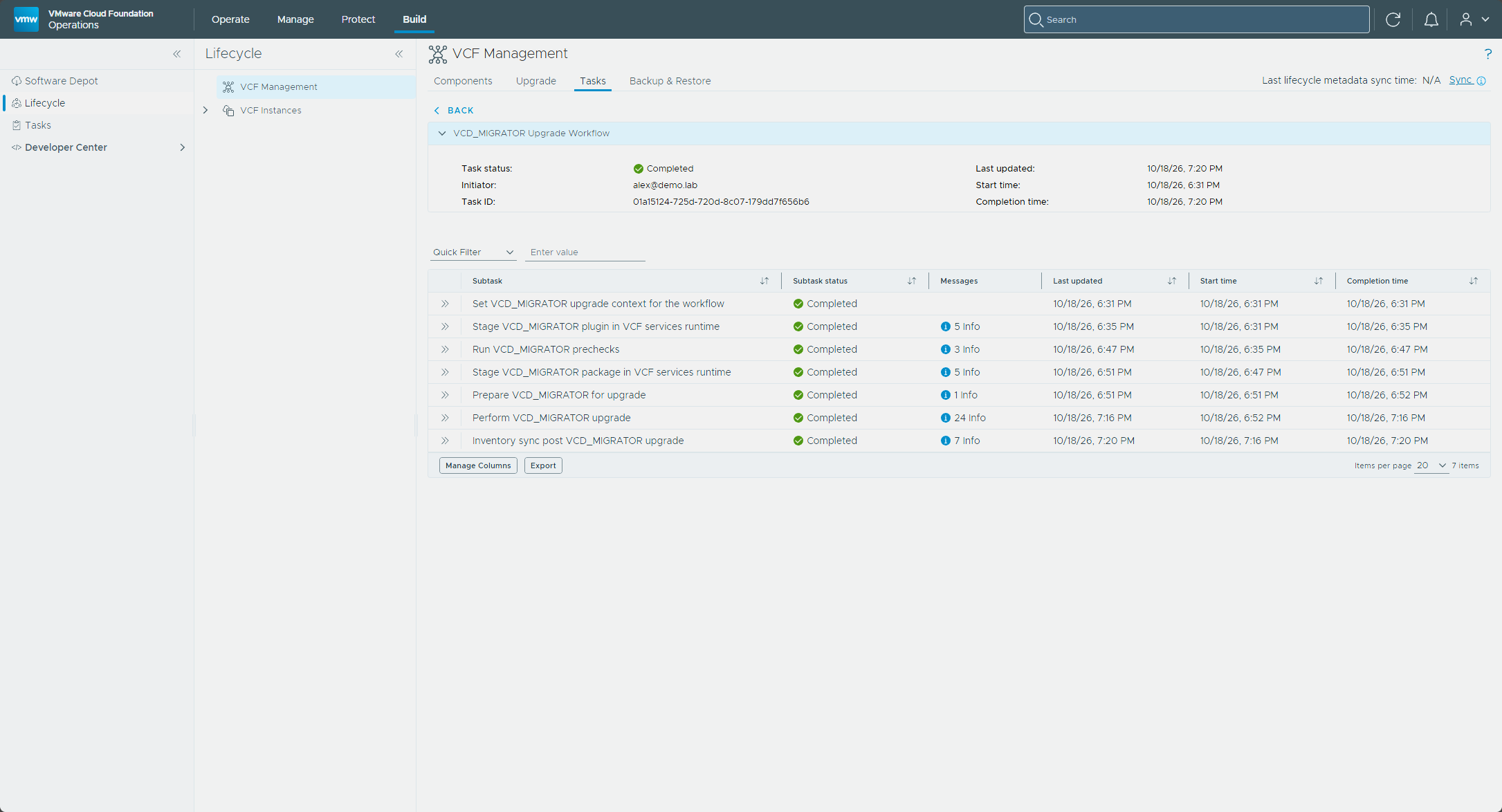
The workflow on the Tasks tab calls it VCD_MIGRATOR.
SDDC lifecycle
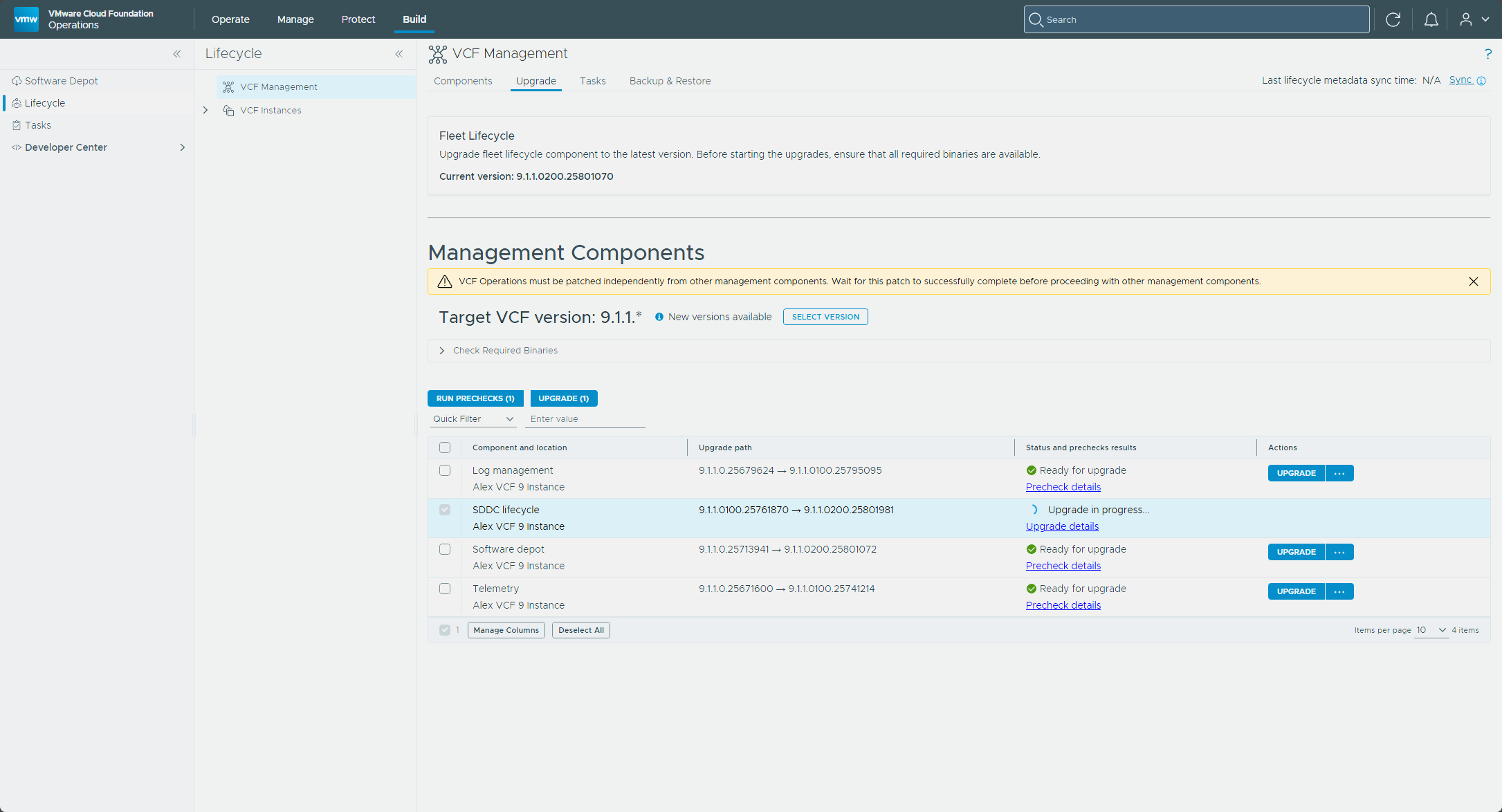
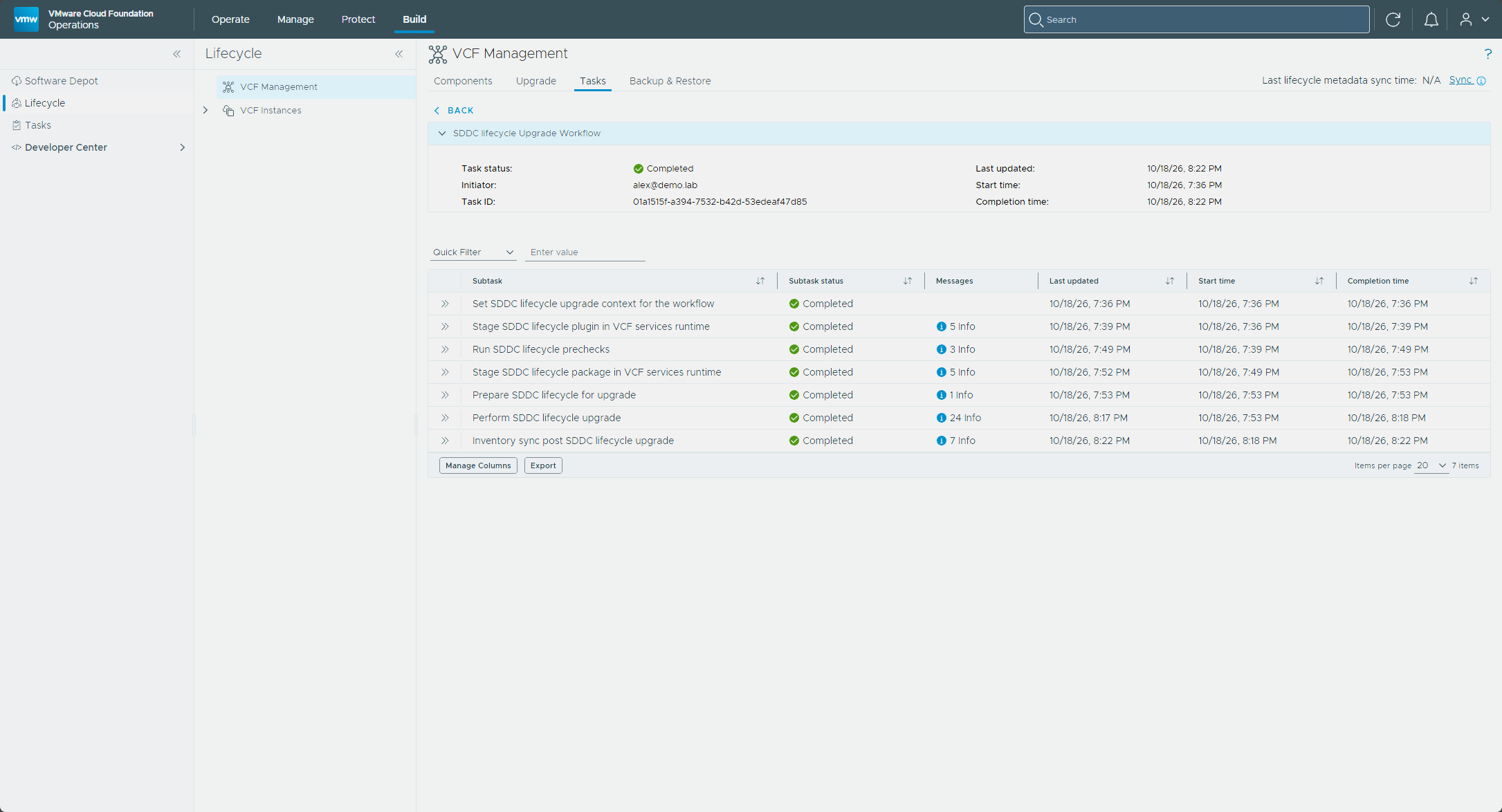
SDDC lifecycle was next, and Upgrade on its row took it from 9.1.1.0100.25761870 to 9.1.1.0200.25801981.
Log management and Telemetry
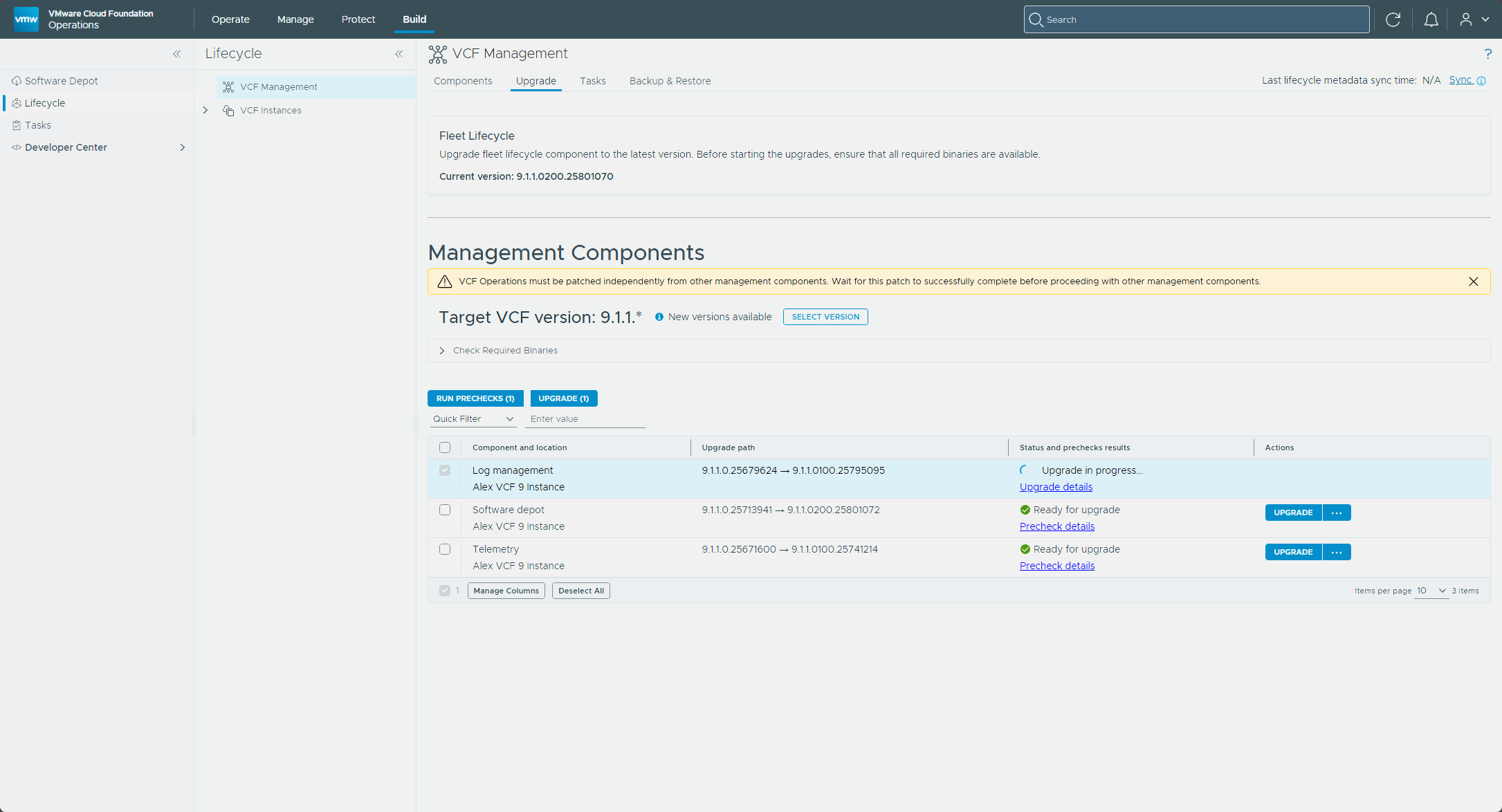
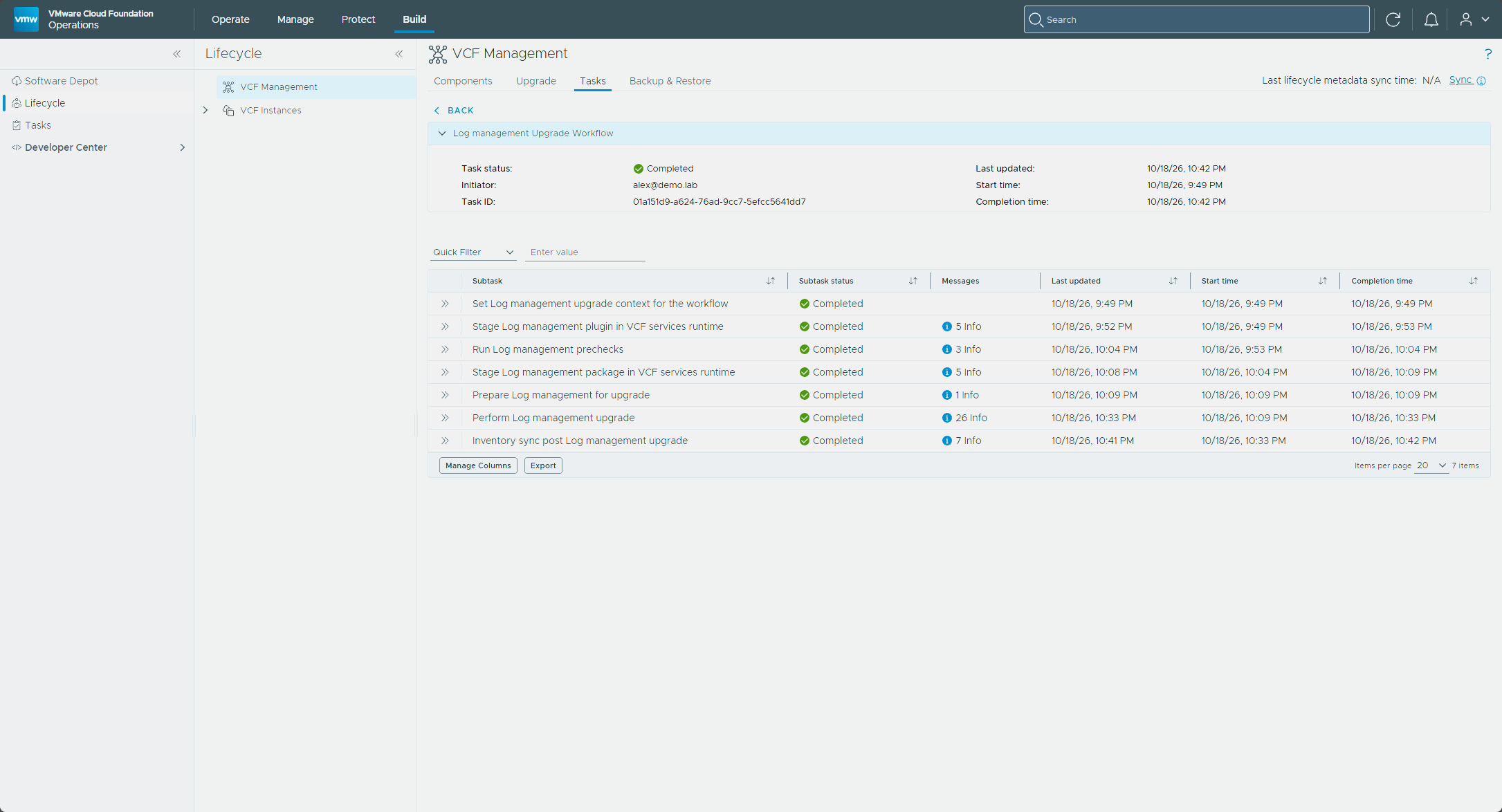
Log management went the same way, from 9.1.1.0.25679624 to 9.1.1.0100.25795095.
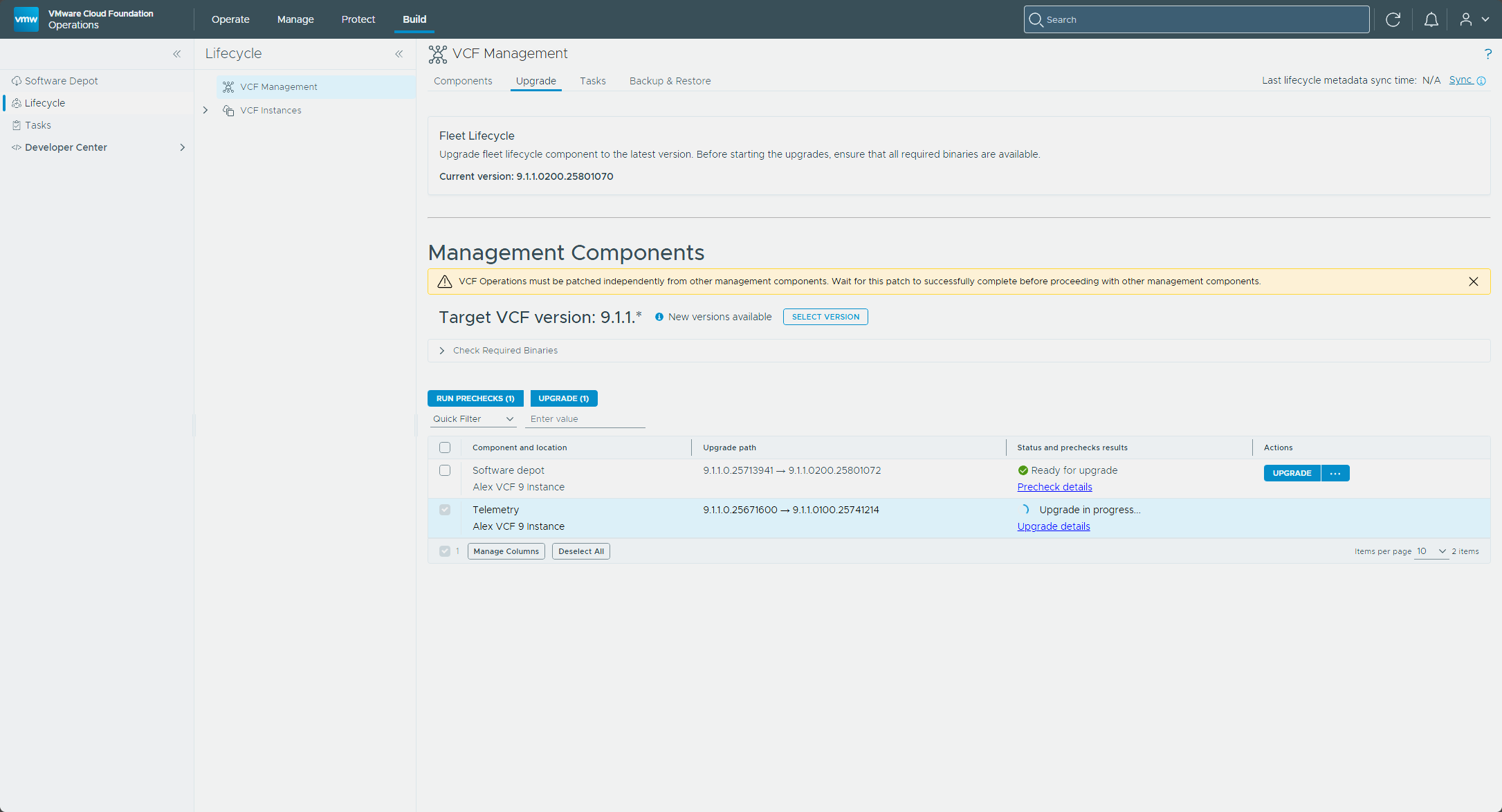
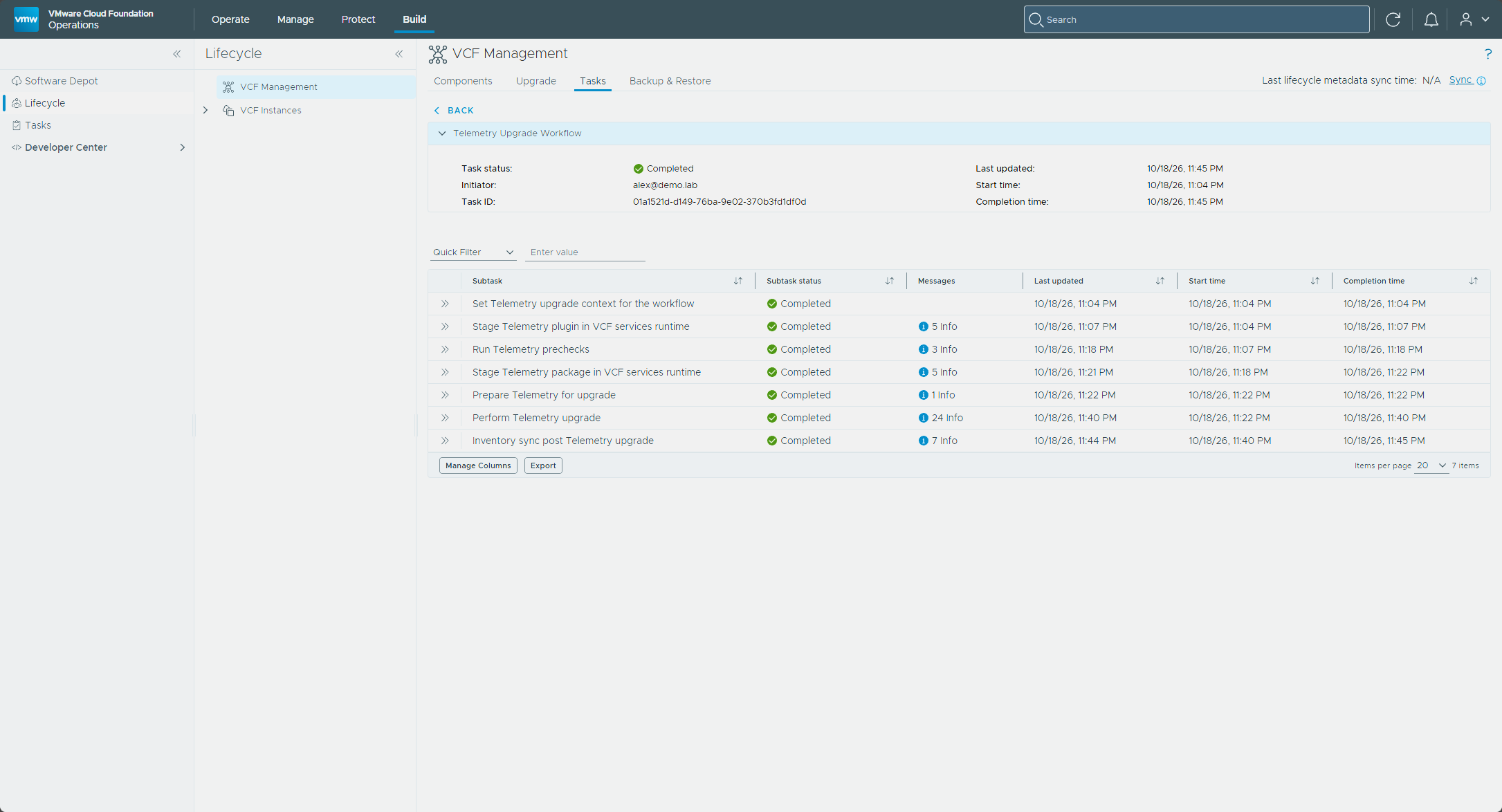
Telemetry was next, from 9.1.1.0.25671600 to 9.1.1.0100.25741214.
Software depot
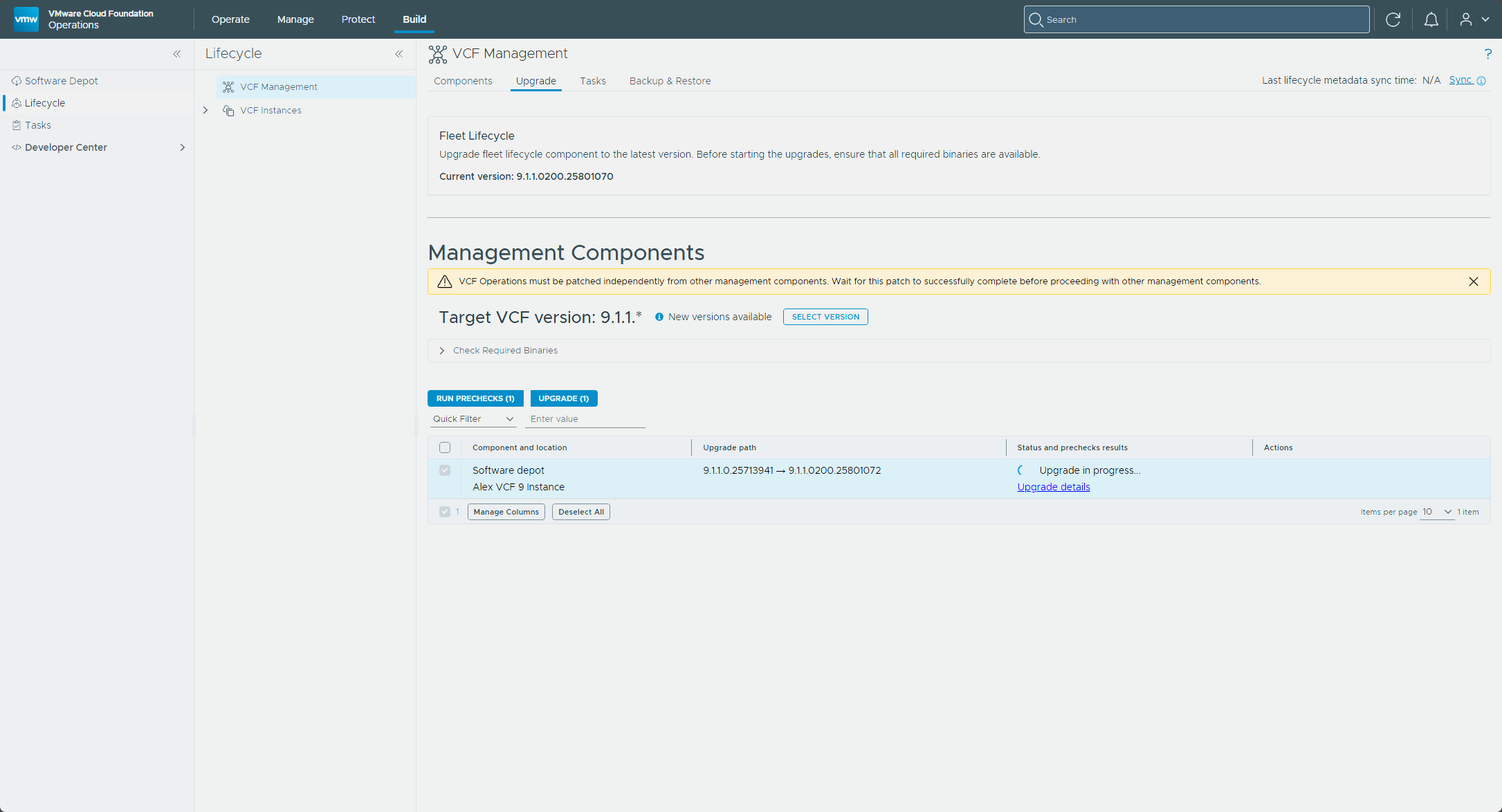
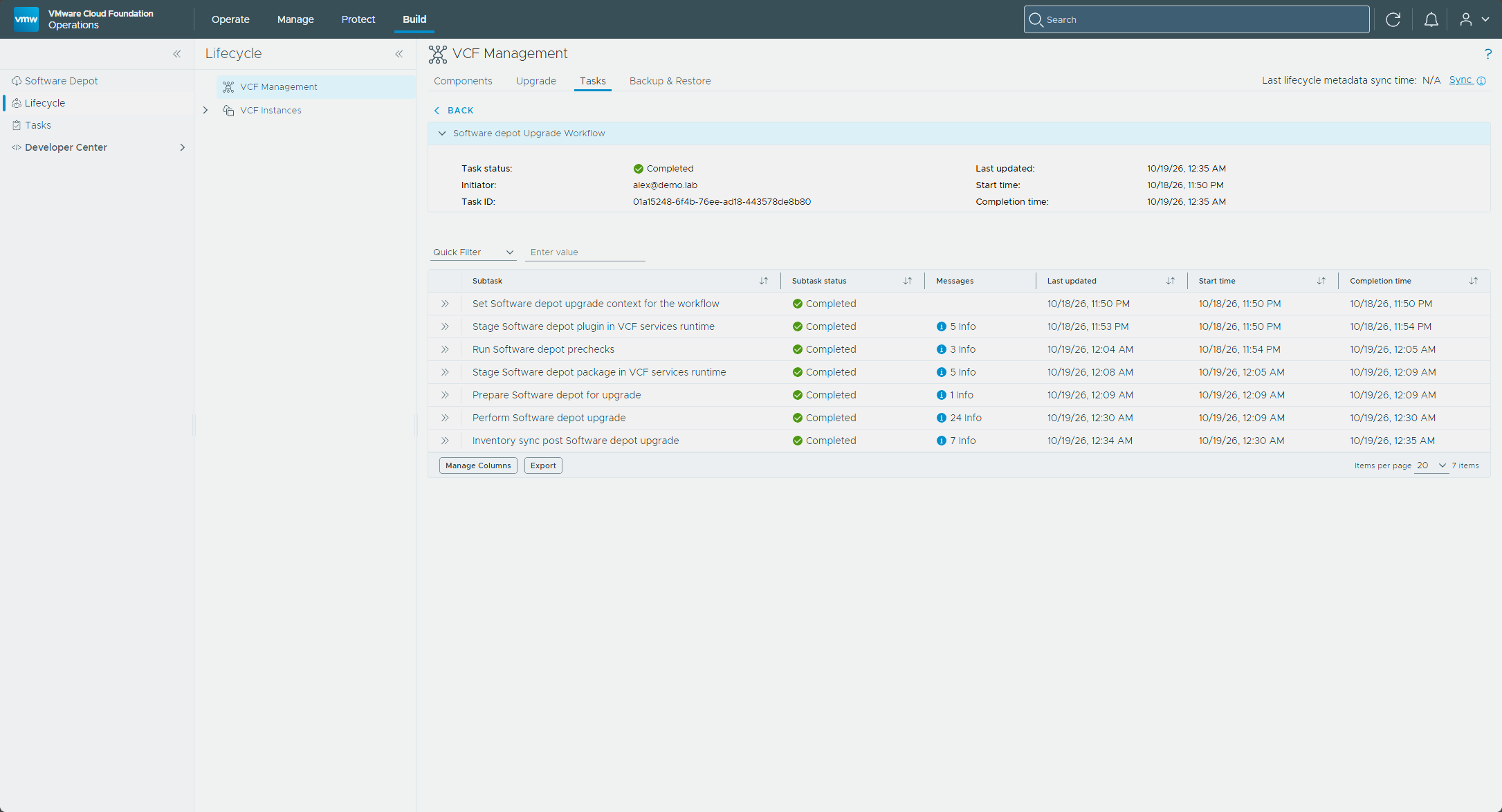
The Software depot went last, since a depot patch blocks patching anything else. It was the only component left on the Upgrade tab. I selected its row and clicked Upgrade, which moved it from 9.1.1.0.25713941 to 9.1.1.0200.25801072.
Verifying
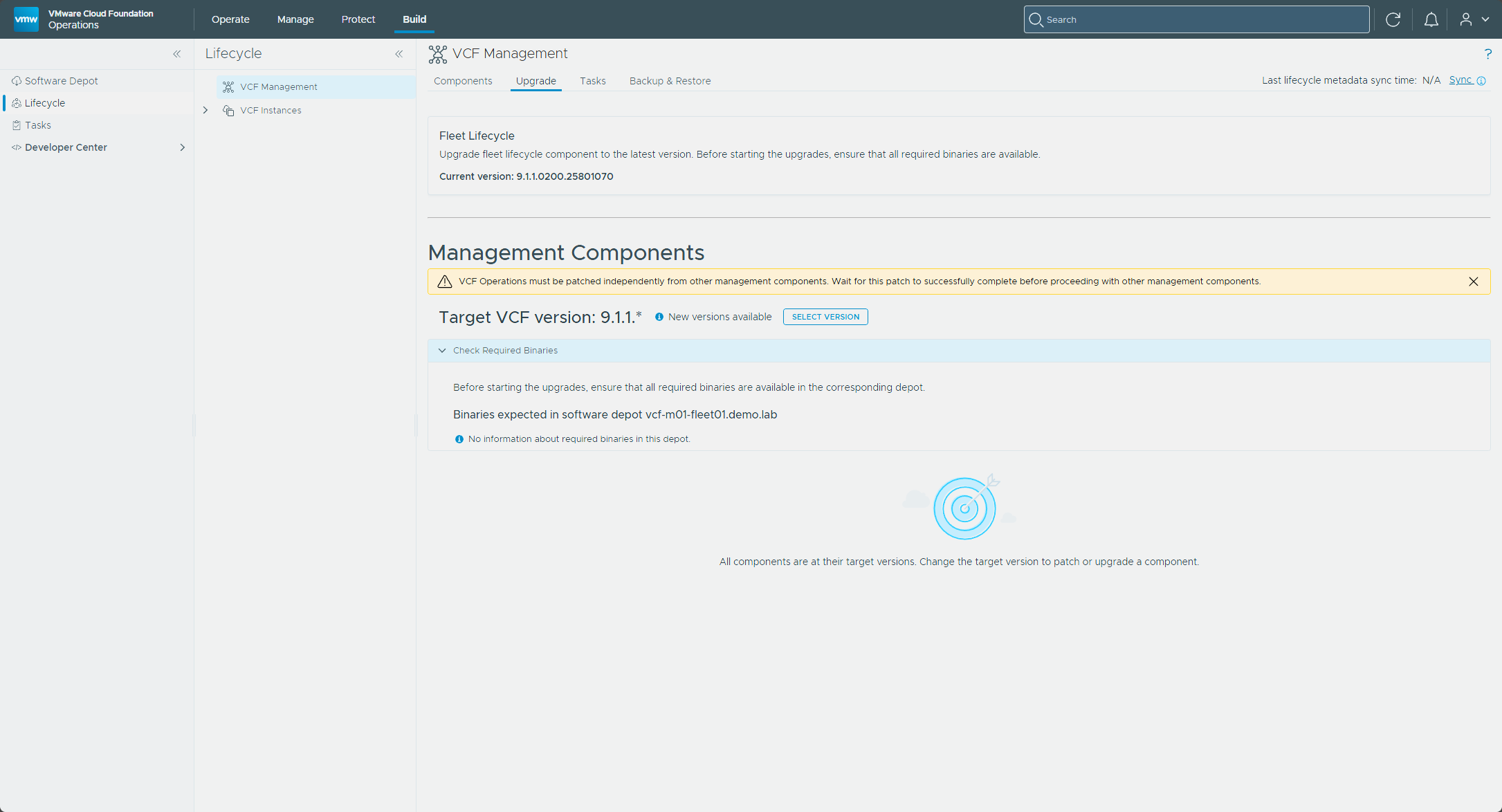
With the depot done, the Upgrade tab had nothing left to offer. It reads “All components are at their target versions.”
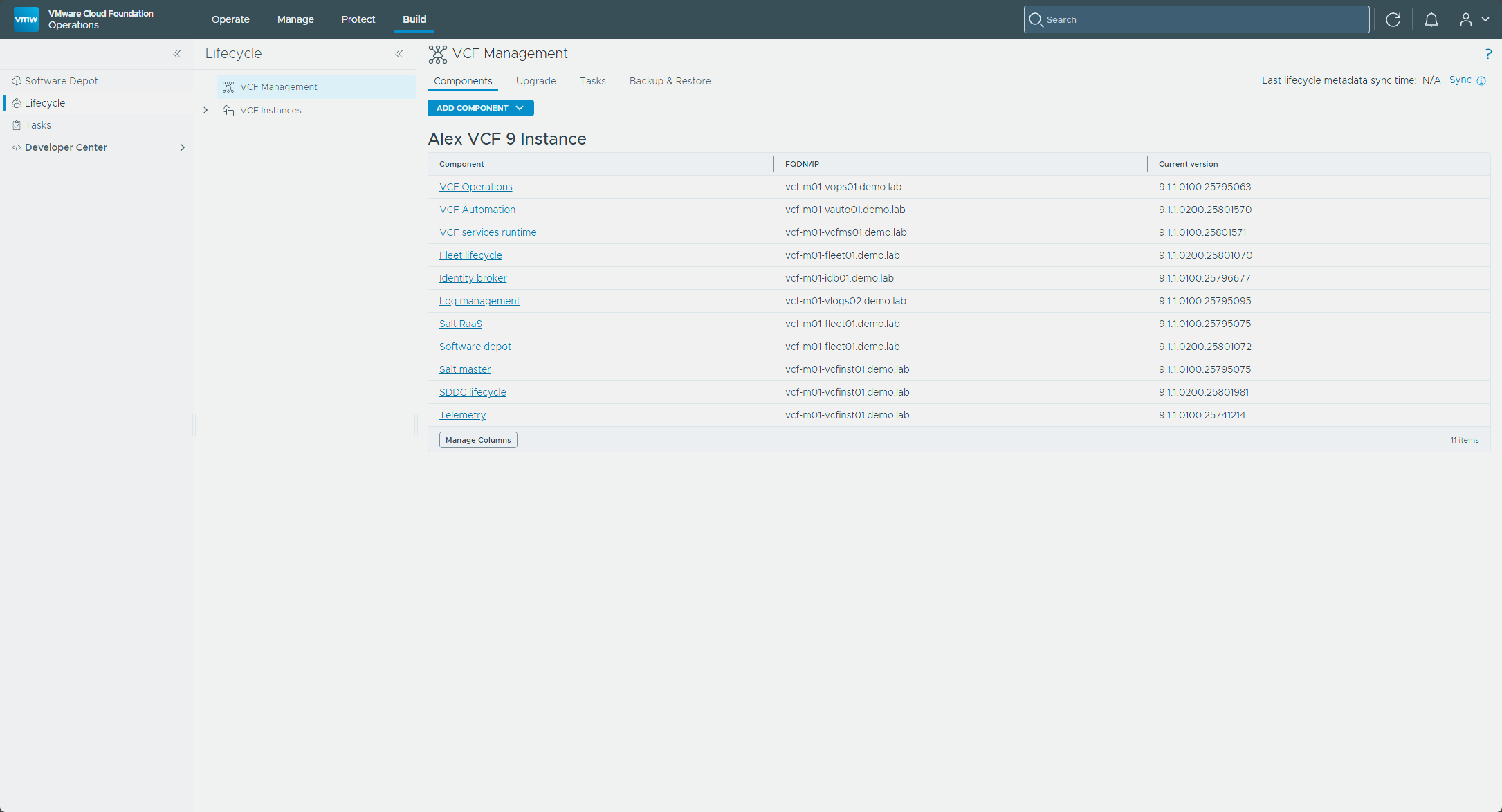
The Components tab lists all 11 management components on their patched versions.
What’s next
In Part 2, I patch NSX Manager, vCenter, and ESX in both the management and workload domains, and finish the NSX Edge and finalize step.
-virtualex-
Comments